

Published: Jan 22, 2026 by Isaac Johnson
I tried out Mitchel’s Ghostty last February and wasn’t impressed then, but at the time it was very new. I see more and more folks using it so I figured it might be a good time to revisit.
Additionally, I mentioned Alexandrie a few weeks back in a blog post. While one feature of it is being a Markdown editor, there looked to be a lot more going on and I wanted to really test it.
Ghostty
We can follow the instructions to install with a one line command
/bin/bash -c “$(curl -fsSL https://raw.githubusercontent.com/mkasberg/ghostty-ubuntu/HEAD/install.sh)”
I couldn’t get it to work as a non-root user, but as root it installed
builder@LuiGi:~/Workspaces$ /bin/bash -c "$(curl -fsSL https://raw.githubusercontent.com/mkasberg/ghostty-ubuntu/HEAD/install.sh)"

Installing/Updating Ghostty...
Downloading ghostty_1.2.3-0.ppa1_amd64_25.10.deb...
  % Total    % Received % Xferd  Average Speed   Time    Time     Time  Current
                                 Dload  Upload   Total   Spent    Left  Speed
  0     0    0     0    0     0      0      0 --:--:-- --:--:-- --:--:--     0
100 15.8M  100 15.8M    0     0  2826k      0  0:00:05  0:00:05 --:--:-- 3399k
Installing ghostty_1.2.3-0.ppa1_amd64_25.10.deb...
[sudo: authenticate] Password:
Reading package lists... Done
Building dependency tree... Done
Reading state information... Done
Note, selecting 'ghostty' instead of './ghostty_1.2.3-0.ppa1_amd64_25.10.deb'
Solving dependencies... Done
The following additional packages will be installed:
  libgtk4-layer-shell0
The following NEW packages will be installed:
  ghostty libgtk4-layer-shell0
0 upgraded, 2 newly installed, 0 to remove and 18 not upgraded.
Need to get 17.4 kB/16.6 MB of archives.
After this operation, 66.6 kB of additional disk space will be used.
Get:1 /home/builder/Workspaces/ghostty_1.2.3-0.ppa1_amd64_25.10.deb ghostty amd64 1.2.3-0~ppa1 [16.6 MB]
Get:2 http://us.archive.ubuntu.com/ubuntu questing/universe amd64 libgtk4-layer-shell0 amd64 1.0.4-2 [17.4 kB]
Fetched 17.4 kB in 0s (45.6 kB/s)
Selecting previously unselected package libgtk4-layer-shell0:amd64.
(Reading database ... 341368 files and directories currently installed.)
Preparing to unpack .../libgtk4-layer-shell0_1.0.4-2_amd64.deb ...
Unpacking libgtk4-layer-shell0:amd64 (1.0.4-2) ...
Selecting previously unselected package ghostty.
Preparing to unpack .../ghostty_1.2.3-0.ppa1_amd64_25.10.deb ...
Adding 'diversion of /usr/share/terminfo/g/ghostty to /usr/share/terminfo/g/ghostty.distrib by ghostty'
Unpacking ghostty (1.2.3-0~ppa1) ...
Setting up libgtk4-layer-shell0:amd64 (1.0.4-2) ...
Setting up ghostty (1.2.3-0~ppa1) ...
update-alternatives: using /usr/bin/ghostty to provide /usr/bin/x-terminal-emulator (x-terminal-emulator) in auto mode
Processing triggers for desktop-file-utils (0.28-1) ...
Processing triggers for hicolor-icon-theme (0.18-2) ...
Processing triggers for gnome-menus (3.36.0-3ubuntu2) ...
Processing triggers for libc-bin (2.42-0ubuntu3) ...
Processing triggers for man-db (2.13.1-1) ...
N: Download is performed unsandboxed as root as file '/home/builder/Workspaces/ghostty_1.2.3-0.ppa1_amd64_25.10.deb' couldn't be accessed by user '_apt'. - pkgAcquire::Run (13: Permission denied)
builder@LuiGi:~/Workspaces$ sudo su -
root@LuiGi:~# /bin/bash -c "$(curl -fsSL https://raw.githubusercontent.com/mkasberg/ghostty-ubuntu/HEAD/install.sh)"

Installing/Updating Ghostty...
Downloading ghostty_1.2.3-0.ppa1_amd64_25.10.deb...
  % Total    % Received % Xferd  Average Speed   Time    Time     Time  Current
                                 Dload  Upload   Total   Spent    Left  Speed
  0     0    0     0    0     0      0      0 --:--:-- --:--:-- --:--:--     0
100 15.8M  100 15.8M    0     0  2645k      0  0:00:06  0:00:06 --:--:-- 2965k
Installing ghostty_1.2.3-0.ppa1_amd64_25.10.deb...
Reading package lists... Done
Building dependency tree... Done
Reading state information... Done
Note, selecting 'ghostty' instead of './ghostty_1.2.3-0.ppa1_amd64_25.10.deb'
ghostty is already the newest version (1.2.3-0~ppa1).
Solving dependencies... Done
0 upgraded, 0 newly installed, 0 to remove and 18 not upgraded.
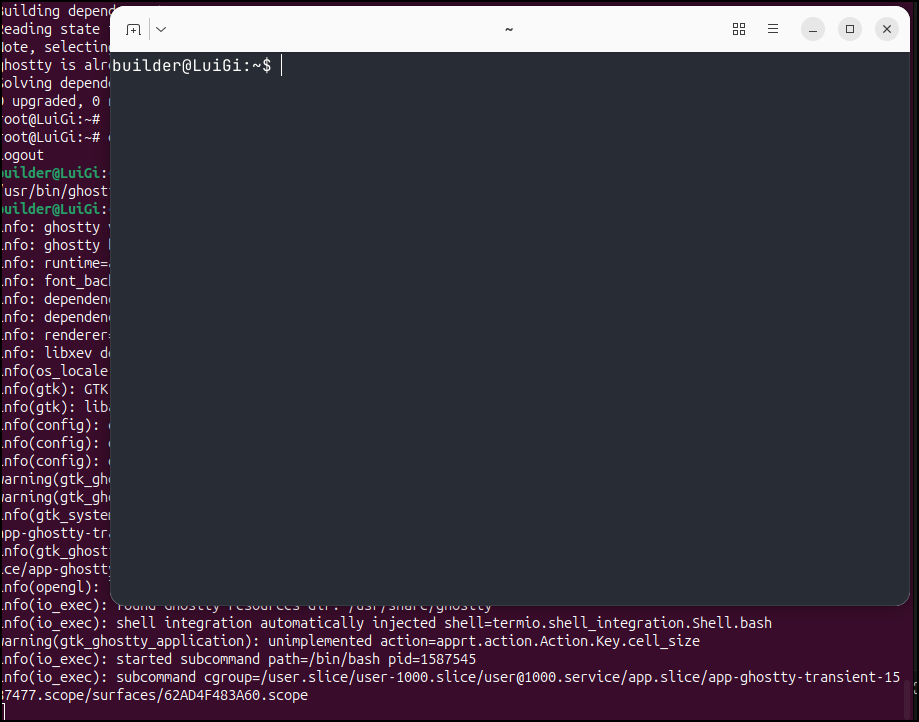
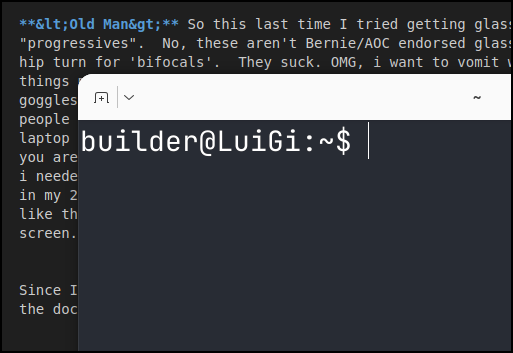
Launching with ghostty we see a nice font improvement over the standard Ubuntu terminal
<Old Man> So this last time I tried getting glasses they offered me “progressives”. No, these aren’t Bernie/AOC endorsed glasses, they are the hip term for ‘bifocals’. They suck. OMG, i want to vomit wearing them. the things move in different speeds at the bottom half giving you a “drunk goggles” view. So i refuse to wear them. So now I wear cheaters (what old people call reading glasses) when in bed and otherwise i just hold the phone/laptop out. You don’t really lose your near sight focus till your 40s so if you are younger, enjoy that sh** while you have it. I wish I would have known I needed to periodically use my close up vision or i would lose it when i was in my 20s and 30s. In any case, yes, old man keeps yammering.. in any case, I like this font way better for when I’m using the higher resolution 4k laptop screen… </Old Man>
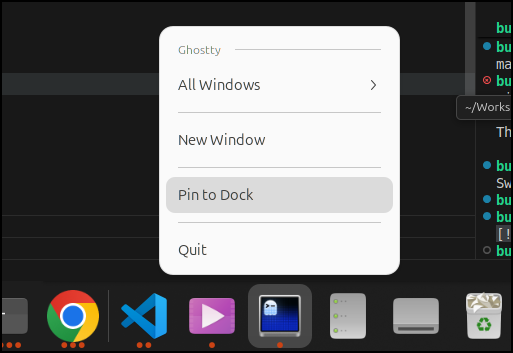
Since I want to try it a bit now that my main driver is Linux, I pinned it to the dock
I can use ctrl + for increasing font size and ctrl - for lowering, which seems familiar
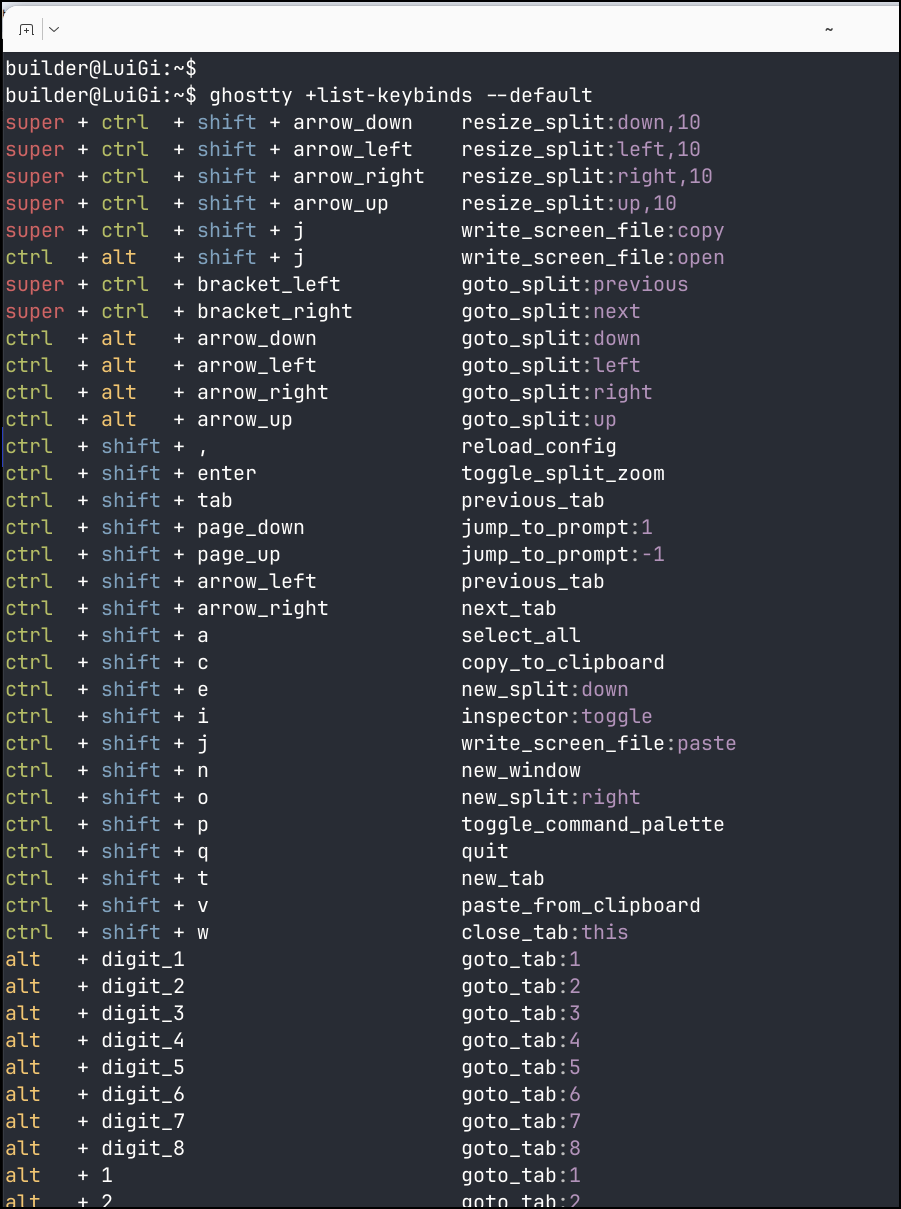
We can use the command ghostty +list-keybinds --default to see key bindings that are set by default (all of them can be changed as well)
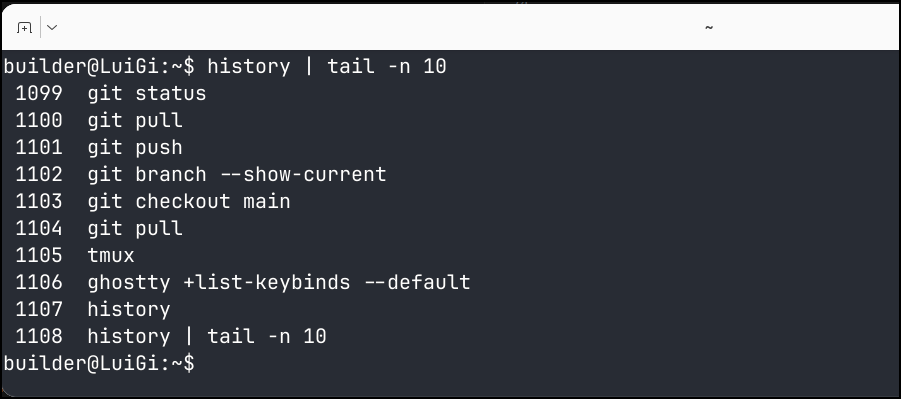
Because Ghostty is a terminal, not a shell, it used BASH and showed me my history which was nice. My biggest gripe with MacOS and WSL nowadays is it keeps switching to zsh and I have to change it back
The super (windows key) + ctrl + bracket for moving to preview and next tabs are fine, but the default of ctrl + alt + arrow keys to move around split panes comes into conflict with Gnome in Ubuntu which uses ctrl + alt + arrow right/left for switching workspace windows.
Having the split windows means I don’t need tmux to accomplish having several panes going in the same window. For instance, I can have watch free -m and top going to watch memory and cpu then run a command in the third pane
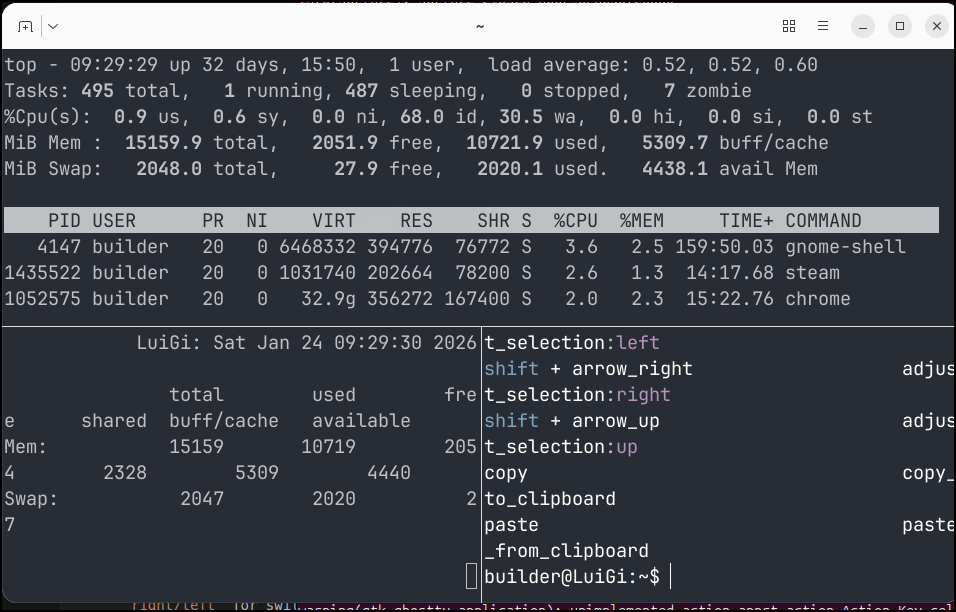
While the close commands like close window tend to just end the whole Ghostty session, you can easily close terminal panes by just using exit to end that SSH session and the pane goes away
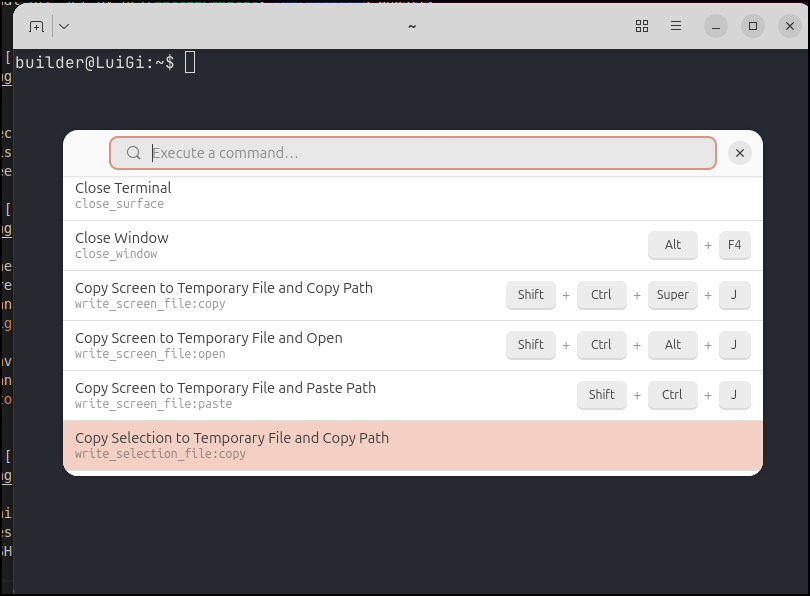
In the actual menu navigation of Ghostty, we can review, run and search for commands so those that like to use their mouse/trackpad can always go that way
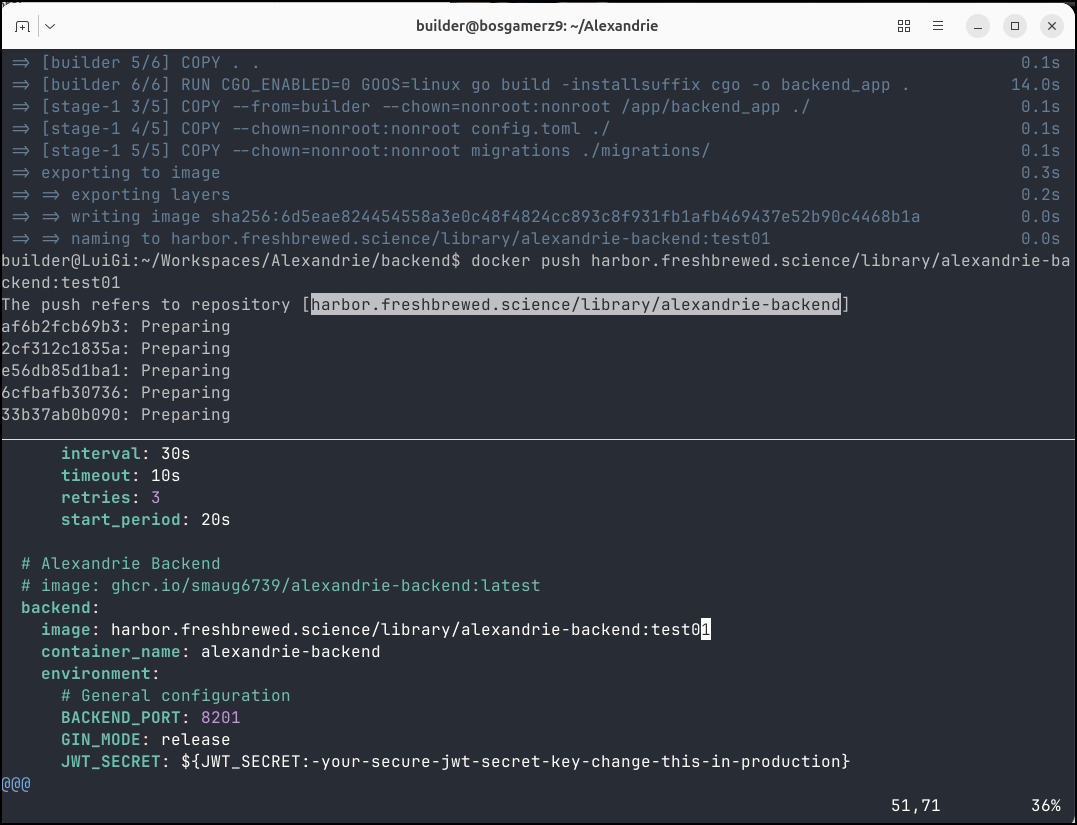
Next, we’ll look again at Alexandrie, but I did want to point out that I used the split view in Ghostty to make it easier to update docker compose with images I had just built and pushed
Alexandrie
When I did that previous blog post on Alexandrie, I just tried it with localhost and docker.
Let’s do TLS and try a proper ingressed version.
I’ll first bring Alexandrie to an alternate docker host
builder@bosgamerz9:~$ git clone https://github.com/Smaug6739/Alexandrie.git
Cloning into 'Alexandrie'...
remote: Enumerating objects: 21479, done.
remote: Counting objects: 100% (557/557), done.
remote: Compressing objects: 100% (216/216), done.
remote: Total 21479 (delta 477), reused 351 (delta 341), pack-reused 20922 (from 4)
Receiving objects: 100% (21479/21479), 67.63 MiB | 30.23 MiB/s, done.
Resolving deltas: 100% (14411/14411), done.
builder@bosgamerz9:~$ cd Alexandrie/
builder@bosgamerz9:~/Alexandrie$ cp .env.example .env
builder@bosgamerz9:~/Alexandrie$
I’m going to need at least three A names to work with my Nginx ingress as I cannot really do port routing with my setup (with TLS that is). I could do HTTP with NodePorts and forwarding and take DNS out of the picture, but then I would need to solve certificates manually.
builder@LuiGi:~/Workspaces$ az account set --subscription "Pay-As-You-Go" && az network dns record-set a add-record -g idjdnsrg -z tpk.pw -a 174.53.161.33 -n  alex
{
  "ARecords": [
    {
      "ipv4Address": "174.53.161.33"
    }
  ],
  "TTL": 3600,
  "etag": "6b6b33fa-a53d-4544-bfa5-9eef20a1778d",
  "fqdn": "alex.tpk.pw.",
  "id": "/subscriptions/d955c0ba-13dc-44cf-a29a-8fed74cbb22d/resourceGroups/idjdnsrg/providers/Microsoft.Network/dnszones/tpk.pw/A/alex",
  "name": "alex",
  "provisioningState": "Succeeded",
  "resourceGroup": "idjdnsrg",
  "targetResource": {},
  "trafficManagementProfile": {},
  "type": "Microsoft.Network/dnszones/A"
}
builder@LuiGi:~/Workspaces$ az account set --subscription "Pay-As-You-Go" && az network dns record-set a add-record -g idjdnsrg -z tpk.pw -a 174.53.161.33 -n  alex-cdn
{
  "ARecords": [
    {
      "ipv4Address": "174.53.161.33"
    }
  ],
  "TTL": 3600,
  "etag": "14e30bc3-eff6-4bdd-96a2-e4aee1702d8b",
  "fqdn": "alex-cdn.tpk.pw.",
  "id": "/subscriptions/d955c0ba-13dc-44cf-a29a-8fed74cbb22d/resourceGroups/idjdnsrg/providers/Microsoft.Network/dnszones/tpk.pw/A/alex-cdn",
  "name": "alex-cdn",
  "provisioningState": "Succeeded",
  "resourceGroup": "idjdnsrg",
  "targetResource": {},
  "trafficManagementProfile": {},
  "type": "Microsoft.Network/dnszones/A"
}
builder@LuiGi:~/Workspaces$ az account set --subscription "Pay-As-You-Go" && az network dns record-set a add-record -g idjdnsrg -z tpk.pw -a 174.53.161.33 -n  alex-api
{
  "ARecords": [
    {
      "ipv4Address": "174.53.161.33"
    }
  ],
  "TTL": 3600,
  "etag": "99b46428-6826-4192-968c-fda15e3ae8f7",
  "fqdn": "alex-api.tpk.pw.",
  "id": "/subscriptions/d955c0ba-13dc-44cf-a29a-8fed74cbb22d/resourceGroups/idjdnsrg/providers/Microsoft.Network/dnszones/tpk.pw/A/alex-api",
  "name": "alex-api",
  "provisioningState": "Succeeded",
  "resourceGroup": "idjdnsrg",
  "targetResource": {},
  "trafficManagementProfile": {},
  "type": "Microsoft.Network/dnszones/A"
}
With these three DNS entries, I can then create a functional manifest to use them:
spoiler alert: for those following along, I’ll later realize i missed the proxy body size for CDN uploads and that the right port for CDN is 9005 not 9000
---
apiVersion: v1
kind: Endpoints
metadata:
  name: alex-external-ip
subsets:
- addresses:
  - ip: 192.168.1.142
  ports:
  - name: alexint
    port: 8200
    protocol: TCP
---
apiVersion: v1
kind: Endpoints
metadata:
  name: alex-api-external-ip
subsets:
- addresses:
  - ip: 192.168.1.142
  ports:
  - name: alex-apiint
    port: 8201
    protocol: TCP
---
apiVersion: v1
kind: Endpoints
metadata:
  name: alex-cdn-external-ip
subsets:
- addresses:
  - ip: 192.168.1.142
  ports:
  - name: alex-cdnint
    port: 9000
    protocol: TCP
---
apiVersion: v1
kind: Service
metadata:
  name: alex-external-ip
spec:
  clusterIP: None
  clusterIPs:
  - None
  internalTrafficPolicy: Cluster
  ipFamilies:
  - IPv4
  - IPv6
  ipFamilyPolicy: RequireDualStack
  ports:
  - name: alex
    port: 80
    protocol: TCP
    targetPort: 8200
  sessionAffinity: None
  type: ClusterIP
---
apiVersion: v1
kind: Service
metadata:
  name: alex-api-external-ip
spec:
  clusterIP: None
  clusterIPs:
  - None
  internalTrafficPolicy: Cluster
  ipFamilies:
  - IPv4
  - IPv6
  ipFamilyPolicy: RequireDualStack
  ports:
  - name: alex-api
    port: 80
    protocol: TCP
    targetPort: 8201
  sessionAffinity: None
  type: ClusterIP
---
apiVersion: v1
kind: Service
metadata:
  name: alex-cdn-external-ip
spec:
  clusterIP: None
  clusterIPs:
  - None
  internalTrafficPolicy: Cluster
  ipFamilies:
  - IPv4
  - IPv6
  ipFamilyPolicy: RequireDualStack
  ports:
  - name: alex-cdn
    port: 80
    protocol: TCP
    targetPort: 9000
  sessionAffinity: None
  type: ClusterIP
---
apiVersion: networking.k8s.io/v1
kind: Ingress
metadata:
  annotations:
    cert-manager.io/cluster-issuer: azuredns-tpkpw
    ingress.kubernetes.io/ssl-redirect: "true"
    kubernetes.io/tls-acme: "true"
    nginx.ingress.kubernetes.io/proxy-read-timeout: "3600"
    nginx.ingress.kubernetes.io/proxy-send-timeout: "3600"
    nginx.org/websocket-services: alex-external-ip
  generation: 1
  name: alexingress
spec:
  ingressClassName: nginx
  rules:
  - host: alex.tpk.pw
    http:
      paths:
      - backend:
          service:
            name: alex-external-ip
            port:
              number: 80
        path: /
        pathType: ImplementationSpecific
  tls:
  - hosts:
    - alex.tpk.pw
    secretName: alex-tls
---
apiVersion: networking.k8s.io/v1
kind: Ingress
metadata:
  annotations:
    cert-manager.io/cluster-issuer: azuredns-tpkpw
    ingress.kubernetes.io/ssl-redirect: "true"
    kubernetes.io/tls-acme: "true"
    nginx.ingress.kubernetes.io/proxy-read-timeout: "3600"
    nginx.ingress.kubernetes.io/proxy-send-timeout: "3600"
    nginx.org/websocket-services: alex-api-external-ip
  generation: 1
  name: alex-apiingress
spec:
  ingressClassName: nginx
  rules:
  - host: alex-api.tpk.pw
    http:
      paths:
      - backend:
          service:
            name: alex-api-external-ip
            port:
              number: 80
        path: /
        pathType: ImplementationSpecific
  tls:
  - hosts:
    - alex-api.tpk.pw
    secretName: alex-api-tls
---
apiVersion: networking.k8s.io/v1
kind: Ingress
metadata:
  annotations:
    cert-manager.io/cluster-issuer: azuredns-tpkpw
    ingress.kubernetes.io/ssl-redirect: "true"
    kubernetes.io/tls-acme: "true"
    nginx.ingress.kubernetes.io/proxy-read-timeout: "3600"
    nginx.ingress.kubernetes.io/proxy-send-timeout: "3600"
    nginx.org/websocket-services: alex-cdn-external-ip
  generation: 1
  name: alex-cdningress
spec:
  ingressClassName: nginx
  rules:
  - host: alex-cdn.tpk.pw
    http:
      paths:
      - backend:
          service:
            name: alex-cdn-external-ip
            port:
              number: 80
        path: /
        pathType: ImplementationSpecific
  tls:
  - hosts:
    - alex-cdn.tpk.pw
    secretName: alex-cdn-tls
Then apply it
$ kubectl apply -f ./ingress-alex.yaml
endpoints/alex-external-ip created
endpoints/alex-api-external-ip created
endpoints/alex-cdn-external-ip created
service/alex-external-ip created
service/alex-api-external-ip created
service/alex-cdn-external-ip created
ingress.networking.k8s.io/alexingress created
ingress.networking.k8s.io/alex-apiingress created
ingress.networking.k8s.io/alex-cdningress created
In the .env file, I can now use those URLs
builder@bosgamerz9:~/Alexandrie$ cat .env | head -n21 | tail -n3
FRONTEND_URL=https://alex.tpk.pw
API_URL=https://alex-api.tpk.pw
CDN_URL=https://alex-cdn.tpk.pw
Then I can docker compose up to bring up the service
builder@bosgamerz9:~/Alexandrie$ docker compose up -d
[+] Running 45/45
✔ backend Pulled 14.3s
✔ fd4aa3667332 Pull complete 8.4s
✔ bfb59b82a9b6 Pull complete 8.6s
✔ 017886f7e176 Pull complete 10.7s
✔ 62de241dac5f Pull complete 10.7s
✔ 2780920e5dbf Pull complete 10.7s
✔ 7c12895b777b Pull complete 10.7s
✔ 3214acf345c0 Pull complete 10.7s
✔ 52630fc75a18 Pull complete 10.7s
✔ dd64bf2dd177 Pull complete 10.7s
✔ 4aa0ea1413d3 Pull complete 10.7s
✔ dcaa5a89b0cc Pull complete 10.8s
✔ 069d1e267530 Pull complete 10.8s
✔ 6191b4b5532e Pull complete 10.8s
✔ e92289148968 Pull complete 11.6s
✔ 7db81a621940 Pull complete 11.6s
✔ 8a3362ac00f3 Pull complete 11.6s
✔ mysql Pulled 13.7s
✔ 16506d4b4233 Pull complete 5.5s
✔ 3387bdf9bfcc Pull complete 5.5s
✔ 5a35458f48a1 Pull complete 5.5s
✔ 1bed572afc9f Pull complete 5.6s
✔ f3e7871685d1 Pull complete 5.6s
✔ 9e9c9ba70723 Pull complete 5.6s
✔ be113d11b355 Pull complete 6.1s
✔ 05bdba050124 Pull complete 6.1s
✔ 54a2bfb30cdf Pull complete 12.1s
✔ 05ed66656b21 Pull complete 12.1s
✔ 1c0ceff8a81b Pull complete 12.1s
✔ rustfs Pulled 16.3s
✔ 7d773df7a2be Pull complete 8.7s
✔ 39838f5db0cf Pull complete 9.0s
✔ 67b398cfa20b Pull complete 11.3s
✔ ffd60cccecd6 Pull complete 11.3s
✔ 4f4fb700ef54 Pull complete 11.4s
✔ 7746ba9768f2 Pull complete 11.4s
✔ frontend Pulled 11.2s
✔ 1074353eec0d Pull complete 5.2s
✔ d53378de7b14 Pull complete 8.2s
✔ 1e51518bad62 Pull complete 8.3s
✔ df42fde70614 Pull complete 8.3s
✔ 2fee64f62ee0 Pull complete 8.3s
✔ 4e30f5080197 Pull complete 8.7s
✔ a4ee522d4181 Pull complete 8.7s
✔ f806d52c7133 Pull complete 8.7s
[+] Running 8/8
✔ Network alexandrie_alexandrie-network Created 0.1s
✔ Volume "alexandrie_mysql_data" Created 0.0s
✔ Volume "alexandrie_rustfs_data" Created 0.0s
✔ Volume "alexandrie_rustfs_logs" Created 0.0s
✔ Container alexandrie-rustfs Healthy 5.8s
✔ Container alexandrie-mysql Healthy 10.8s
✔ Container alexandrie-backend Started 10.9s
✔ Container alexandrie-frontend Started
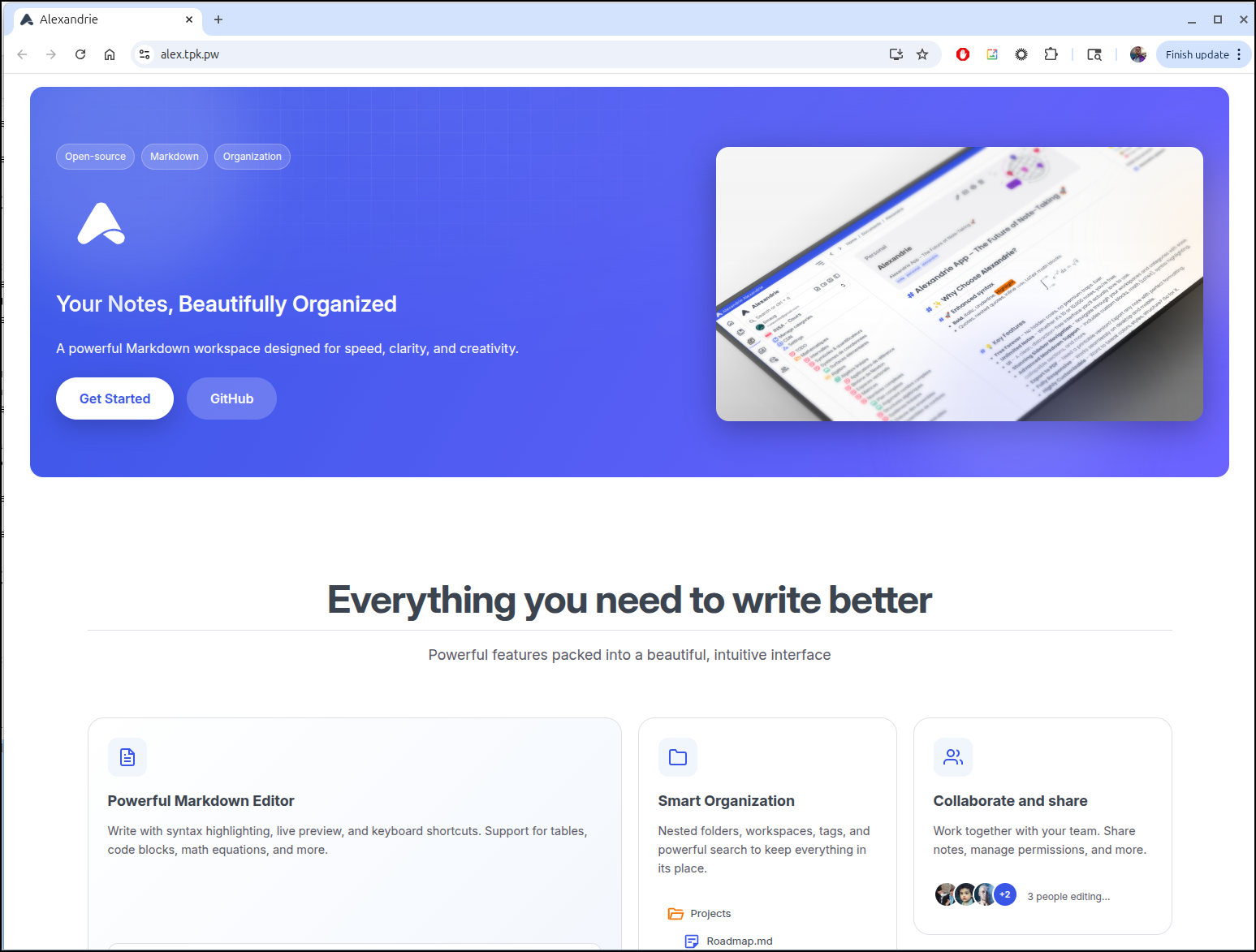
After the certs were clear, I could check the main site
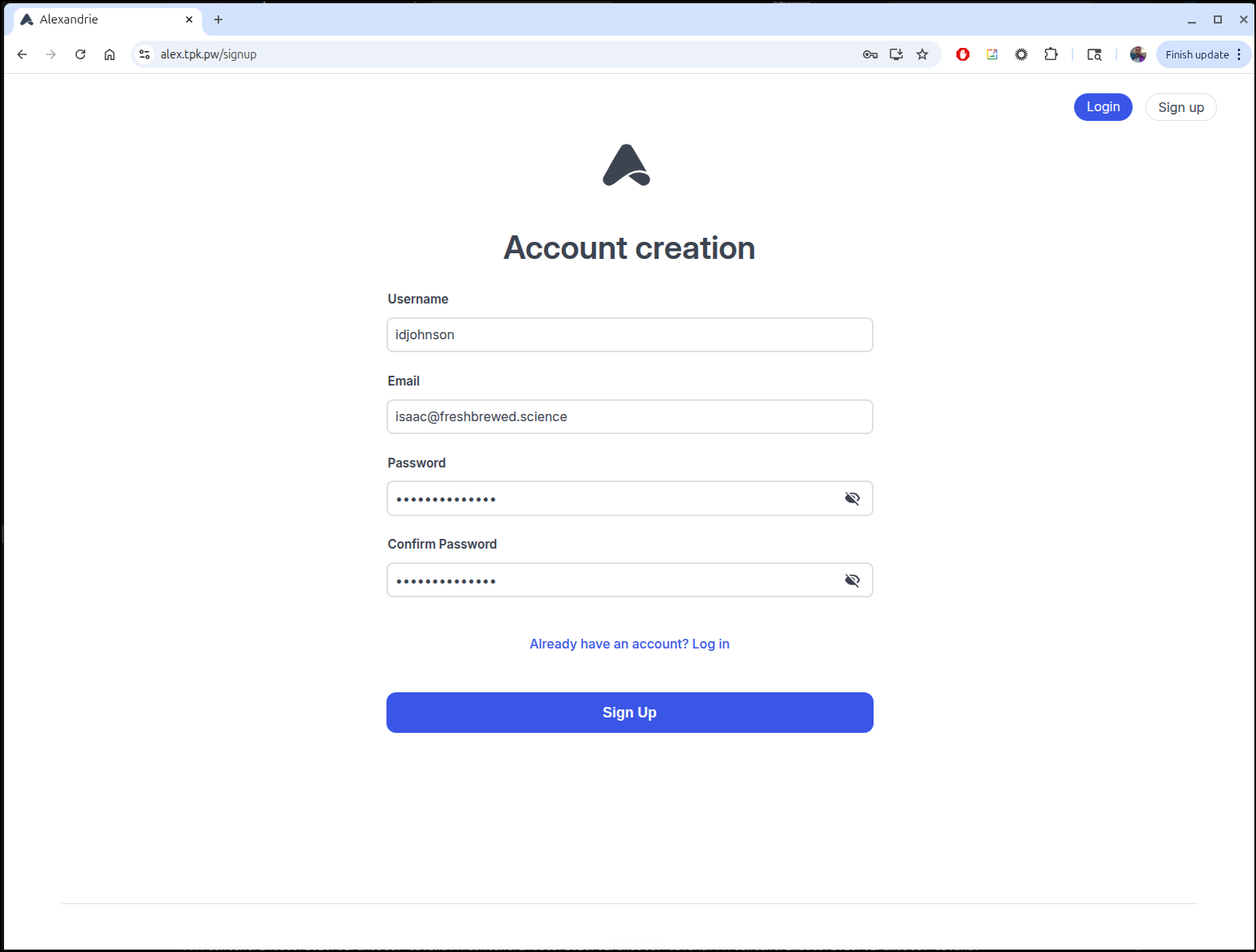
I can then create an account
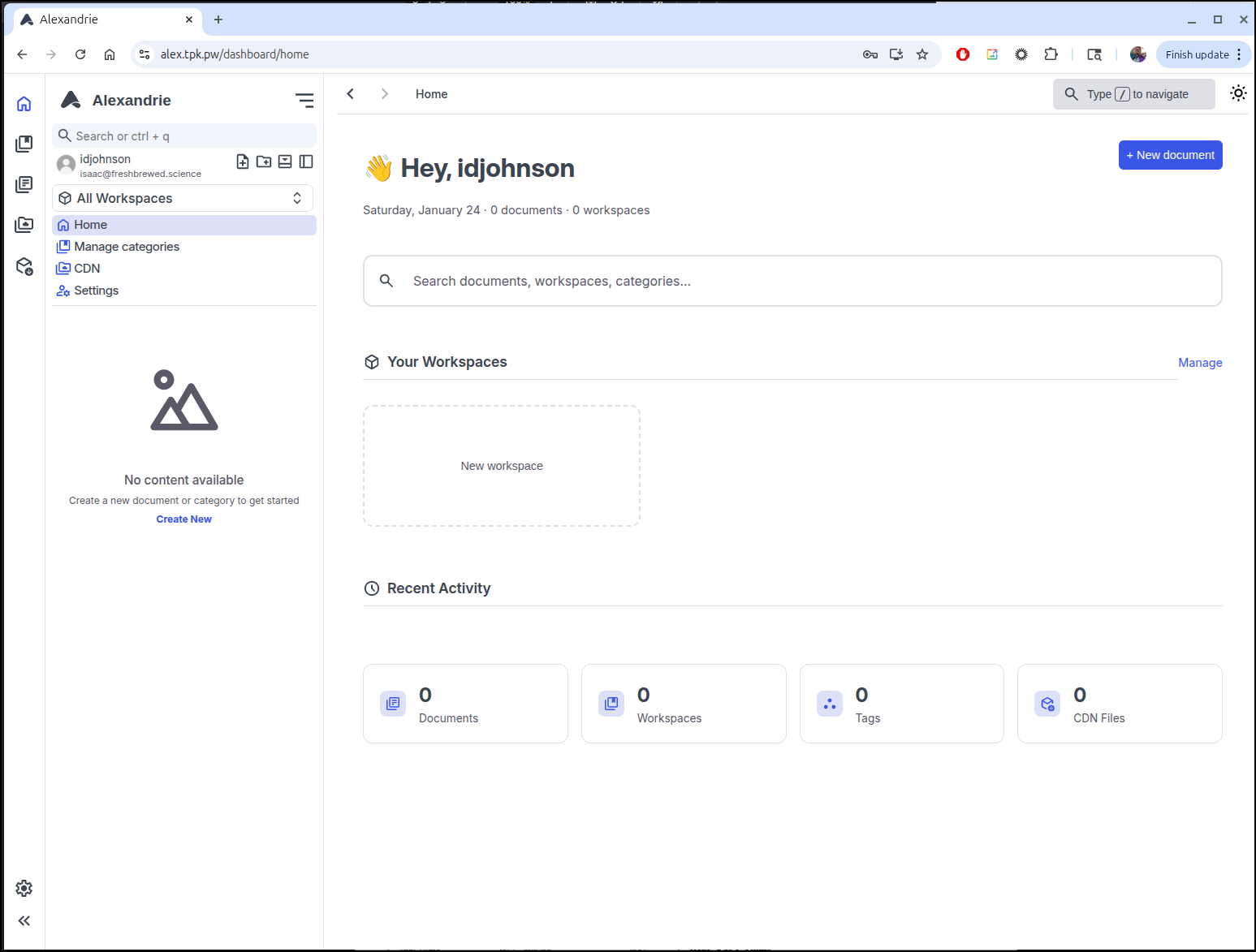
After account create, I was redirected to login. Once I login, I see the main dashboard
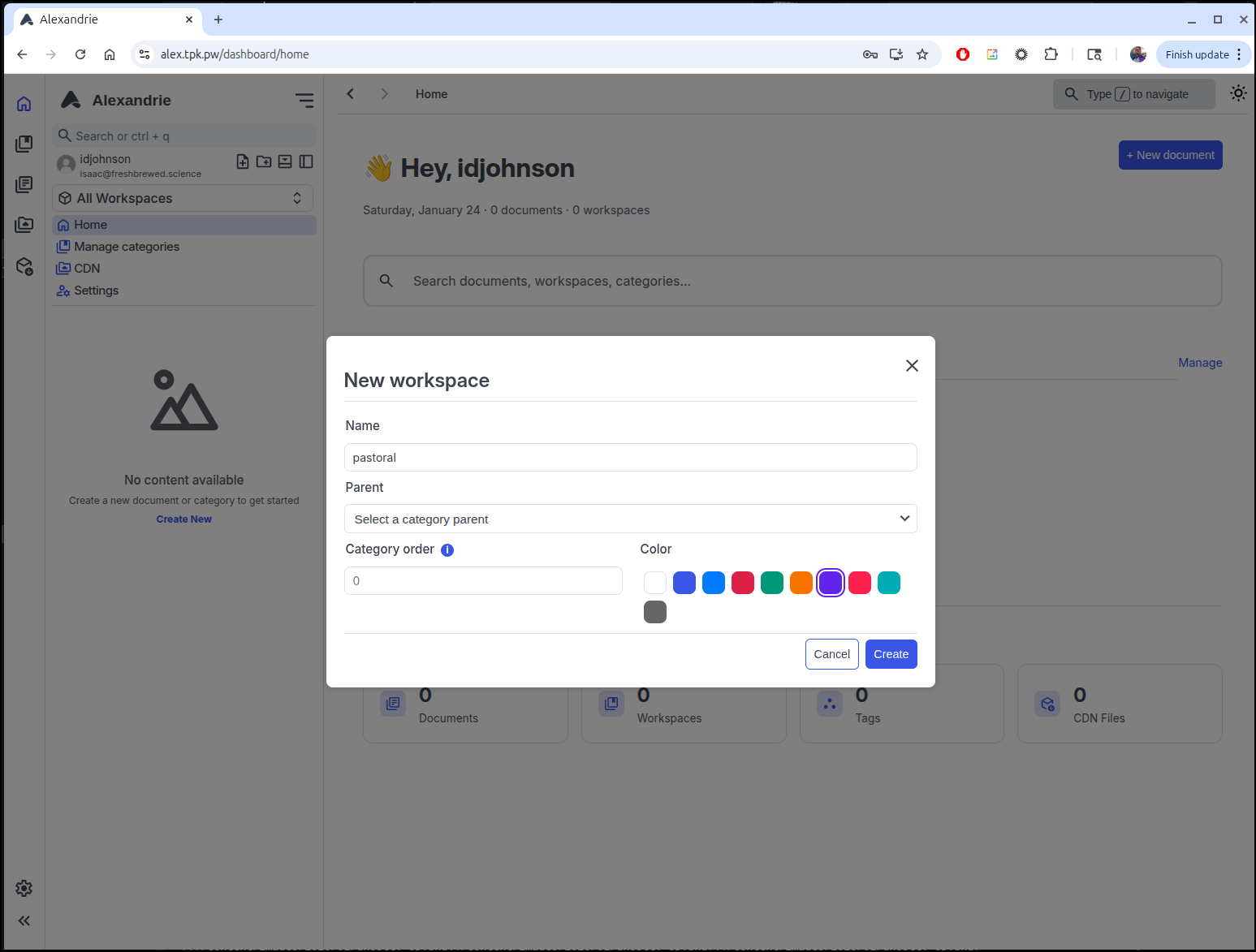
From there I can create a new workspace
I can then write a do a sample article, which by default is private. Flipping a toggle will make it public
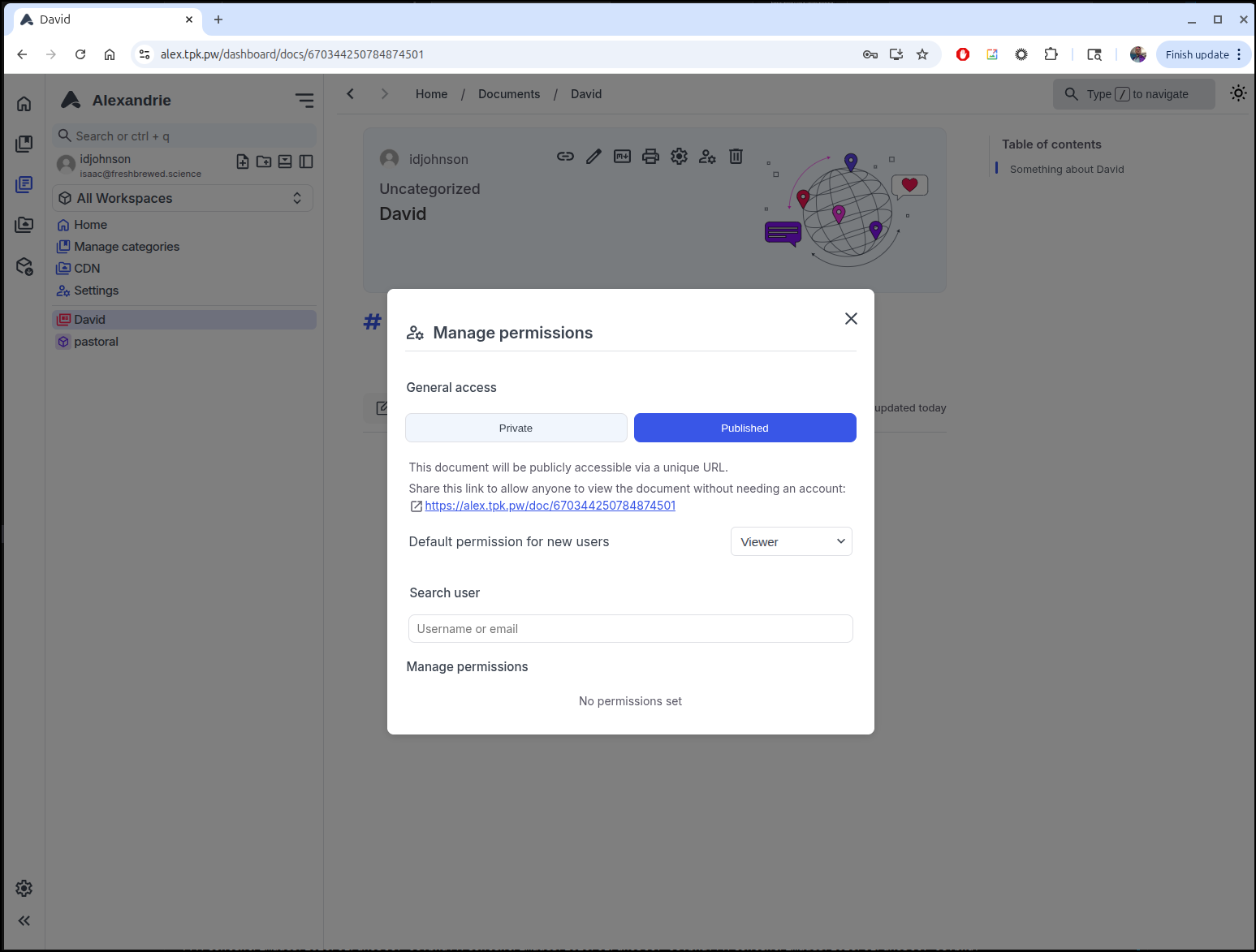
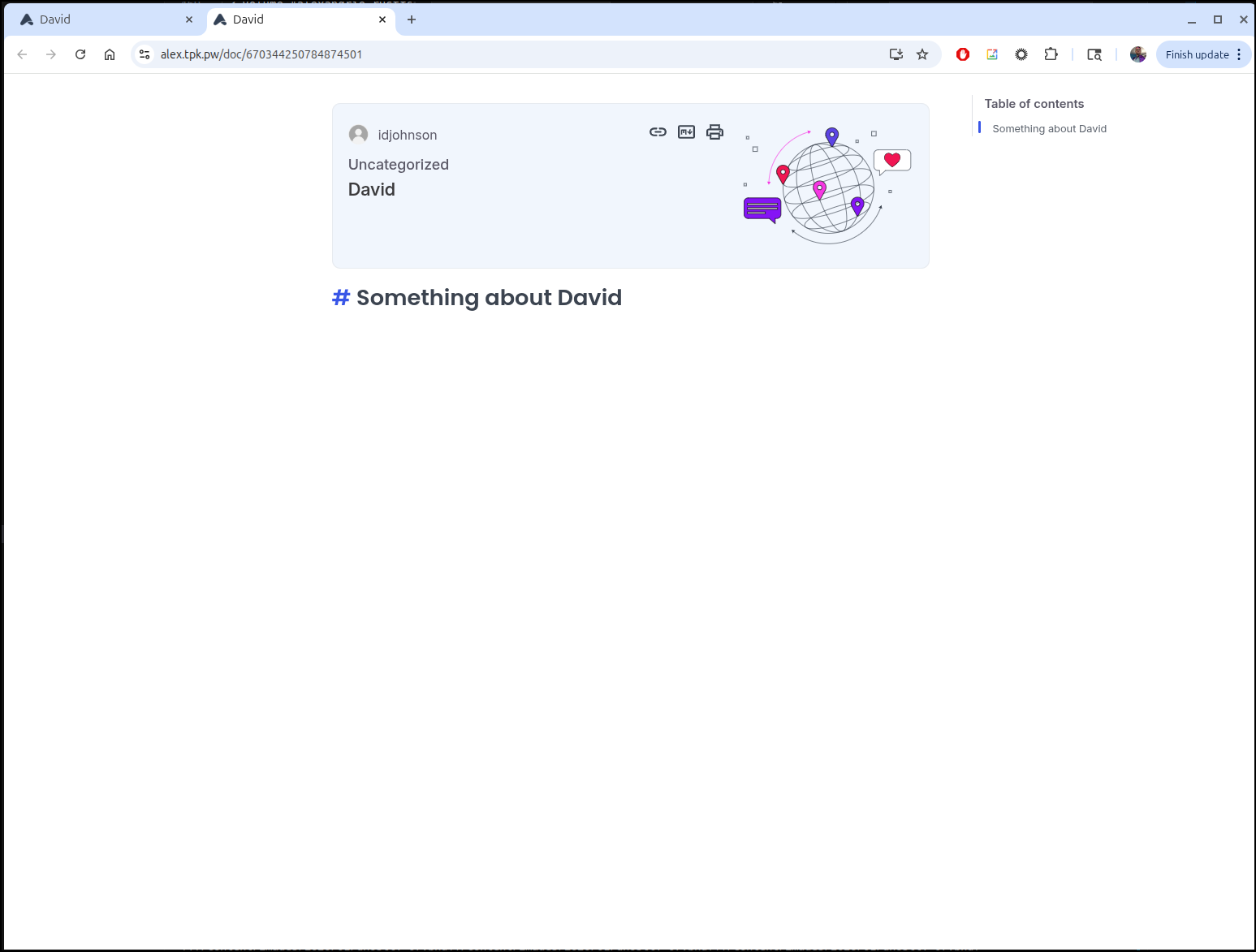
Okay, it worked, but that URL looks pretty garbage
I can set some fields
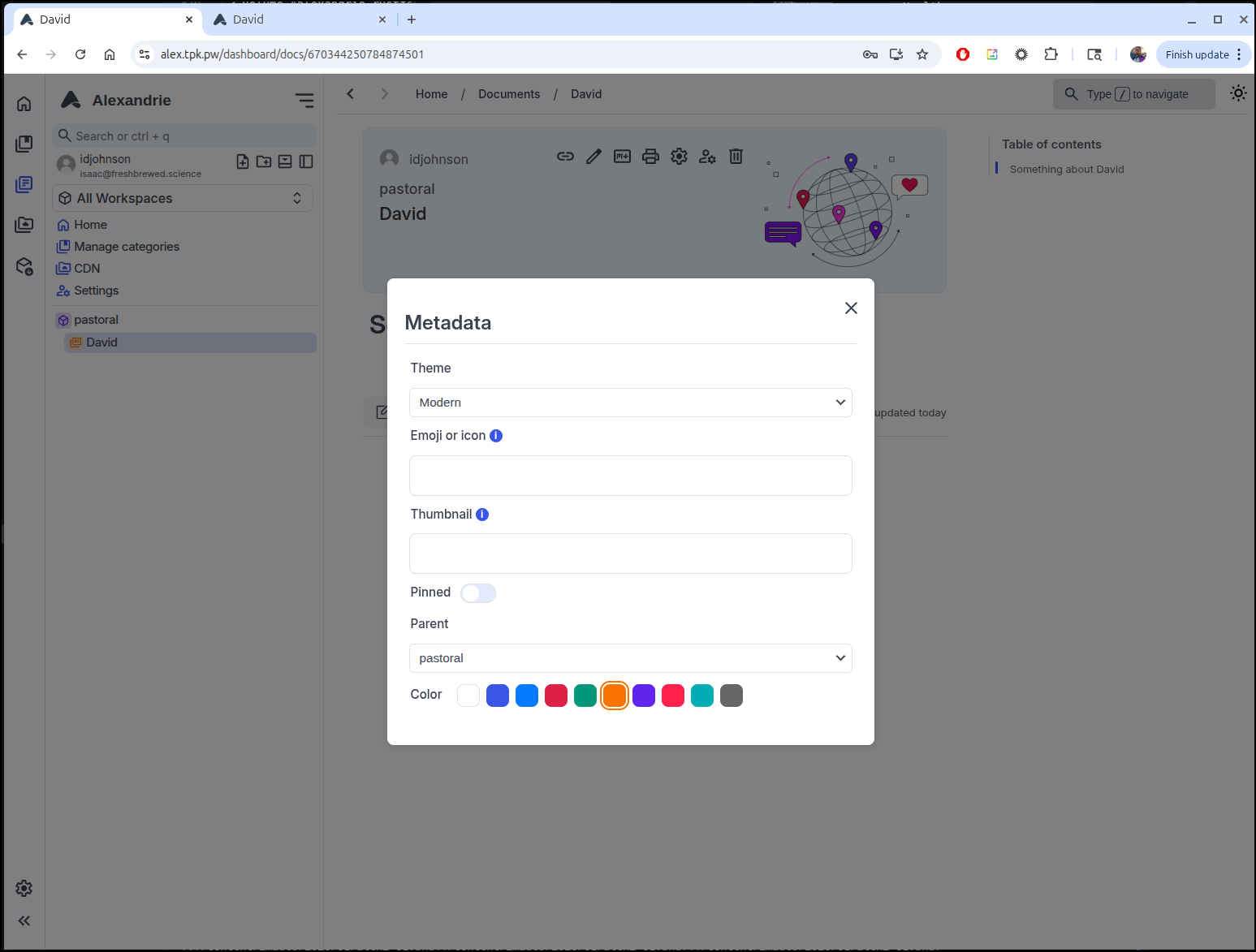
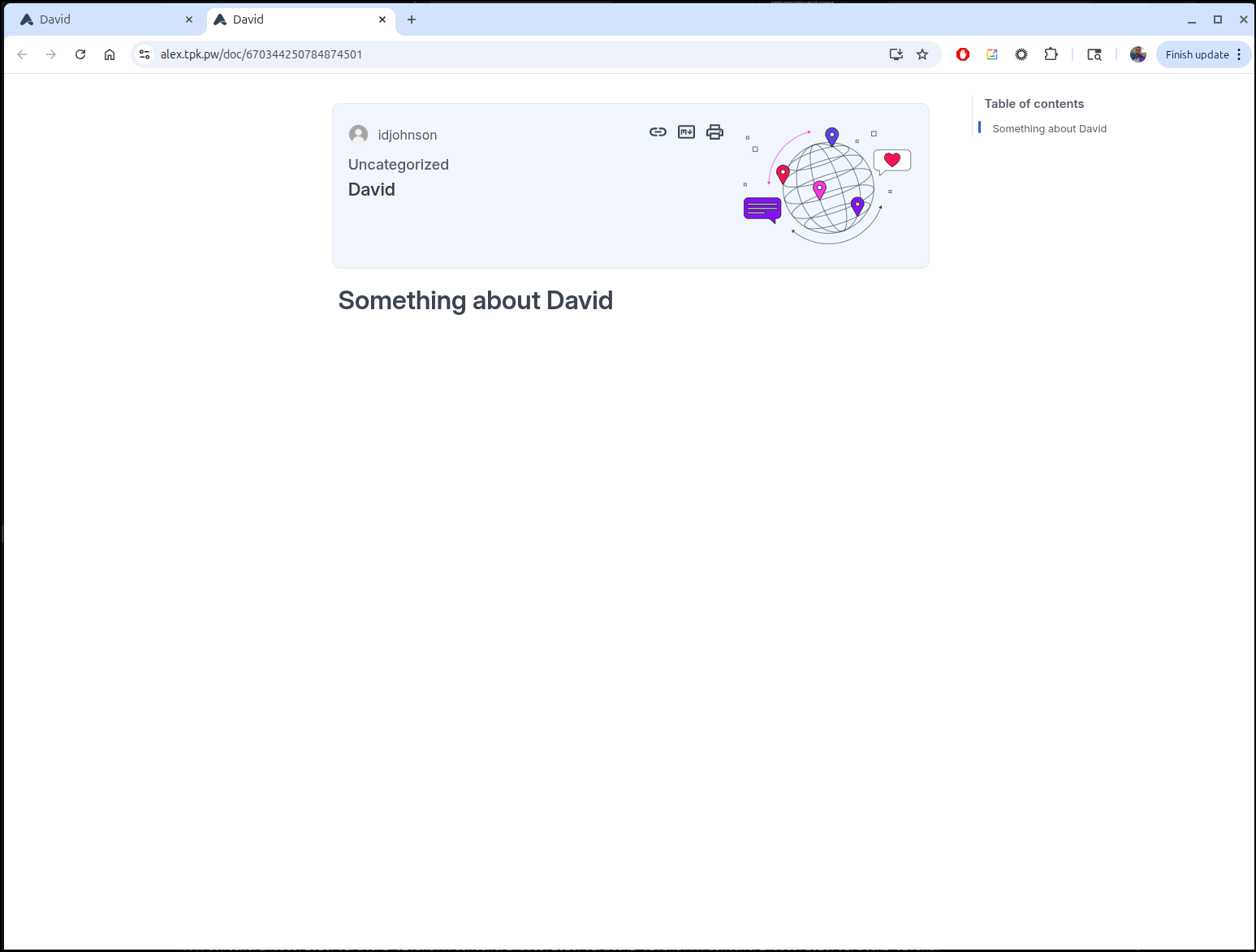
But they didn’t really affect the page other than to render the markdown properly
In the editor there are some nice WYSIWYG controls for doing things like creating tables
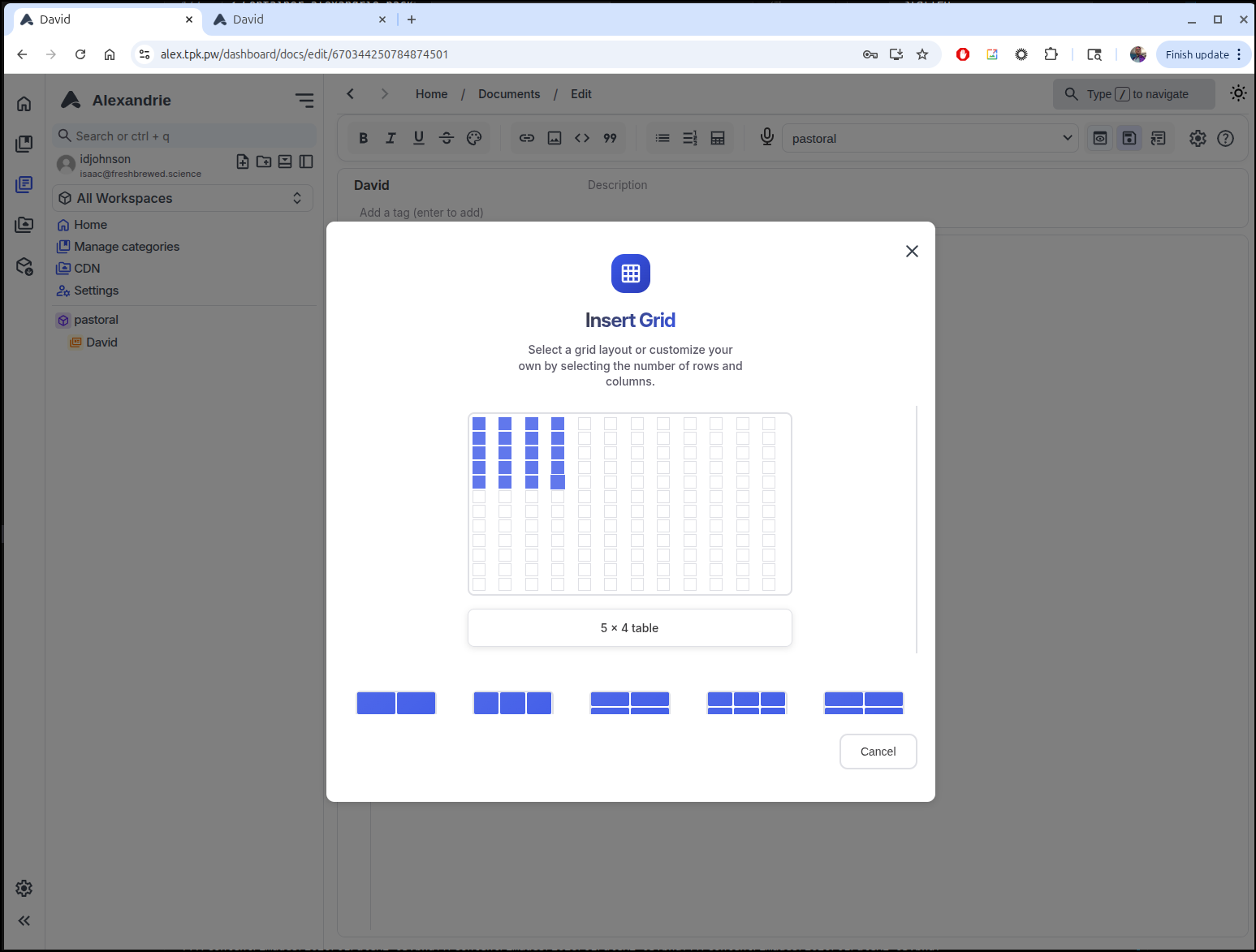
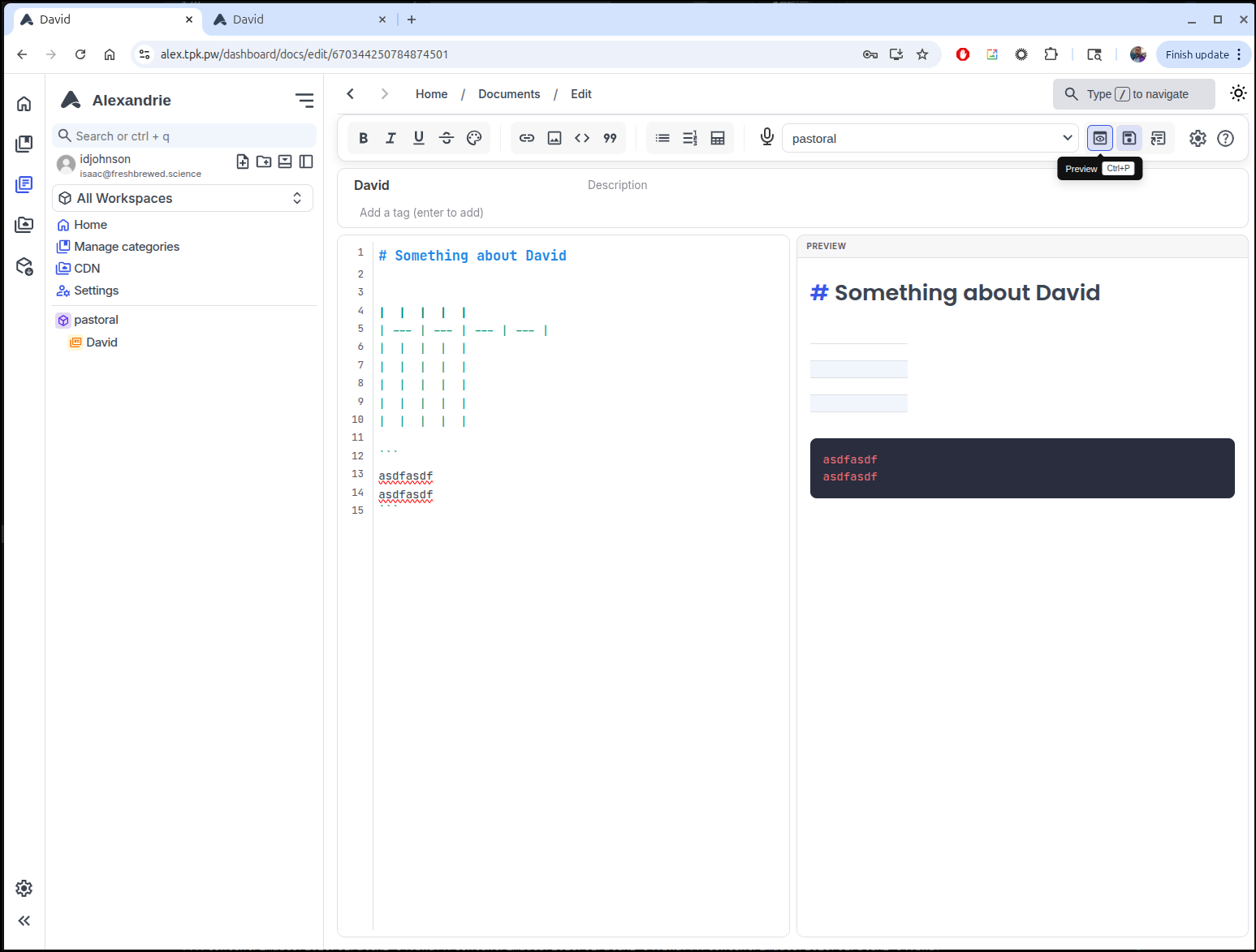
Those just insert the proper markdown or HTML. I can still use Preview to see a rendered version
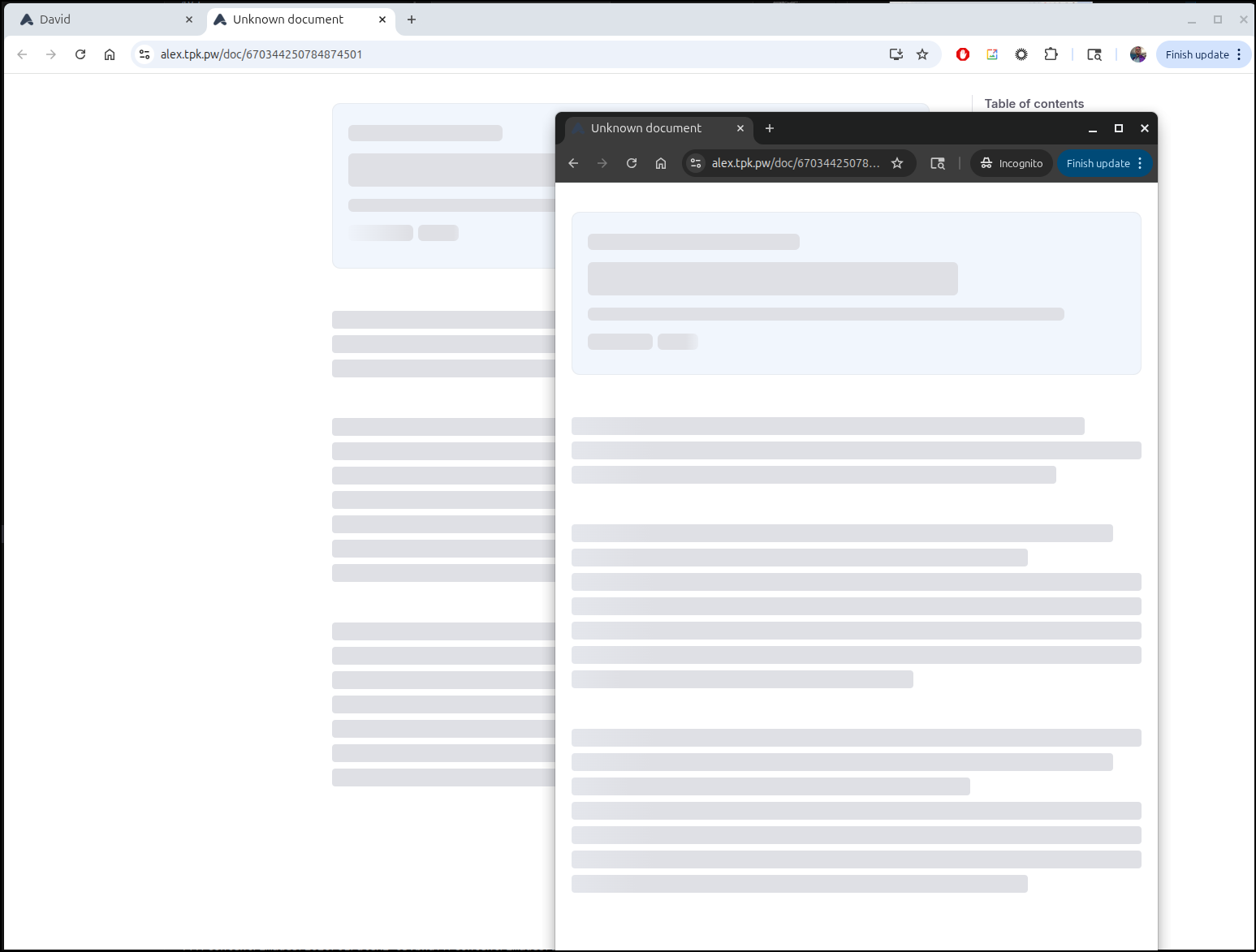
Interestingly, if I move from Public to Private, it doesn’t have a redirect page or a 404, rather shows a gray page (like a paywall might show)
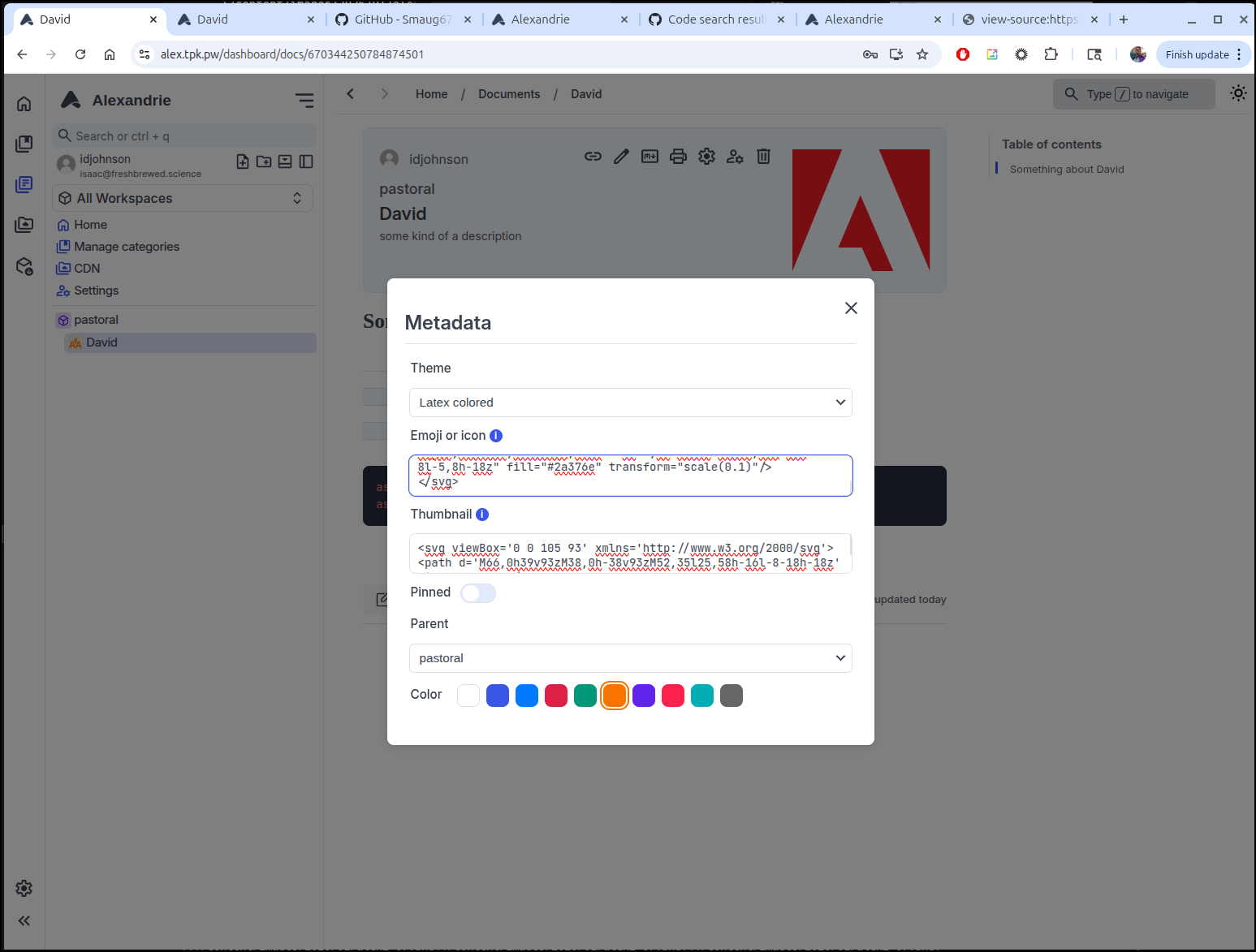
One thing that threw me of a bit was the “Thumbnail”. A URL to an image didn’t work and it took searching the code a bit to figure out that it wants the contents of an SVG file. I use an Adobe icon as a small example which seemed to work:
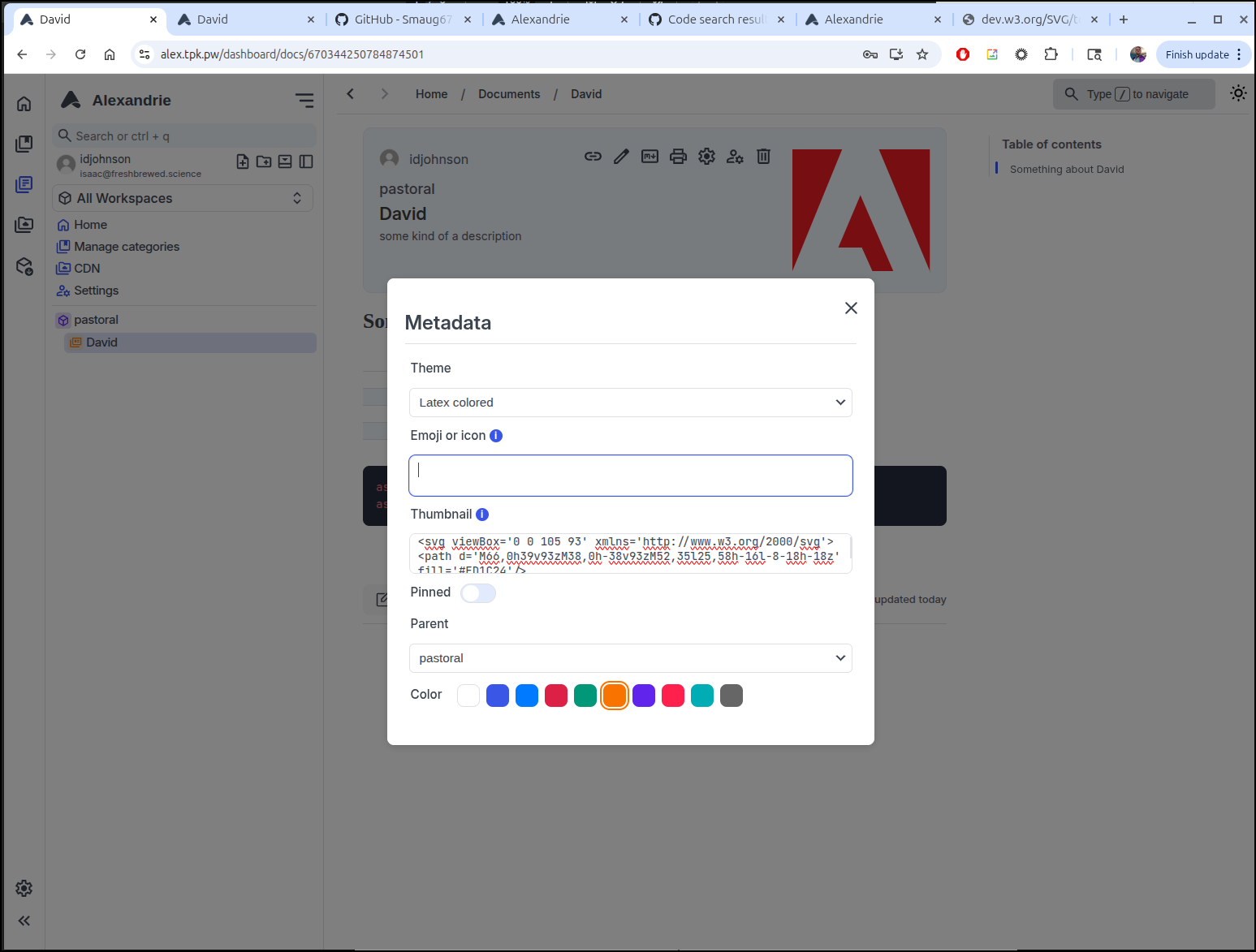
If you put in SVG for the “Icon” or Emoji it shows in the nav on the left (here i used the AA logo)
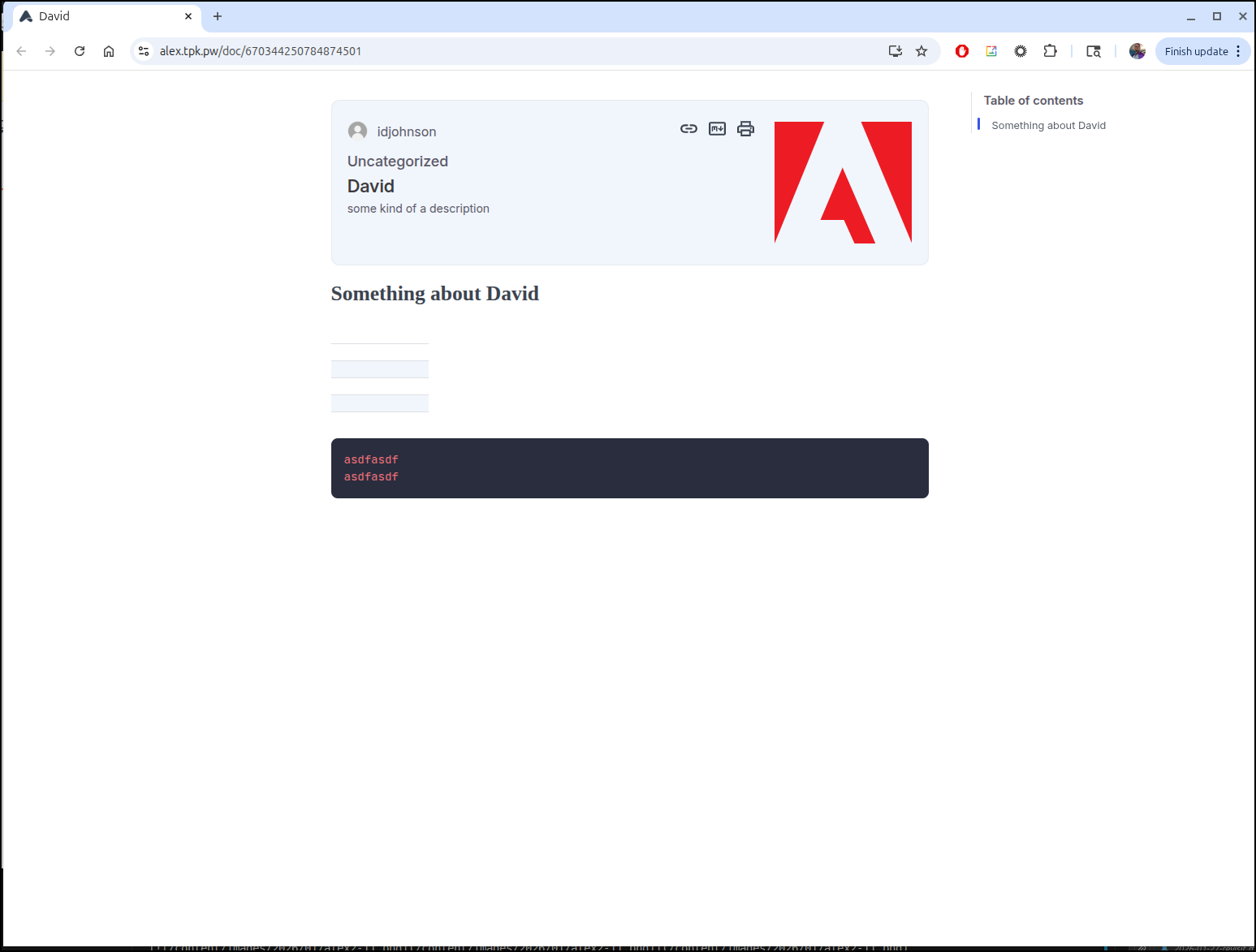
And how it looks on the rendered page:
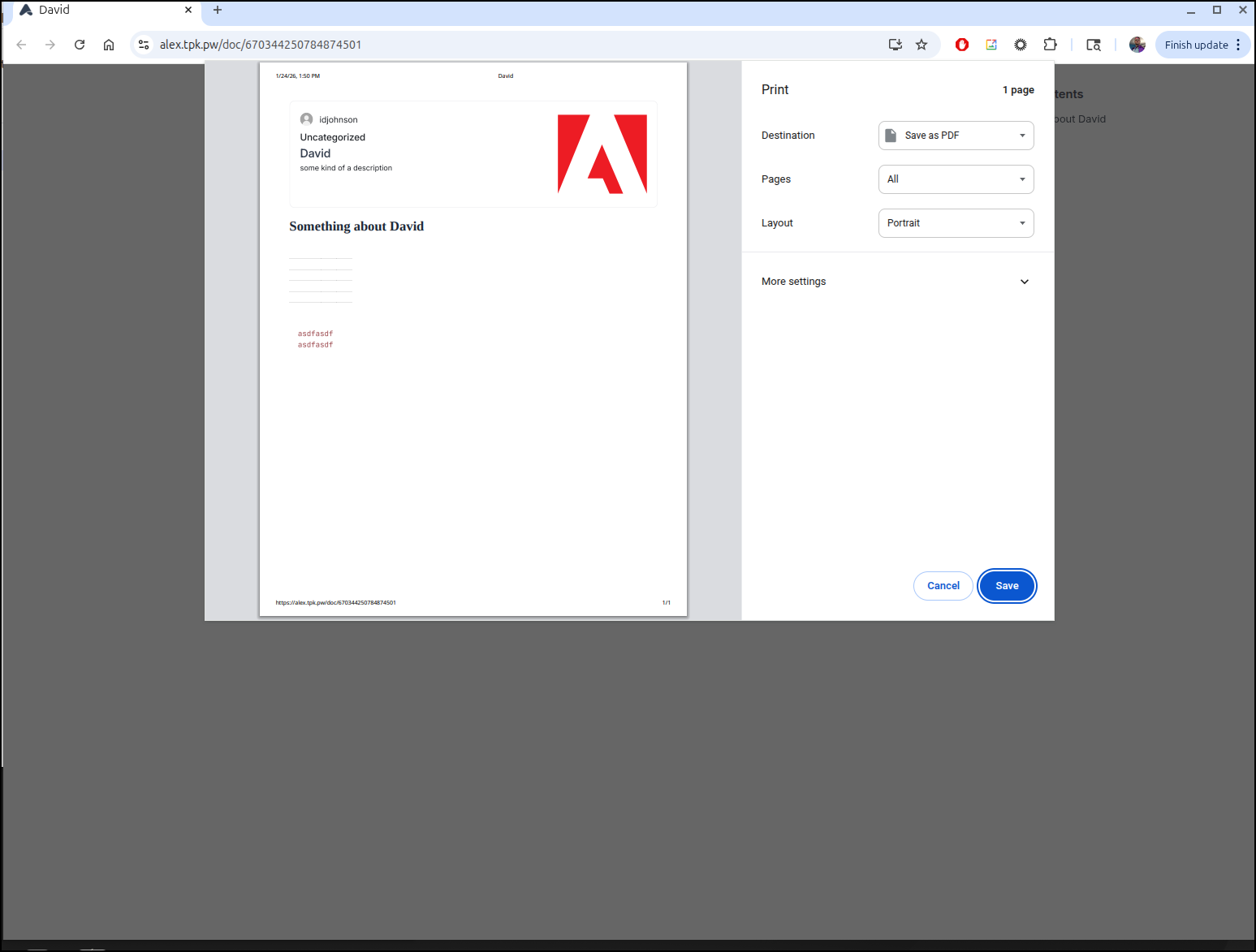
The print view cleans a lot of navigation up which works well for published documents
CDN
Part of the reason I wanted to revisit the app was to see what the “CDN” would provide.
I tried to upload a small 1.5Mb video, but just saw a quickly disappearing error
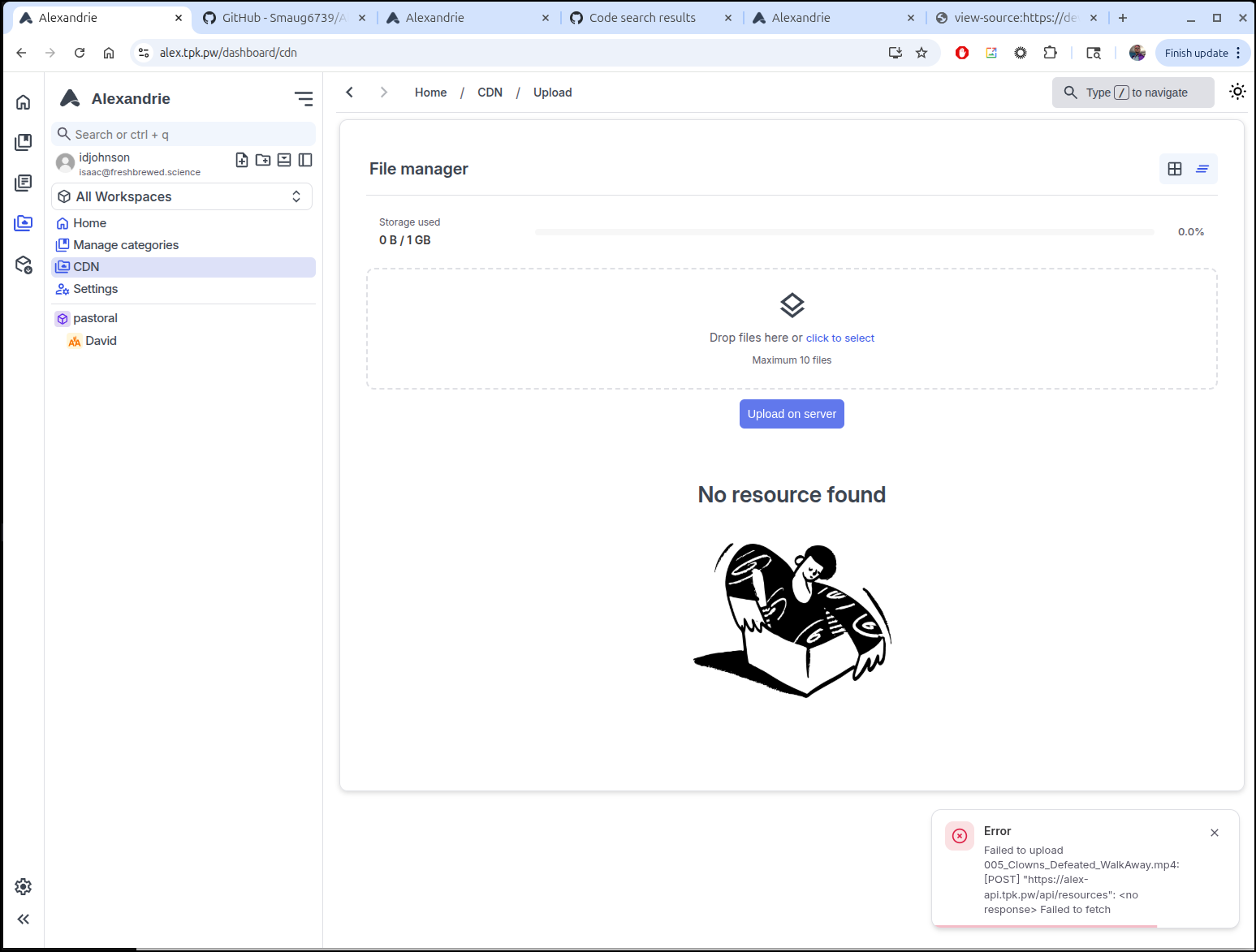
“Failed to upload 005_Clowns_Defeated_WalkAway.mp4: [POST] “https://alex-api.tpk.pw/api/resources”:
The Console Log in the browser shows
https://alex-api.tpk.pw/api/resources": <no response> Failed to fetch
    at async bl (DQlLeSm7.js:4:148284)
    at async Te (DQlLeSm7.js:4:149130)
    at async Proxy.post (CUjCRRl6.js:1:120)
    at async ae (IzeUTYAo.js:3:225)Caused by: TypeError: Failed to fetch
    at DQlLeSm7.js:4:69016
    at i.o [as raw] (DQlLeSm7.js:4:67774)
    at bl (DQlLeSm7.js:4:148297)
    at Te (DQlLeSm7.js:4:149136)
    at Proxy.post (CUjCRRl6.js:1:126)
    at Proxy.x (DQlLeSm7.js:4:83514)
    at ae (IzeUTYAo.js:3:233)
    at Ms (DQlLeSm7.js:2:21315)
    at dt (DQlLeSm7.js:2:21385)
    at W0 (DQlLeSm7.js:4:15398)
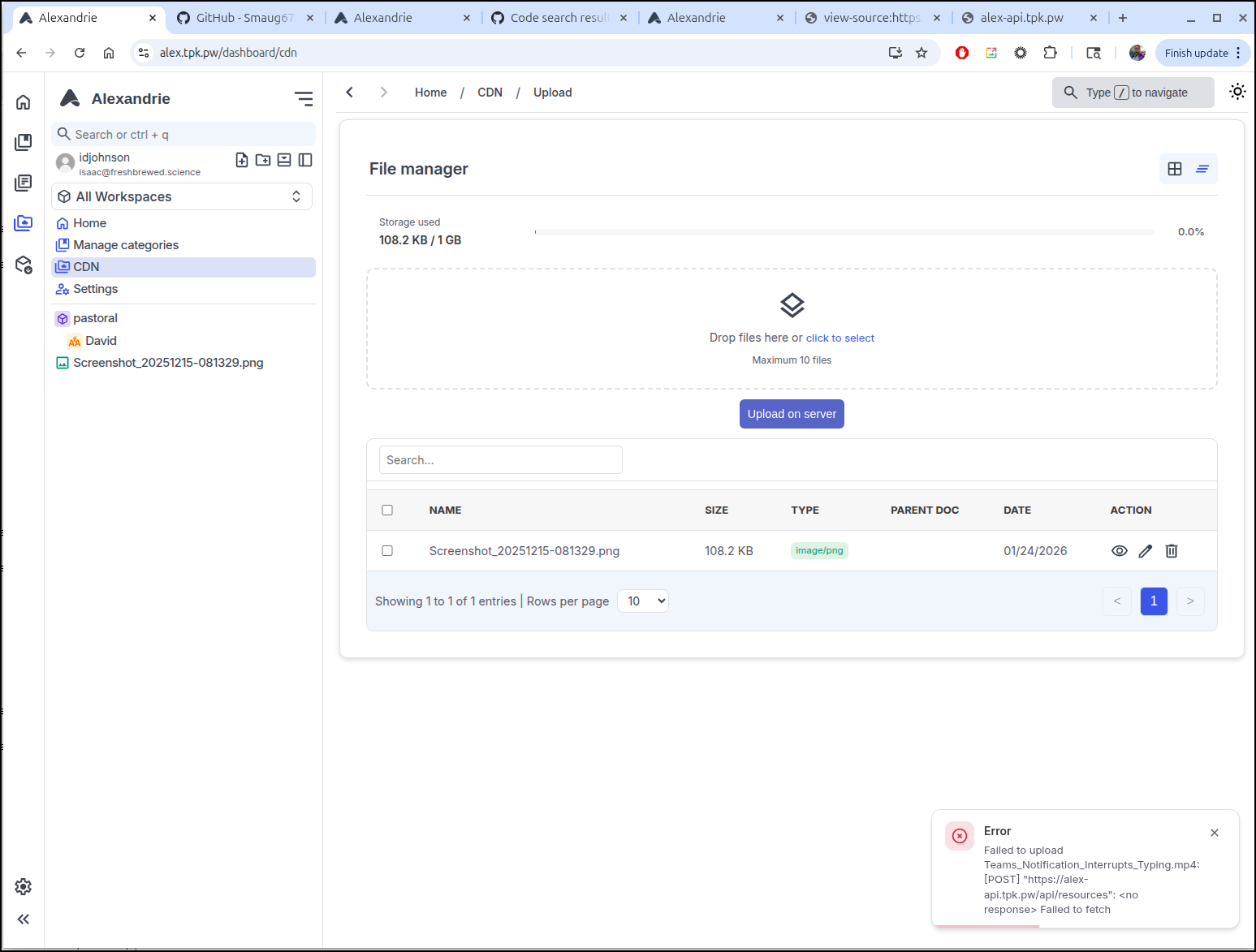
After a bit of thinking, the problem was obvious - I had set the timeouts but not the proxy body size in my Ingresses. For anything that needs “big” files, setting proxy body size to “0” is a must:
$ cat ./ingress.yaml
apiVersion: networking.k8s.io/v1
kind: Ingress
metadata:
  annotations:
    cert-manager.io/cluster-issuer: azuredns-tpkpw
    ingress.kubernetes.io/ssl-redirect: "true"
    kubernetes.io/tls-acme: "true"
    nginx.ingress.kubernetes.io/proxy-read-timeout: "3600"
    nginx.ingress.kubernetes.io/proxy-send-timeout: "3600"
    ingress.kubernetes.io/proxy-body-size: "0"
    nginx.ingress.kubernetes.io/proxy-body-size: "0"
    nginx.ingress.kubernetes.io/ssl-redirect: "true"
    nginx.org/client-max-body-size: "0"
    nginx.org/proxy-connect-timeout: "3600"
    nginx.org/proxy-read-timeout: "3600"
    nginx.org/websocket-services: alex-api-external-ip
  name: alex-apiingress
spec:
  ingressClassName: nginx
  rules:
  - host: alex-api.tpk.pw
    http:
      paths:
      - backend:
          service:
            name: alex-api-external-ip
            port:
              number: 80
        path: /
        pathType: ImplementationSpecific
  tls:
  - hosts:
    - alex-api.tpk.pw
    secretName: alex-api-tls
---
apiVersion: networking.k8s.io/v1
kind: Ingress
metadata:
  annotations:
    cert-manager.io/cluster-issuer: azuredns-tpkpw
    kubernetes.io/tls-acme: "true"
    nginx.ingress.kubernetes.io/proxy-read-timeout: "3600"
    nginx.ingress.kubernetes.io/proxy-send-timeout: "3600"
    ingress.kubernetes.io/proxy-body-size: "0"
    nginx.ingress.kubernetes.io/proxy-body-size: "0"
    nginx.ingress.kubernetes.io/ssl-redirect: "true"
    nginx.org/client-max-body-size: "0"
    nginx.org/proxy-connect-timeout: "3600"
    nginx.org/proxy-read-timeout: "3600"
    nginx.org/websocket-services: alex-cdn-external-ip
  name: alex-cdningress
spec:
  ingressClassName: nginx
  rules:
  - host: alex-cdn.tpk.pw
    http:
      paths:
      - backend:
          service:
            name: alex-cdn-external-ip
            port:
              number: 80
        path: /
        pathType: ImplementationSpecific
  tls:
  - hosts:
    - alex-cdn.tpk.pw
    secretName: alex-cdn-tls
---
apiVersion: networking.k8s.io/v1
kind: Ingress
metadata:
  annotations:
    cert-manager.io/cluster-issuer: azuredns-tpkpw
    ingress.kubernetes.io/ssl-redirect: "true"
    kubernetes.io/tls-acme: "true"
    nginx.ingress.kubernetes.io/proxy-read-timeout: "3600"
    nginx.ingress.kubernetes.io/proxy-send-timeout: "3600"
    ingress.kubernetes.io/proxy-body-size: "0"
    nginx.ingress.kubernetes.io/proxy-body-size: "0"
    nginx.ingress.kubernetes.io/ssl-redirect: "true"
    nginx.org/client-max-body-size: "0"
    nginx.org/proxy-connect-timeout: "3600"
    nginx.org/proxy-read-timeout: "3600"
    nginx.org/websocket-services: alex-external-ip
  name: alexingress
spec:
  ingressClassName: nginx
  rules:
  - host: alex.tpk.pw
    http:
      paths:
      - backend:
          service:
            name: alex-external-ip
            port:
              number: 80
        path: /
        pathType: ImplementationSpecific
  tls:
  - hosts:
    - alex.tpk.pw
    secretName: alex-tls
My ingress controller doesn’t handle updates too well, so I just removed the former Ingresses then re-added what you see above
$ kubectl delete ingress alexingress && kubectl delete ingress alex-cdningress && kubectl delete ingress alex-apiingress && sleep 5 && kubectl apply -f ./ingress.yaml
ingress.networking.k8s.io "alexingress" deleted
ingress.networking.k8s.io "alex-cdningress" deleted
ingress.networking.k8s.io "alex-apiingress" deleted
ingress.networking.k8s.io/alex-apiingress created
ingress.networking.k8s.io/alex-cdningress created
ingress.networking.k8s.io/alexingress created
Now video files and larger images upload without issue
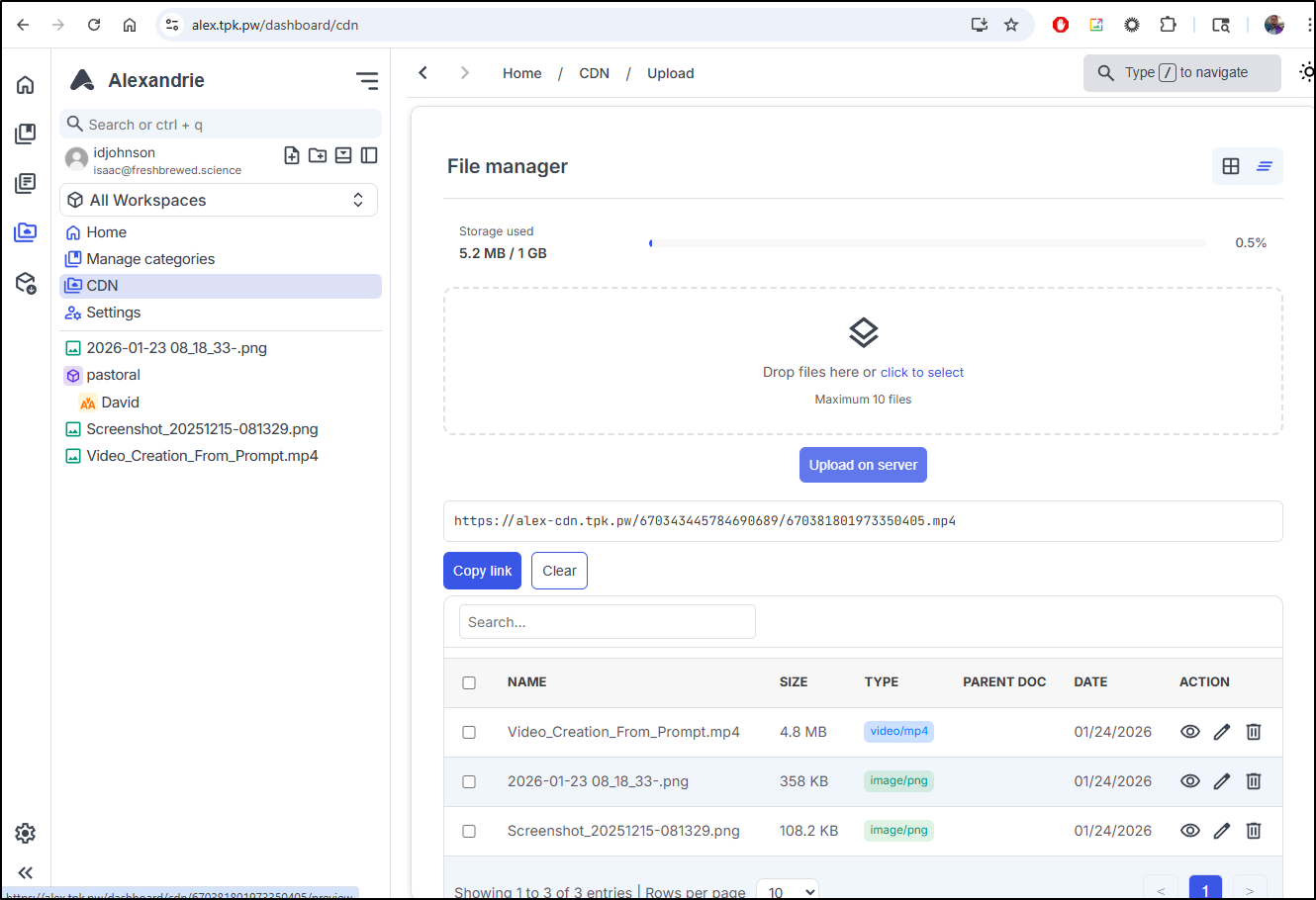
However, I only see errors when trying to view the files
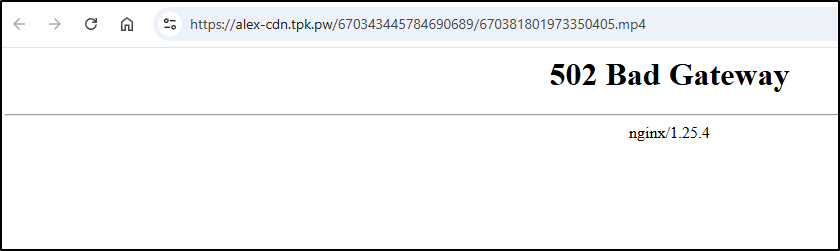
In docker, for the “CDN” I saw two key ports, 9001 and 9005:

I tried editing the endpoints for both but neither solved the issue
builder@DESKTOP-QADGF36:~/Workspaces/Alexandrie$ kubectl get endpoints | grep alex
alex-api-external-ip                                    192.168.1.142:8201                                                3h19m
alex-cdn-external-ip                                    192.168.1.142:9000                                                3h19m
alex-external-ip                                        192.168.1.142:8200                                                3h19m
builder@DESKTOP-QADGF36:~/Workspaces/Alexandrie$ kubectl edit endpoint alex-cdn-external-ip
error: the server doesn't have a resource type "endpoint"
builder@DESKTOP-QADGF36:~/Workspaces/Alexandrie$ kubectl edit endpoints alex-cdn-external-ip
endpoints/alex-cdn-external-ip edited
builder@DESKTOP-QADGF36:~/Workspaces/Alexandrie$ kubectl get endpoints | grep alex
alex-api-external-ip                                    192.168.1.142:8201                                                3h20m
alex-cdn-external-ip                                    192.168.1.142:9005                                                3h20m
alex-external-ip                                        192.168.1.142:8200                                                3h20m
builder@DESKTOP-QADGF36:~/Workspaces/Alexandrie$ kubectl edit endpoints alex-cdn-external-ip
endpoints/alex-cdn-external-ip edited
builder@DESKTOP-QADGF36:~/Workspaces/Alexandrie$ kubectl get endpoints | grep alex
alex-api-external-ip                                    192.168.1.142:8201                                                3h21m
alex-cdn-external-ip                                    192.168.1.142:9001                                                3h21m
alex-external-ip                                        192.168.1.142:8200                                                3h21m
The fix actually was three things:
- First, I had to realize that “RustFS” is that RustFS, the MinIO replacement. So the 9001 port is for console access (if enabled) and 9005 is to serve up files.
- The next issue was that when I was tweaking ports to test, I was changing “Endpoints” but neglected to change the Service which still had a targetPort set to 9000. When using a mix of clusterIP services and Endpoints to send traffic externally, one needs to keep those ports lined up.
- Lastly, I needed that “CDN_ENDPOINT” set to “/alexandrie/” (not “/” which I used). The reason is because this represents the “Bucket” the files live in.
I first fixed the endpoint/service
builder@DESKTOP-QADGF36:~/Workspaces/Alexandrie$ kubectl delete endpoints alex-cdn-external-ip
endpoints "alex-cdn-external-ip" deleted
builder@DESKTOP-QADGF36:~/Workspaces/Alexandrie$ kubectl delete service alex-cdn-external-ip
service "alex-cdn-external-ip" deleted
builder@DESKTOP-QADGF36:~/Workspaces/Alexandrie$ vi fixit.yaml
builder@DESKTOP-QADGF36:~/Workspaces/Alexandrie$ cat ./fixit.yaml
---
apiVersion: v1
kind: Endpoints
metadata:
  name: alex-cdn-external-ip
subsets:
- addresses:
  - ip: 192.168.1.142
  ports:
  - name: alex-cdnint
    port: 9005
    protocol: TCP
---
apiVersion: v1
kind: Service
metadata:
  name: alex-cdn-external-ip
spec:
  clusterIP: None
  clusterIPs:
  - None
  internalTrafficPolicy: Cluster
  ipFamilies:
  - IPv4
  - IPv6
  ipFamilyPolicy: RequireDualStack
  ports:
  - name: alex-cdn
    port: 80
    protocol: TCP
    targetPort: 9005
  sessionAffinity: None
  type: ClusterIP
builder@DESKTOP-QADGF36:~/Workspaces/Alexandrie$ kubectl apply -f ./fixit.yaml
endpoints/alex-cdn-external-ip created
service/alex-cdn-external-ip created
But then corrected my .env file on the server and restarted with docker compose.
# ==============================================================================
# 1. PUBLIC ACCESS & GLOBAL URLS
# ==============================================================================

# Public URLs used by the client's browser to reach the services.
# If using a Reverse Proxy (Nginx/Traefik), use your public domain names here.
FRONTEND_URL=https://alex.tpk.pw
API_URL=https://alex-api.tpk.pw
CDN_URL=https://alex-cdn.tpk.pw

CDN_ENDPOINT=/alexandrie/ # The base path in the CDN where files are served from (you probably want to keep this as /alexandrie/ to match the bucket name, change it only if you changed the bucket name or if you have configured a reverse proxy path)

# ==============================================================================
# 2. APPLICATION FEATURE FLAGS
# ==============================================================================
# Enable or disable optional frontend features.

CONFIG_DISABLE_LANDING=false # Disable the landing page if set to true
CONFIG_DISABLE_SIGNUP=false # Disable the signup page if set to true

# ==============================================================================
# 3. BACKEND API — RUNTIME & SECURITY
# ==============================================================================

BACKEND_EXTERNAL_PORT=8201 # The port exposed on your host machine for the Backend API

COOKIE_DOMAIN=tpk.pw # localhost:8200 # Common domain for cookies (e.g., yourdomain.com if you have frontend.yourdomain.com and api.yourdomain.com)
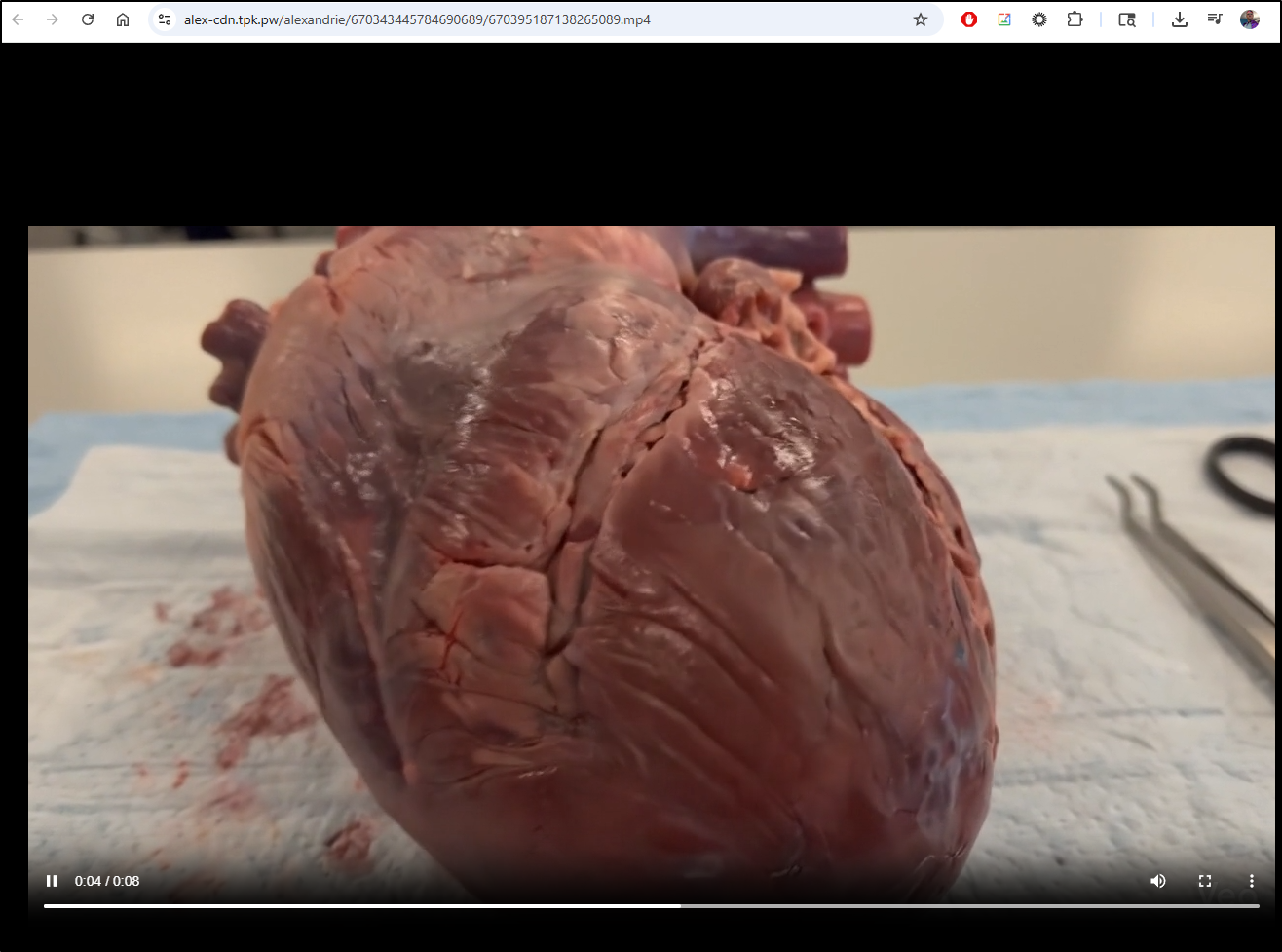
Now a file works just fine to view:

and
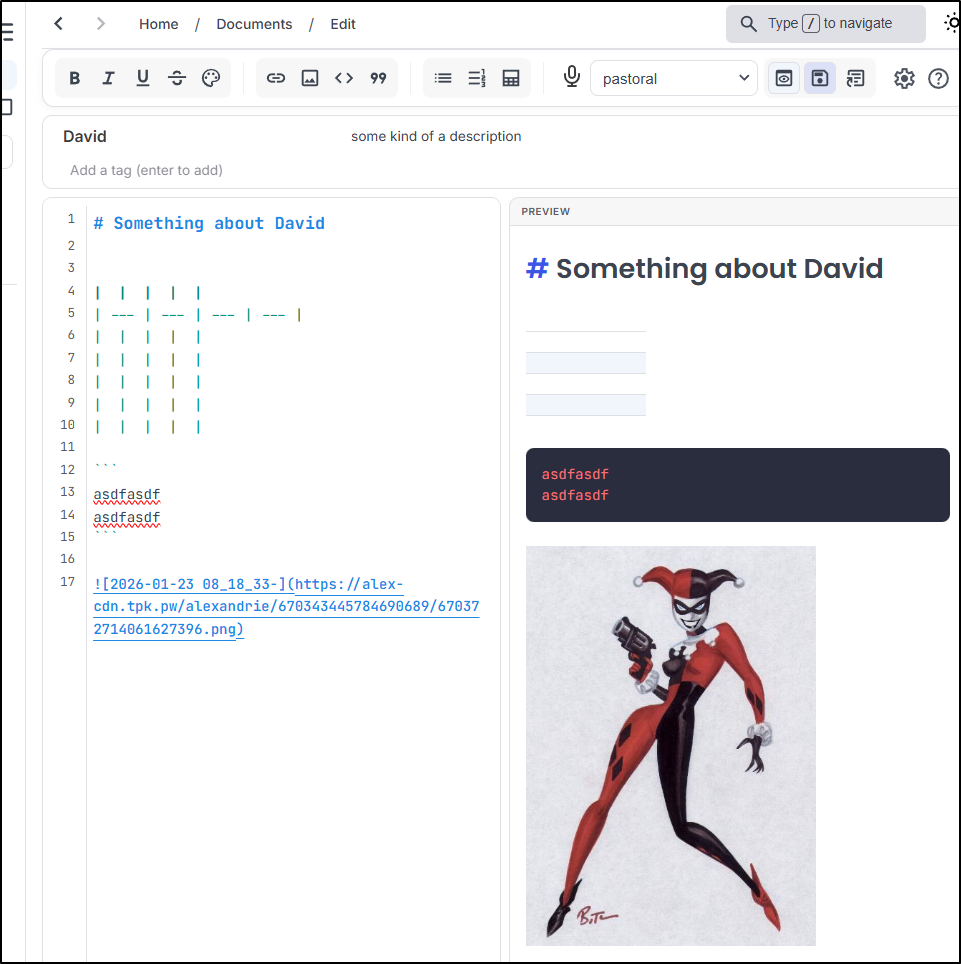
The CDN uploaded images now show up when I am editing a post and clicking “add image”
And we see it just uses the CDN URL for the image
There is a bug that shortly after uploading a video, the second or third attempt to view is blocked
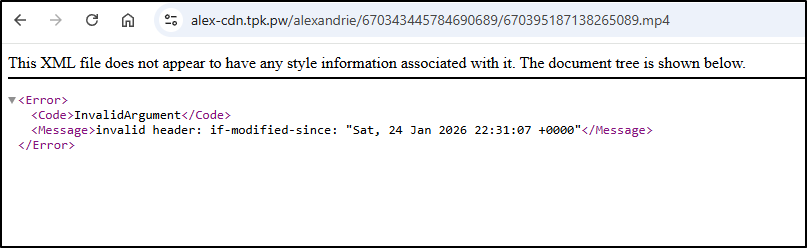
The Docker-compose uses the “latest” RustFS image and I see other users reporting similar errors
Since the release is just 3 days old as of this writing (alpha.81 which matches latest), I changed the docker compose to use the prior release (alpha.80)
builder@bosgamerz9:~/Alexandrie$ cat docker-compose.yml | grep rustfs
  rustfs:
    image: rustfs/rustfs:1.0.0-alpha.80
    container_name: alexandrie-rustfs
      - rustfs_data:/data
      - rustfs_logs:/logs
      MINIO_ENDPOINT: rustfs:9000
      rustfs:
  rustfs_data:
  rustfs_logs:
and restarted the containers
builder@bosgamerz9:~/Alexandrie$ docker compose down
[+] Running 5/5
 ✔ Container alexandrie-frontend          Removed                                                                                                                                                                                           0.3s
 ✔ Container alexandrie-backend           Removed                                                                                                                                                                                           0.3s
 ✔ Container alexandrie-rustfs            Removed                                                                                                                                                                                           2.0s
 ✔ Container alexandrie-mysql             Removed                                                                                                                                                                                           2.0s
 ✔ Network alexandrie_alexandrie-network  Removed                                                                                                                                                                                           0.2s
builder@bosgamerz9:~/Alexandrie$ vi docker-compose.yml
builder@bosgamerz9:~/Alexandrie$ docker compose up -d
[+] Running 8/8
 ✔ rustfs Pulled                                                                                                                                                                                                                            3.9s
   ✔ 1074353eec0d Already exists                                                                                                                                                                                                            0.0s
   ✔ efb5b00da6a9 Pull complete                                                                                                                                                                                                             0.6s
   ✔ d3ec0616f053 Pull complete                                                                                                                                                                                                             0.6s
   ✔ 981fcf90905c Pull complete                                                                                                                                                                                                             2.8s
   ✔ 82f2cf490642 Pull complete                                                                                                                                                                                                             2.8s
   ✔ 4f4fb700ef54 Pull complete                                                                                                                                                                                                             2.8s
   ✔ 1d1dee9383a6 Pull complete                                                                                                                                                                                                             2.8s
[+] Running 5/5
 ✔ Network alexandrie_alexandrie-network  Created                                                                                                                                                                                           0.1s
 ✔ Container alexandrie-rustfs            Healthy                                                                                                                                                                                           5.8s
 ✔ Container alexandrie-mysql             Healthy                                                                                                                                                                                           5.8s
 ✔ Container alexandrie-backend           Started                                                                                                                                                                                           5.9s
 ✔ Container alexandrie-frontend          Started
I’m now having no issues with the video (e.g. a beating heart)
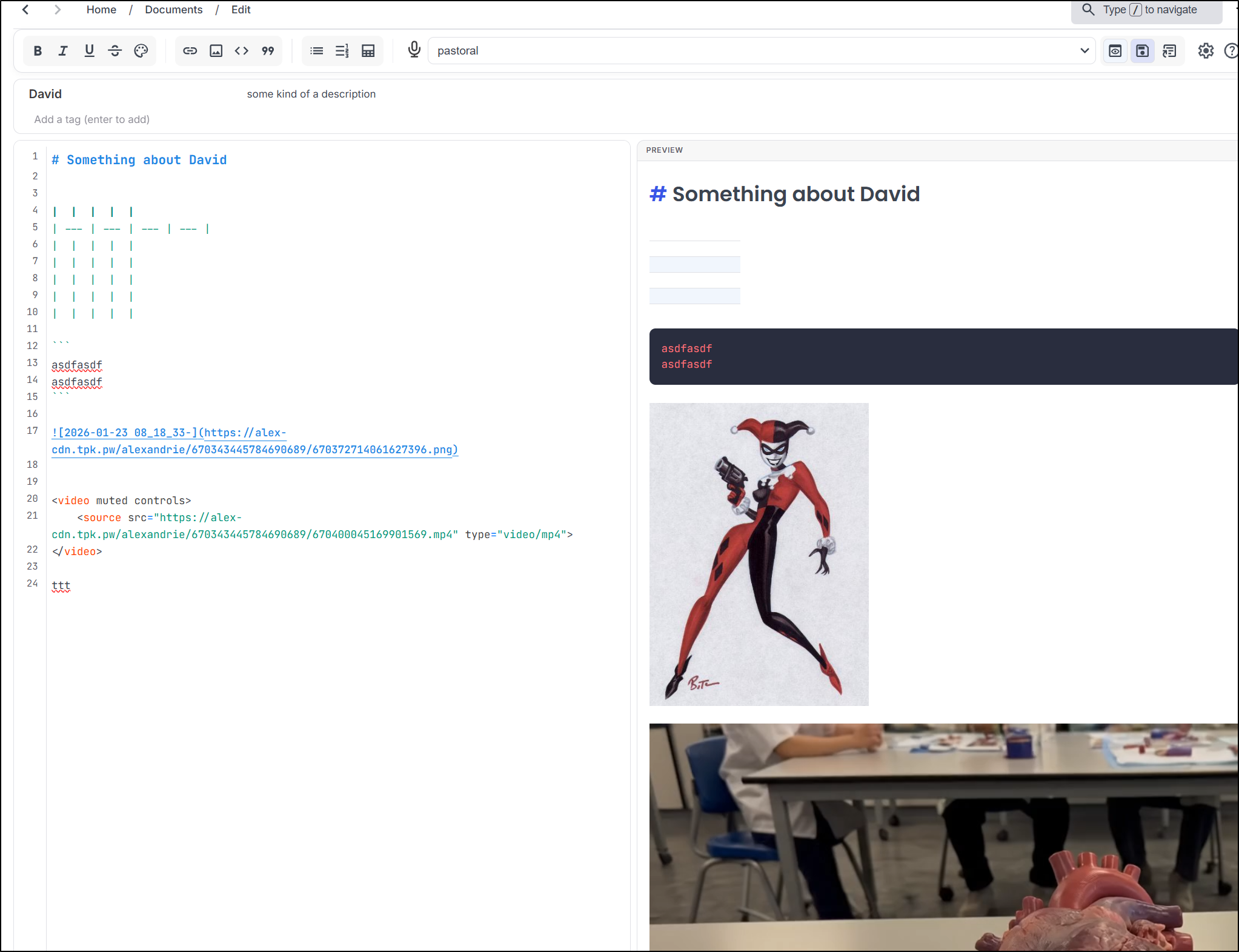
So while there isn’t a “video” markdown item, we can use HTML to add an embedded video to a post:
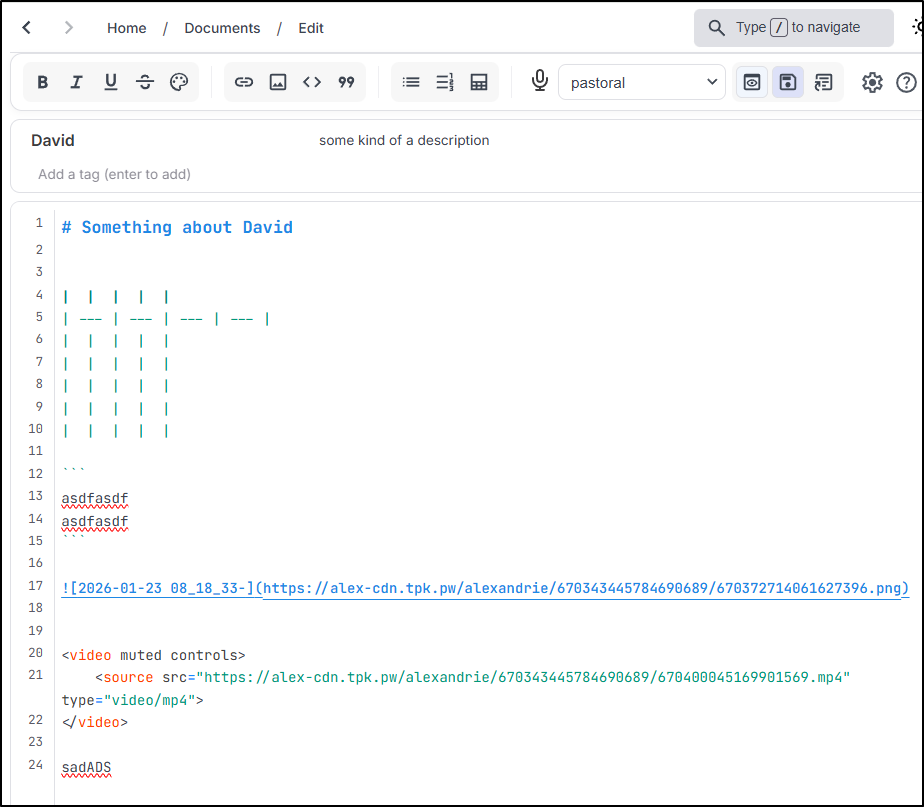
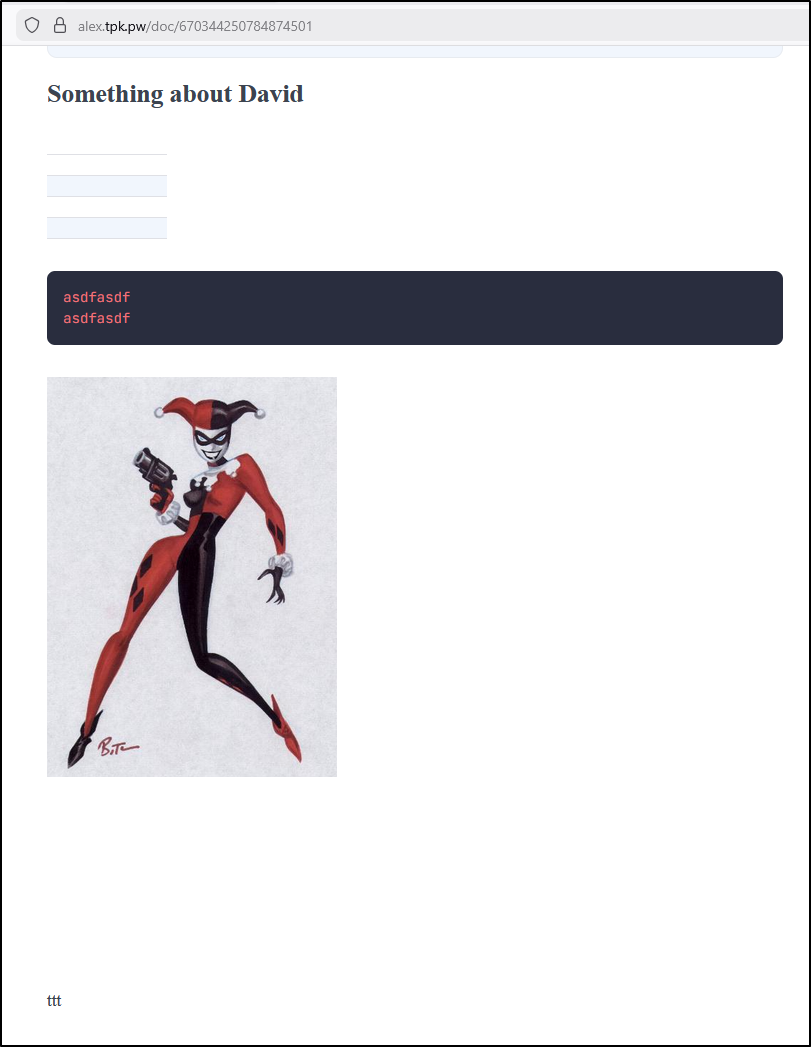
Oddly, while the preview works
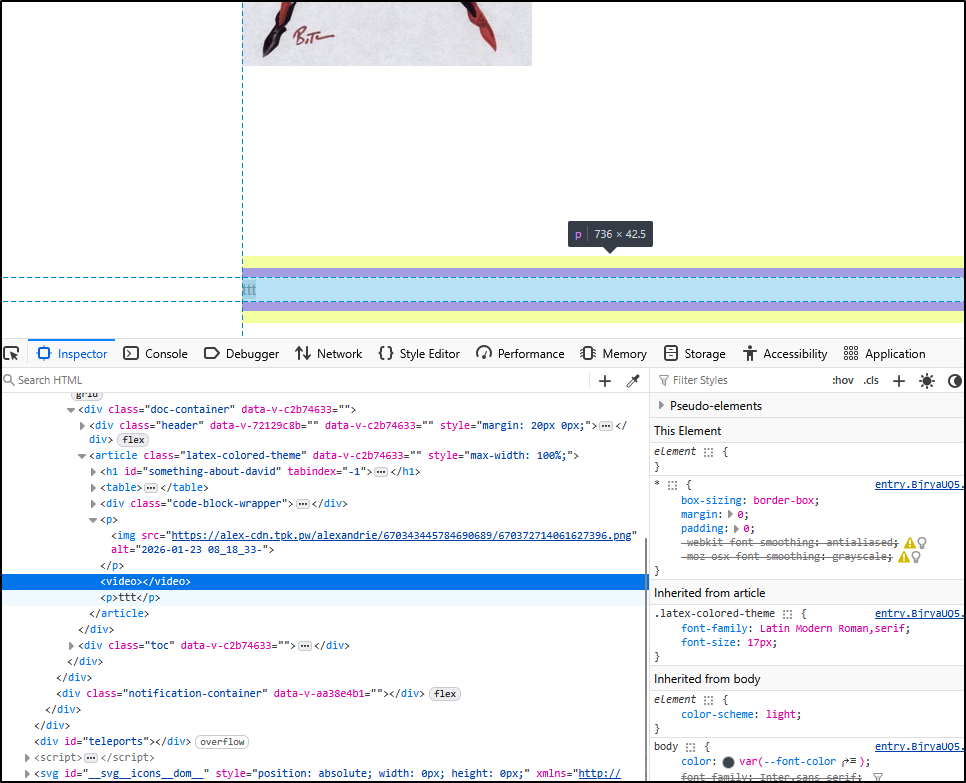
The rendered page does not show the video
Using the inspector in Firefox, it seems altogether removed
Summary
Today we revisited Ghostty after a year and found it is quite solid. I am now using it as a daily driver in my Linux laptop (but not in my Windows gaming rig). I find the split view quite handy but I haven’t committed the key combinations to muscle memory just yet. I only wish I could do different UI themes like one can with the Mac OS terminal. I often like to distinguish between some various work threads by having different colour combinations of terminals.
The other suite we circled back on was Alexandrie. I’m still stewing on if I want to keep it. In our next post later this week we will be looking at Poznote and Joplin for some comparisons. In truth, none of the suites really handle video so I just need to decide if screen recordings are important to me.
I created a small survey form here if you wanted to give feedback.