I had a note to circle back on Zed. I had looked nearly a year go in August 2025 at their preview feature for AI. At the time, Windows wasn’t there (only via Scoop). I also was far more tied to VS Code so I wasn’t really looking at Zed as a possible replacement.
Times have changed, and Zed has advanced quite a lot. So let’s give it another go and this time I’ll be looking at it as a real possible replacement for VS Code (especially as my primary machines are all now Linux based).
Windows
While I might now lean more into Linux, I still have a windows box in the stack and a lot of people still use Windows for work. Let’s start there - especially as that was my big challenge last time.
On the Downloads page we can see an option now for Windows
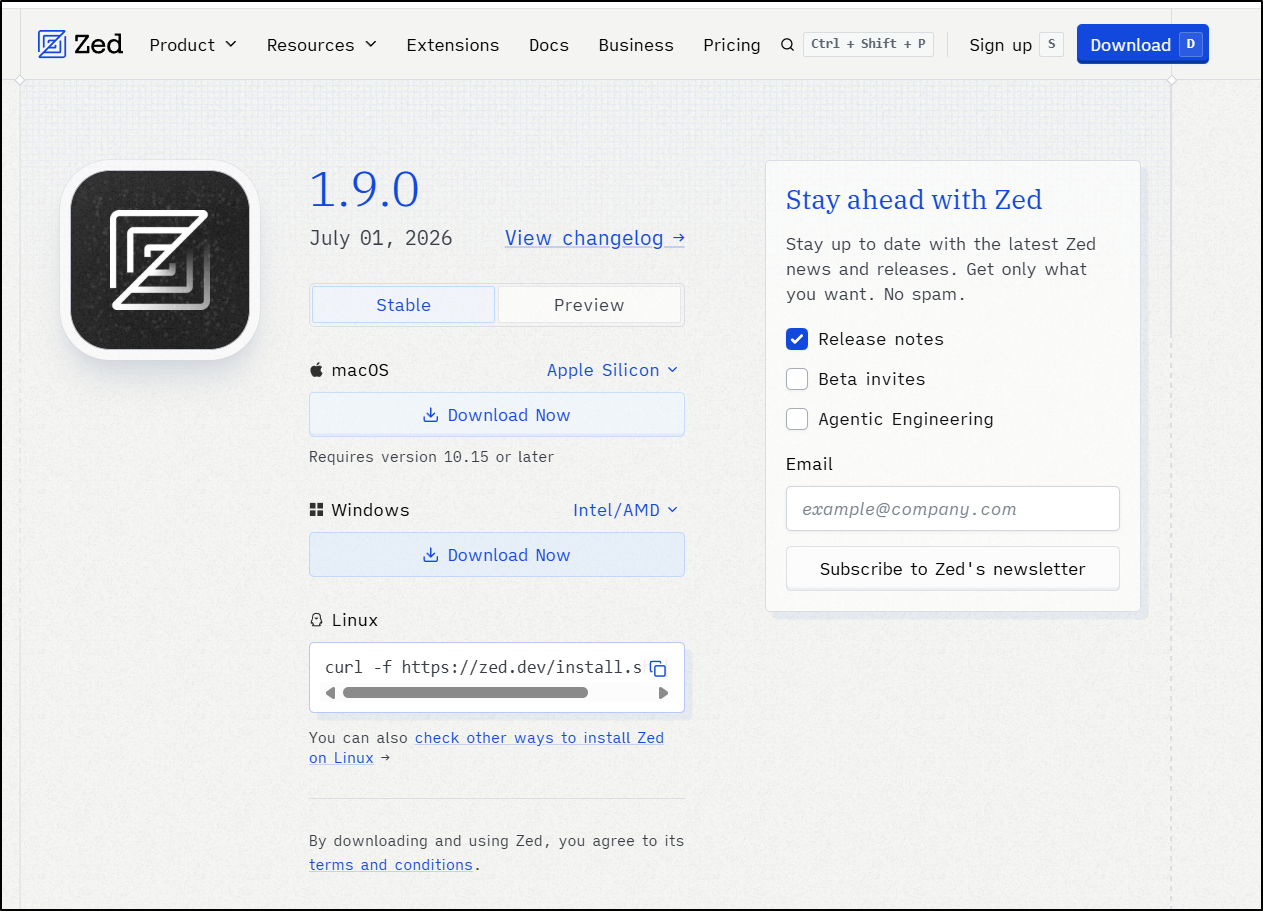
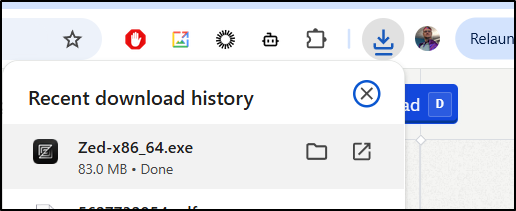
This time we have a legit exe. Granted the last time I wrote on Zed it was version 0.201.4 and now we are at 1.9
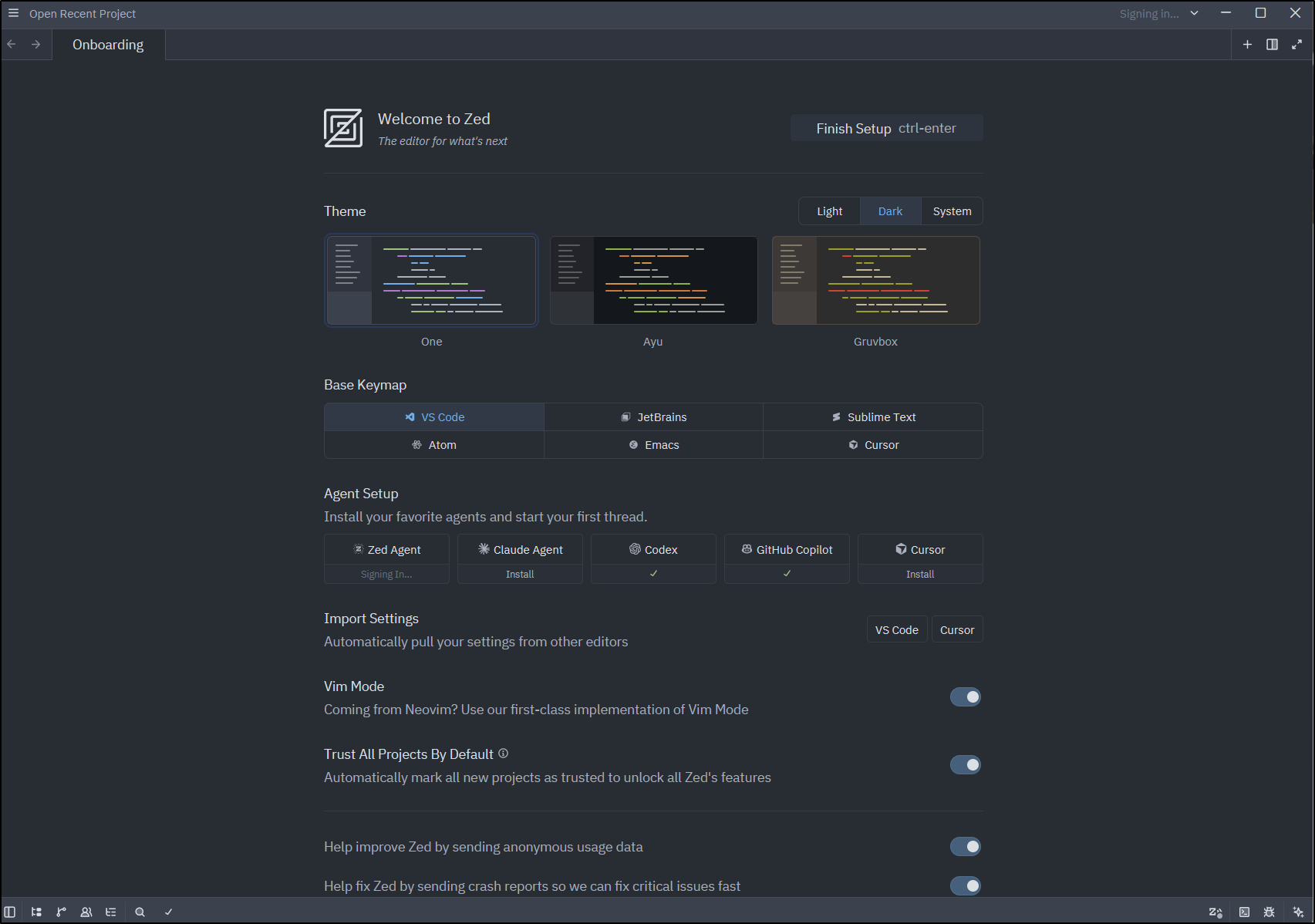
I’ll pick a few AI agents, set VIM mode and force it to dark mode
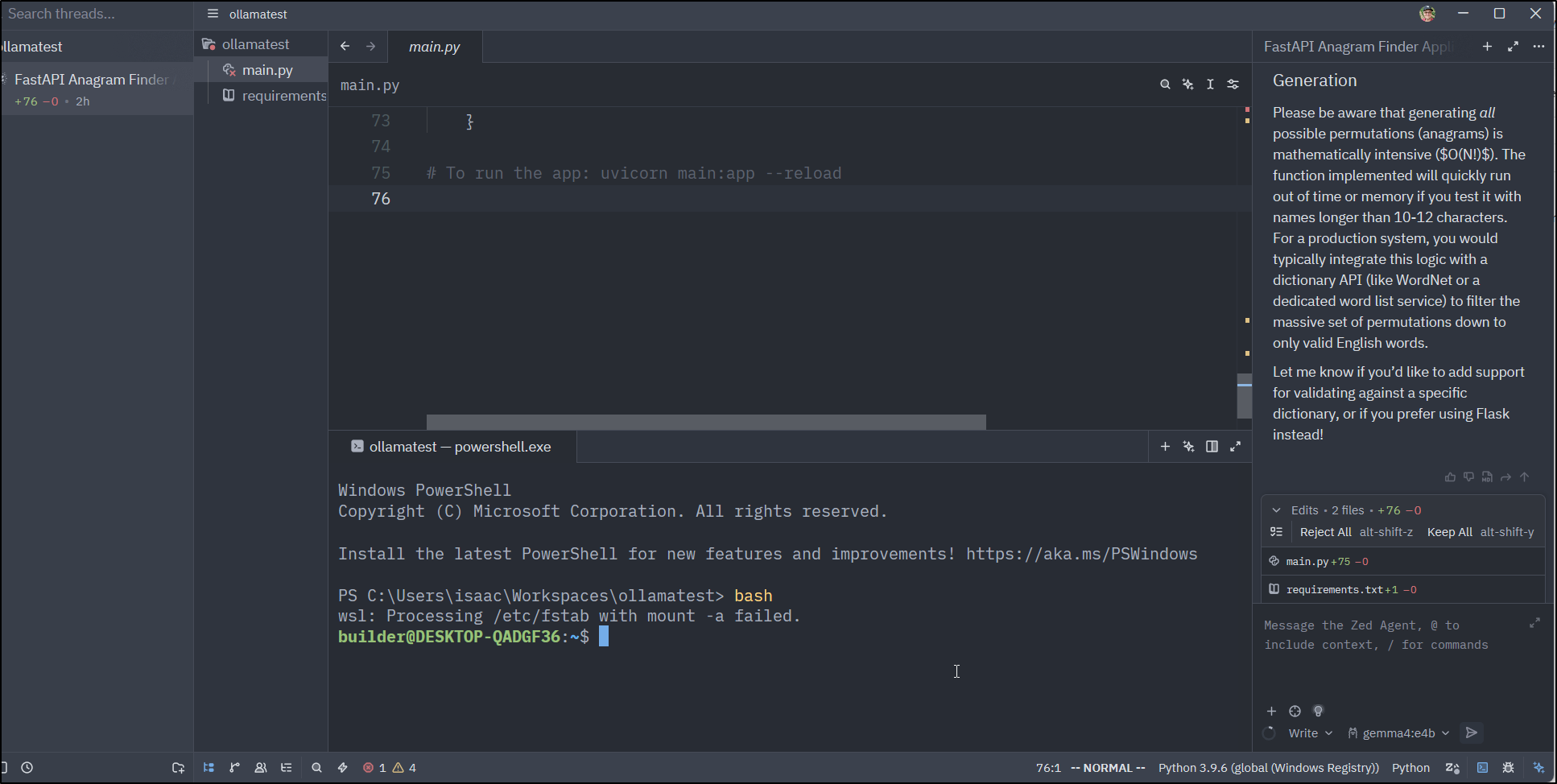
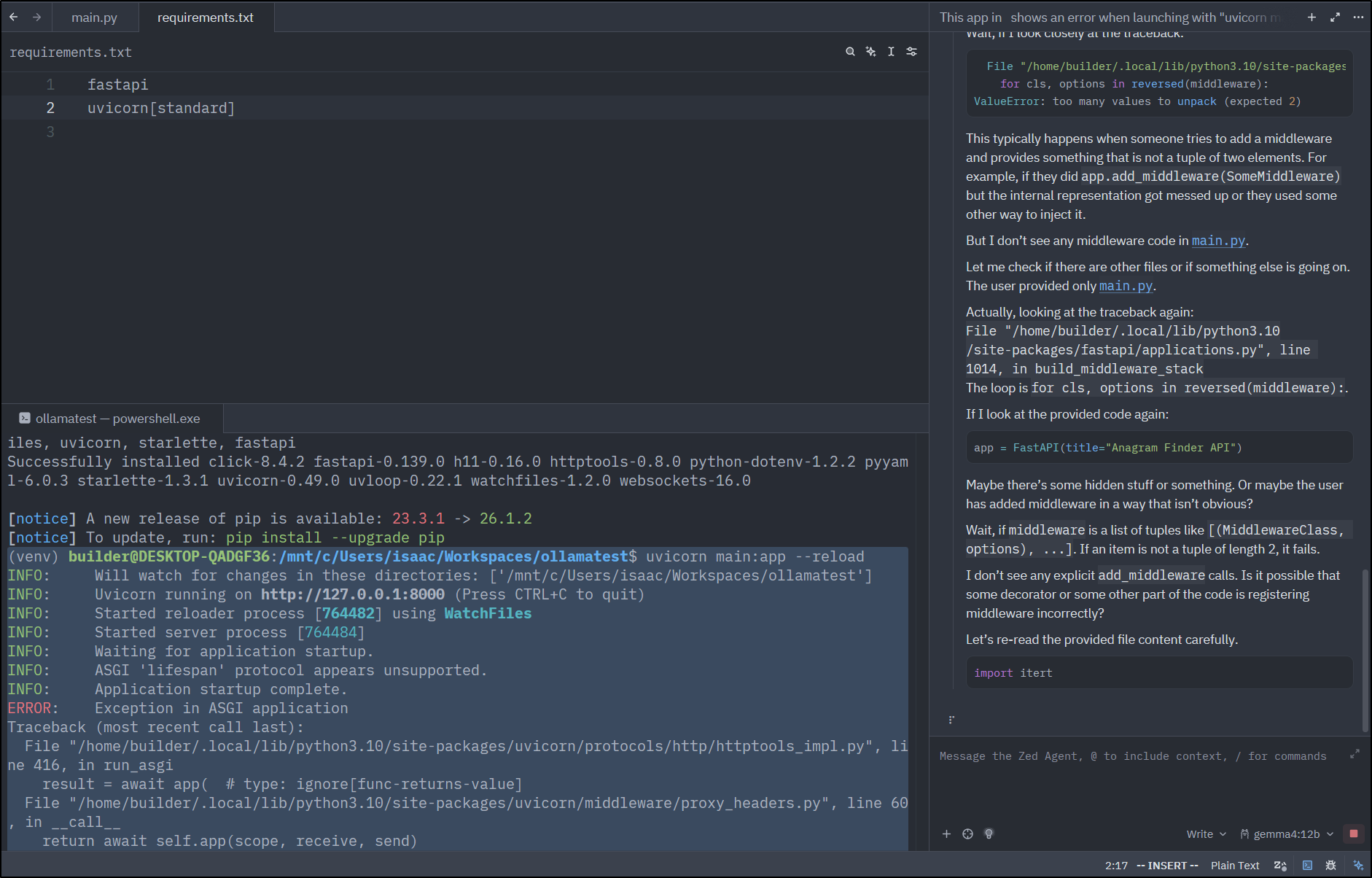
My first go with it was rather impressive - I was just using Ollama on a basic e4b model. This makes for a good test because the harness needs to help move it along.
When I went to fire up a terminal, it insisted on powershell. However, i could just type bash to get to WSL so i was fine
By default Ollama is set to use localhost. But we can go to settings to switch to a different host in our network:
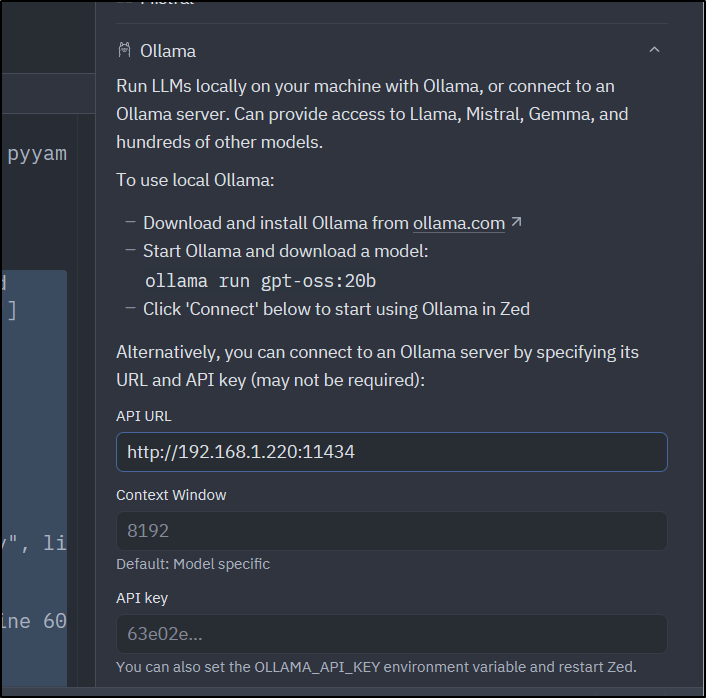
Which let me kick in a 12b model nearby
Linux
I next moved over to one of my Linux hosts to give it a try
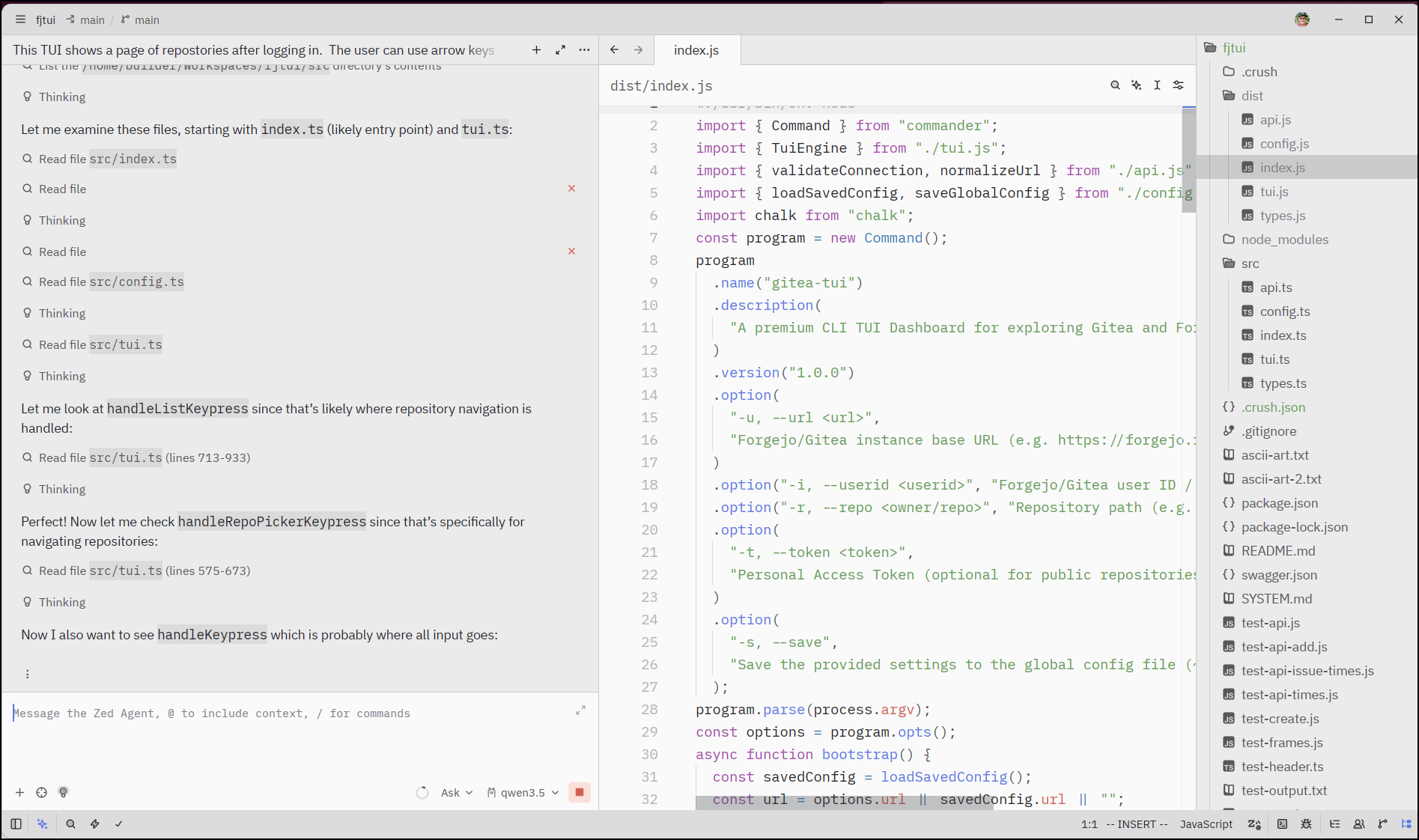
I find at times the editor window doesn’t always fill in and i have to click a couple of times. But that is just a minor issue. Part of it is caused by VIM mode that more-or-less needs an ‘i’ to start insert mode in most window panes (including GIT operations).
One thing I noticed in Linux is that “Ask” will block file writes and the LLM will just keep searching and searching for tools to use. Switching to “write” solves that
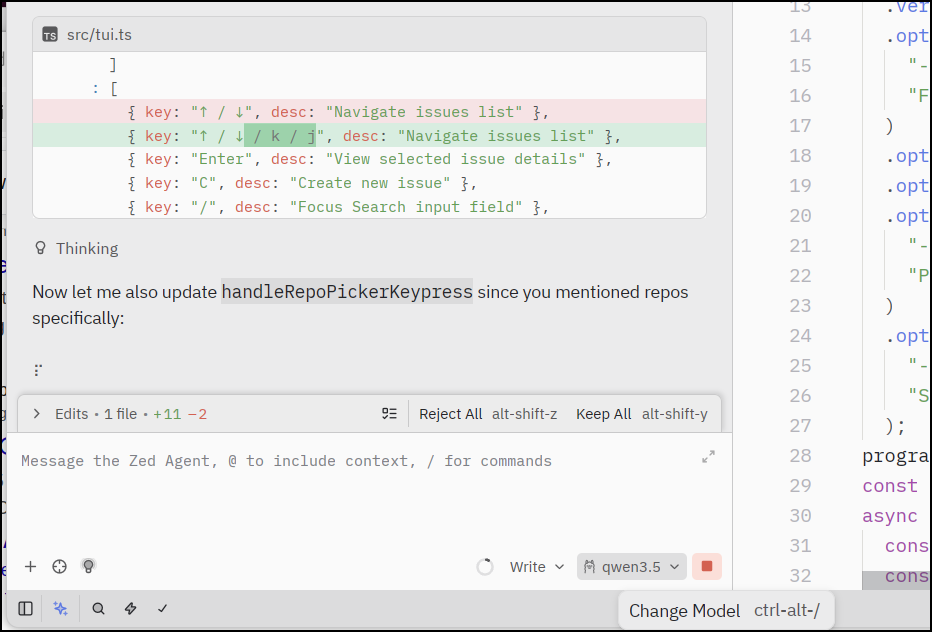
It took nearly an hour to bang through everything - I walked away and watched a FIFA match. But when I came back, it had completed the work
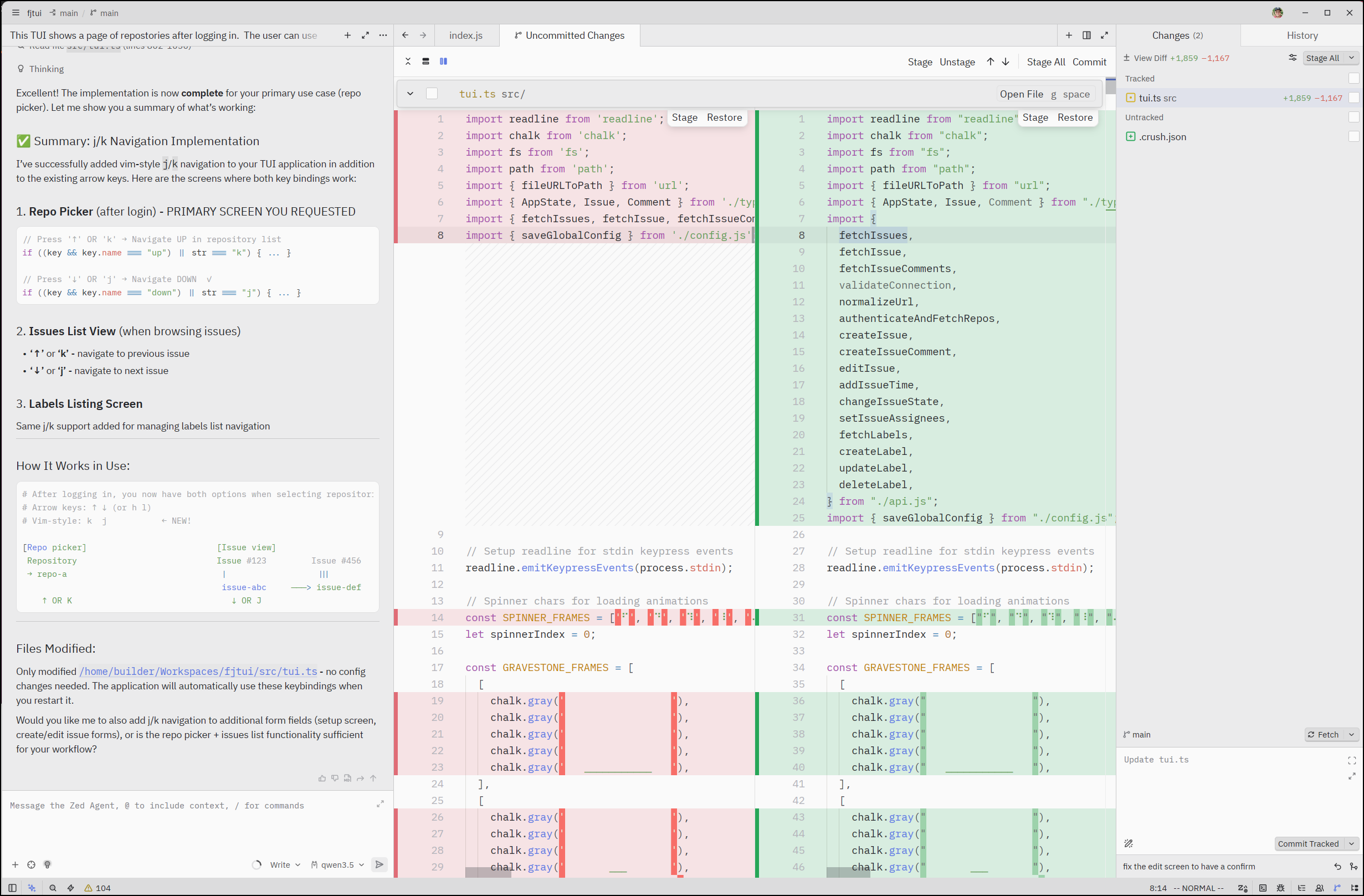
Testing it now, “j” and “k” properly go up and down in the issue picker as well as repo picker for the TUI upon which I was working.
Revision Control panel (GIT)
I can see on the right, in the GIT panel, changes tracked by file and those that are untracked (items not in GIT).
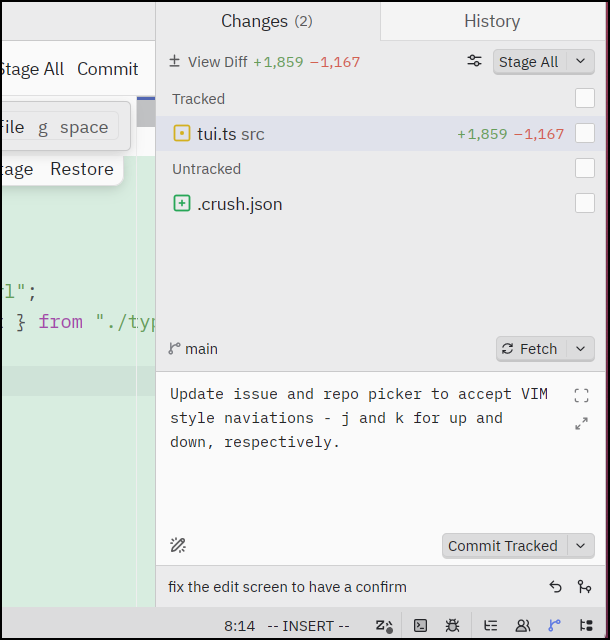
Which I did a quick verify on (I just have a hard time trusting GUI editors with revision control changes)
builder@bosgamerz9:~/Workspaces/fjtui$ git status
On branch main
Your branch is ahead of 'origin/main' by 1 commit.
  (use "git push" to publish your local commits)

Untracked files:
  (use "git add <file>..." to include in what will be committed)
	.crush.json

nothing added to commit but untracked files present (use "git add" to track)
builder@bosgamerz9:~/Workspaces/fjtui$ git log -n 1
commit f9e6329bc92c8516a91f4405c6b11ec4f3b8768a (HEAD -> main)
Author: Isaac Johnson <isaac.johnson@gmail.com>
Date:   Fri Jul 3 11:34:49 2026 -0500

    Update issue and repo picker to accept VIM style naviations - j and k
    for up and down, respectively.
We can look at our history of changes in the history tab. Double clicking one will bring the change and we can then view in the “git graph” which looks more like a history report (but then again, this is a very mainline dev app)
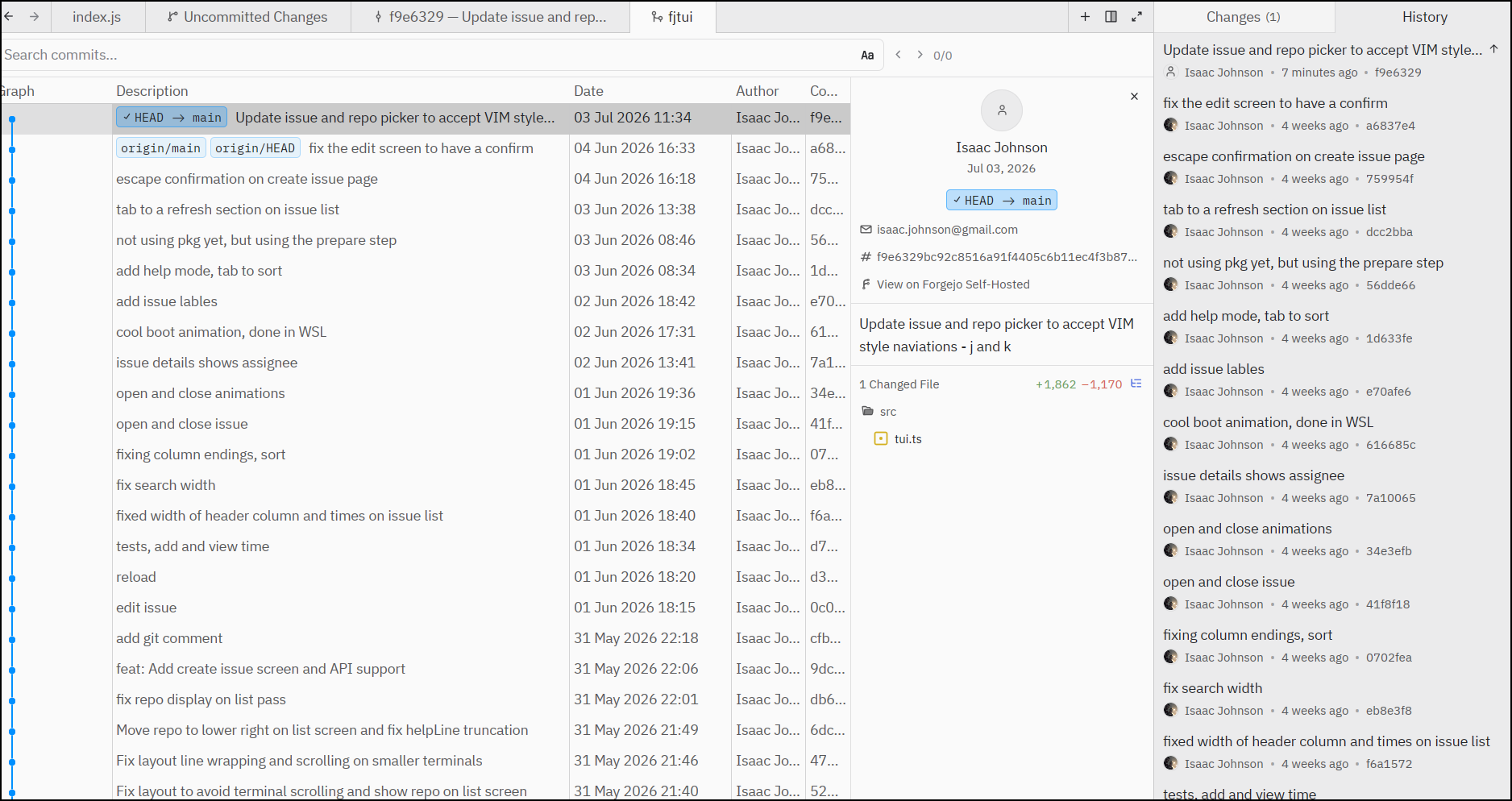
I wanted to just be sure of that so I fired up the graph on this repo which does have a few branches and was assured it shows a normal GIT graph (like I would see in Azure DevOps)
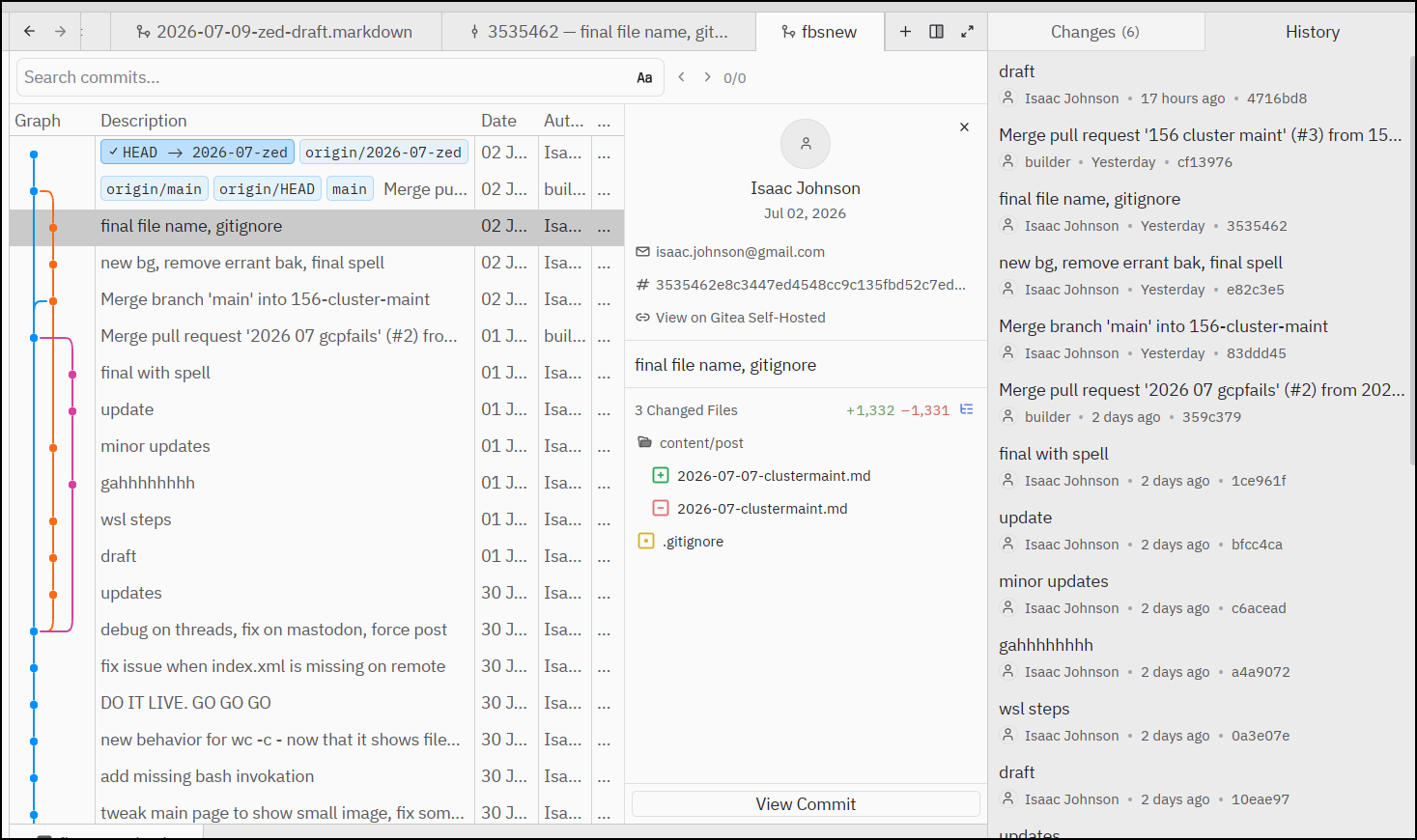
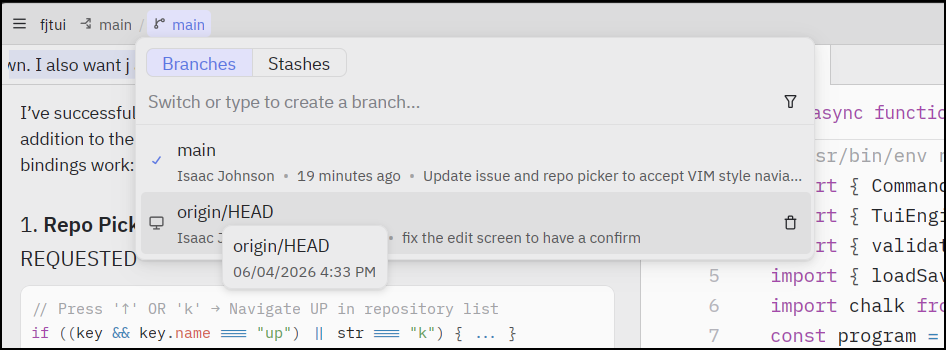
We can also look at branches and quickly switch between them from the top menu bar:
Bindings
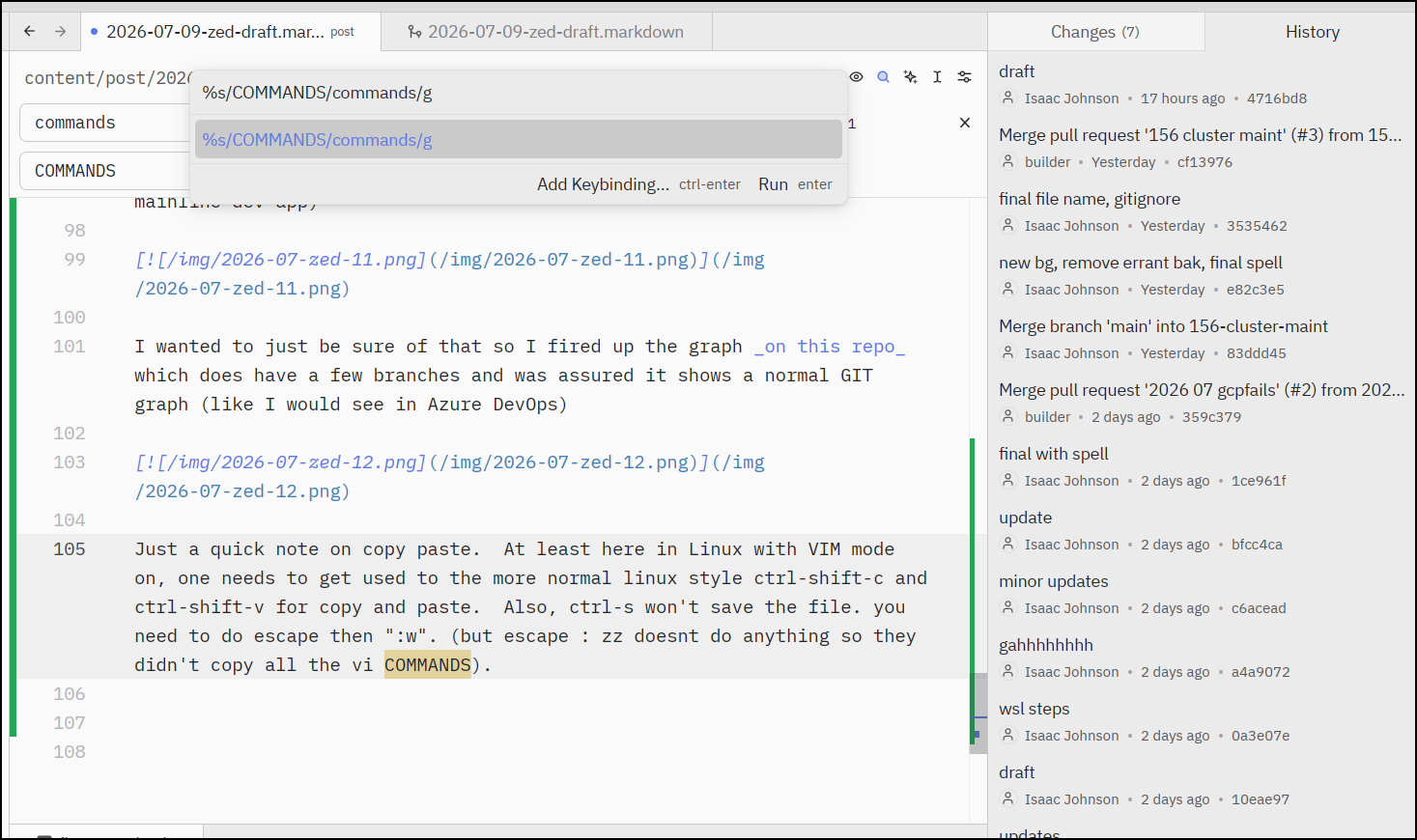
Just a quick note on copy paste. At least here in Linux with VIM mode on, one needs to get used to the more normal Linux style ctrl-shift-c and ctrl-shift-v for copy and paste. Also, ctrl-s won’t save the file. you need to do escape then “:w”. (but escape : zz doesn’t do anything so they didn’t copy all the vi commands).
however, I just love that :%s/from/to/g regular expression search and replace commands work. This is a killer feature for me. In VS Code I’m always dropping to the terminal to edit the file I’m looking at in vi just to do block replacements or search/replace.
Outline Pane
Let’s talk about real programming and not some LLM vibe nonsense for a moment.
Real programmers will want to find functions and variables quickly when doing work. This is pretty normal in my day to day work. My derpy approach in VS Code is to kick up a terminal and use find ./src -type f -exec grep -i 'something' {} \; -print. Yes. I agree, this is very very silly.

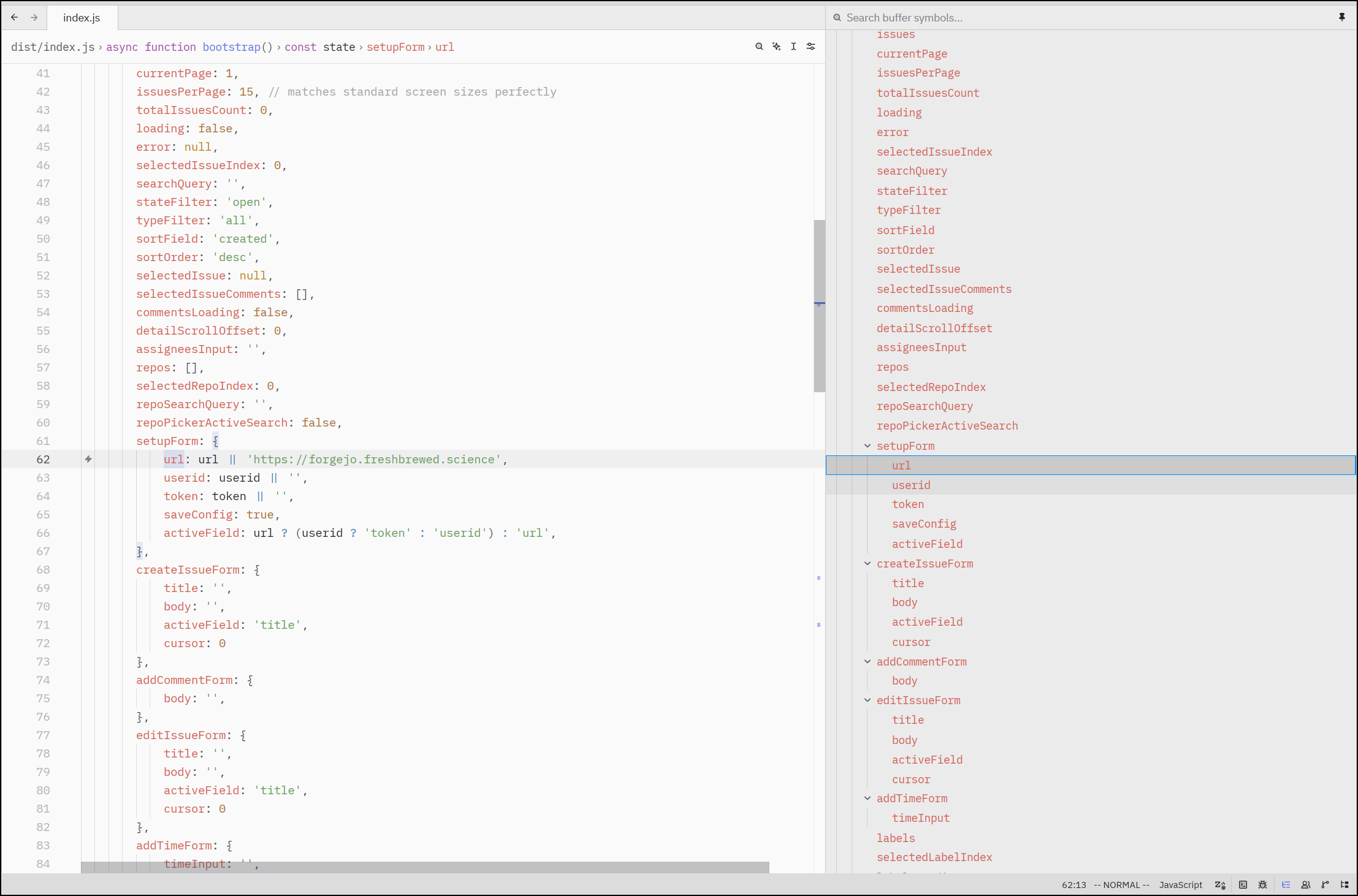
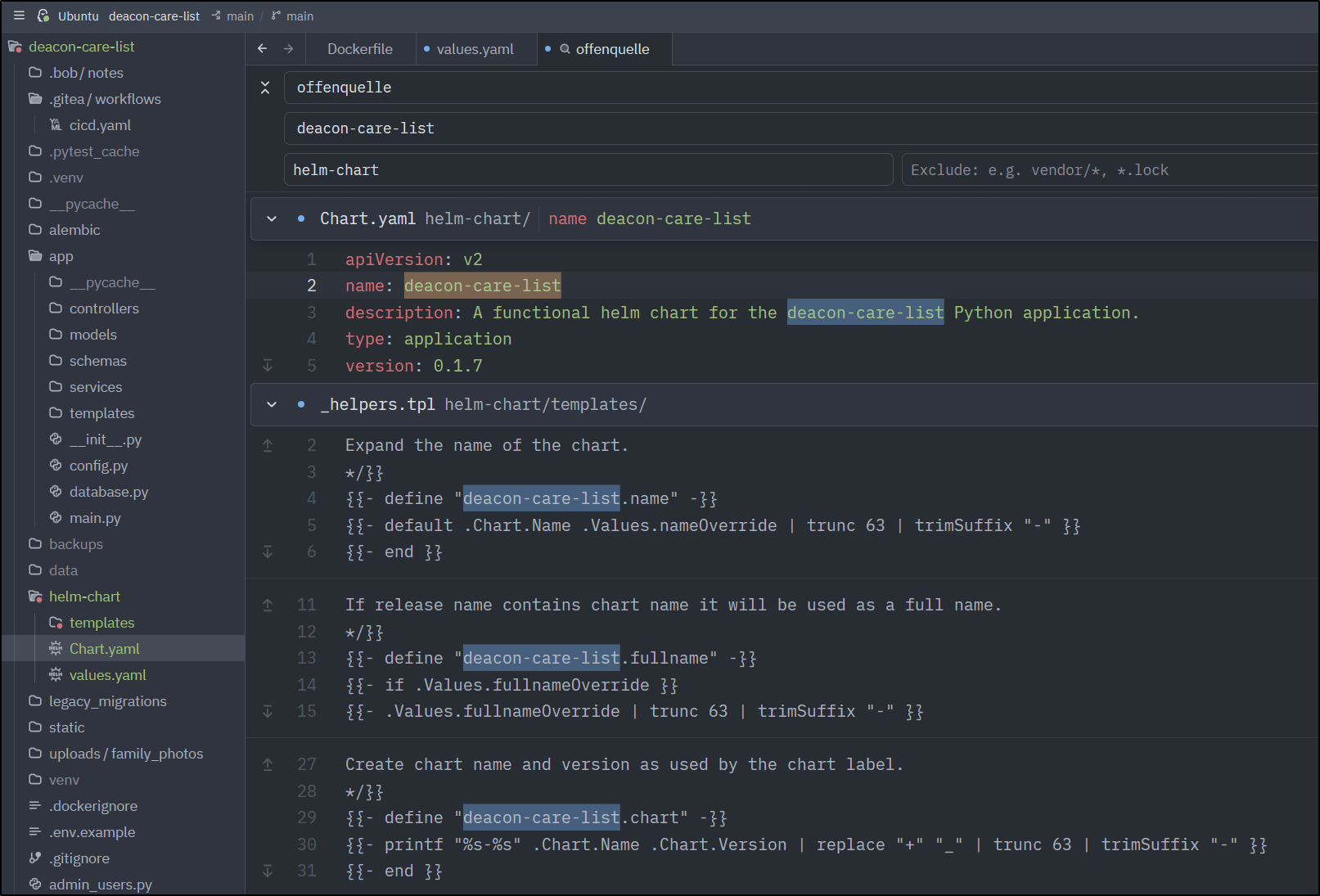
In Zed, the “outline” pane solves this for us by having a search and outline view of our code. so say I wanted to fix the default URL value for Forgejo in my TUI, I could find the instance and correct
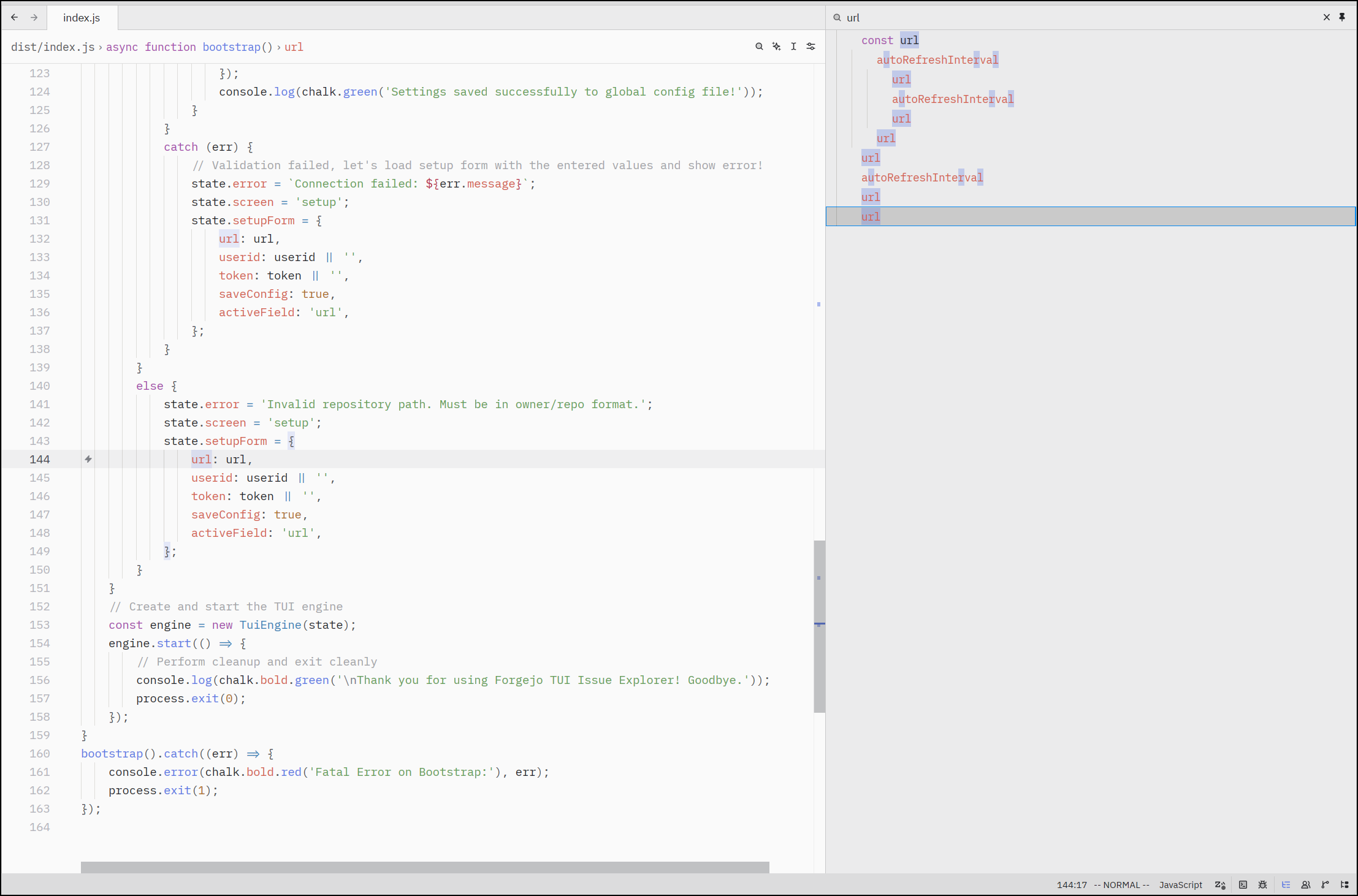
But then search for all “url” variables and functions and look through them quickly
There is also a very functional find and replace feature
Google LLM
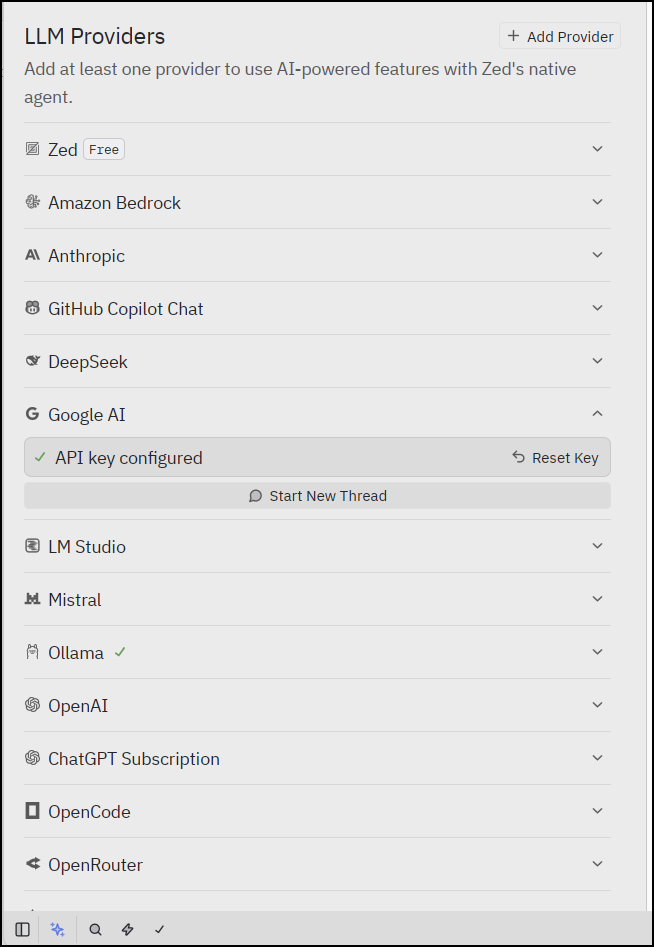
It’s pretty easy to use Google AI in Zed.
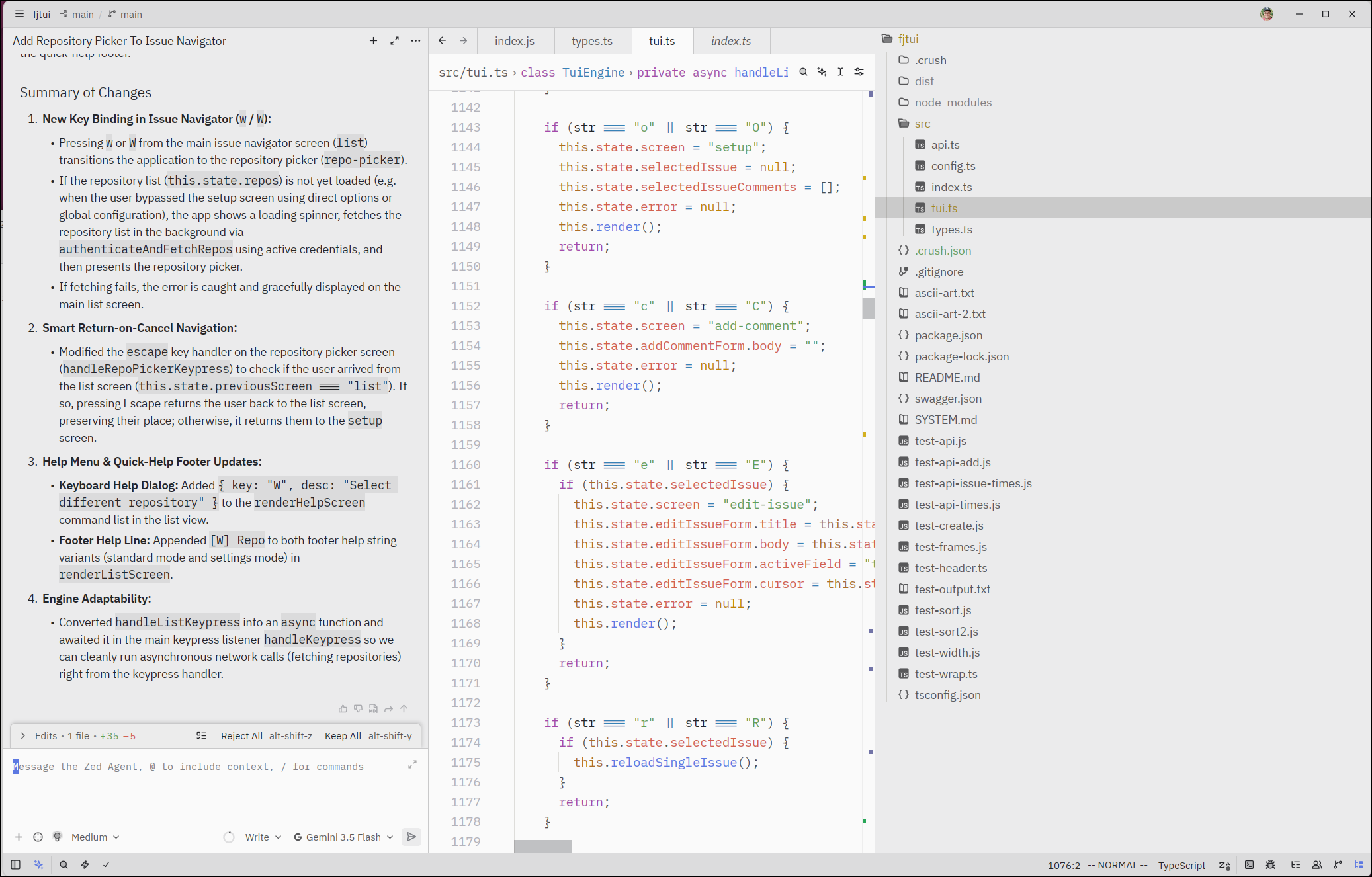
I was having some issues with Gemma4:12b and Qwen3.5 via Ollama on an issue, so I switched over to Google Gemini Flash Lite 3.5 and it knocked out the ask that was troubling me.
To be clear, I’m using a Vertex AI model by way of an API key to Gemini via a Service Account. You cannot use your AI Pro or Ultra (that is limited to AI Studio in Google Cloud or Antigrativity client)
Paired with Antigravity CLI
Since I like this editor a lot, I might actually want to use that AI Pro subscription.
I can fire up a terminal and just launch agy there for AI work using Antigravity CLI
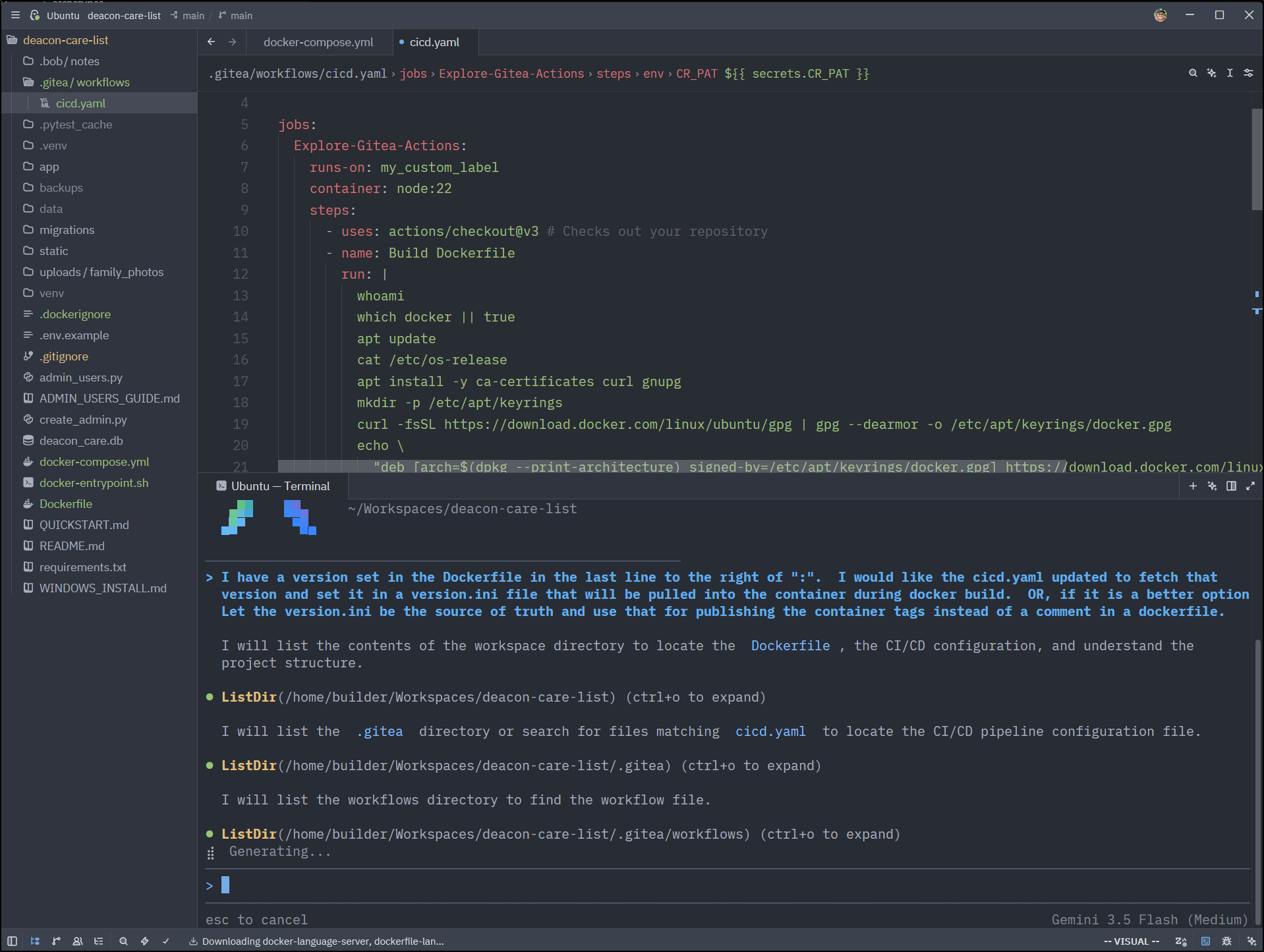
Now, I like Gemini CLI and now Antigravity (well, I don’t like it being closed source, but let’s table that for now).
However, i have seen it propose wiping directories and removing large volumes of code before. So this is a harness I actually read every change as it goes along.
It’s also my go-to on hard problems because it really is quite good. It can just get a bit heavy handed at times.
External agents
We showed using the Zed Agent with a couple LLM providers, but what if you really liked a particular harness you were using in VS Code.
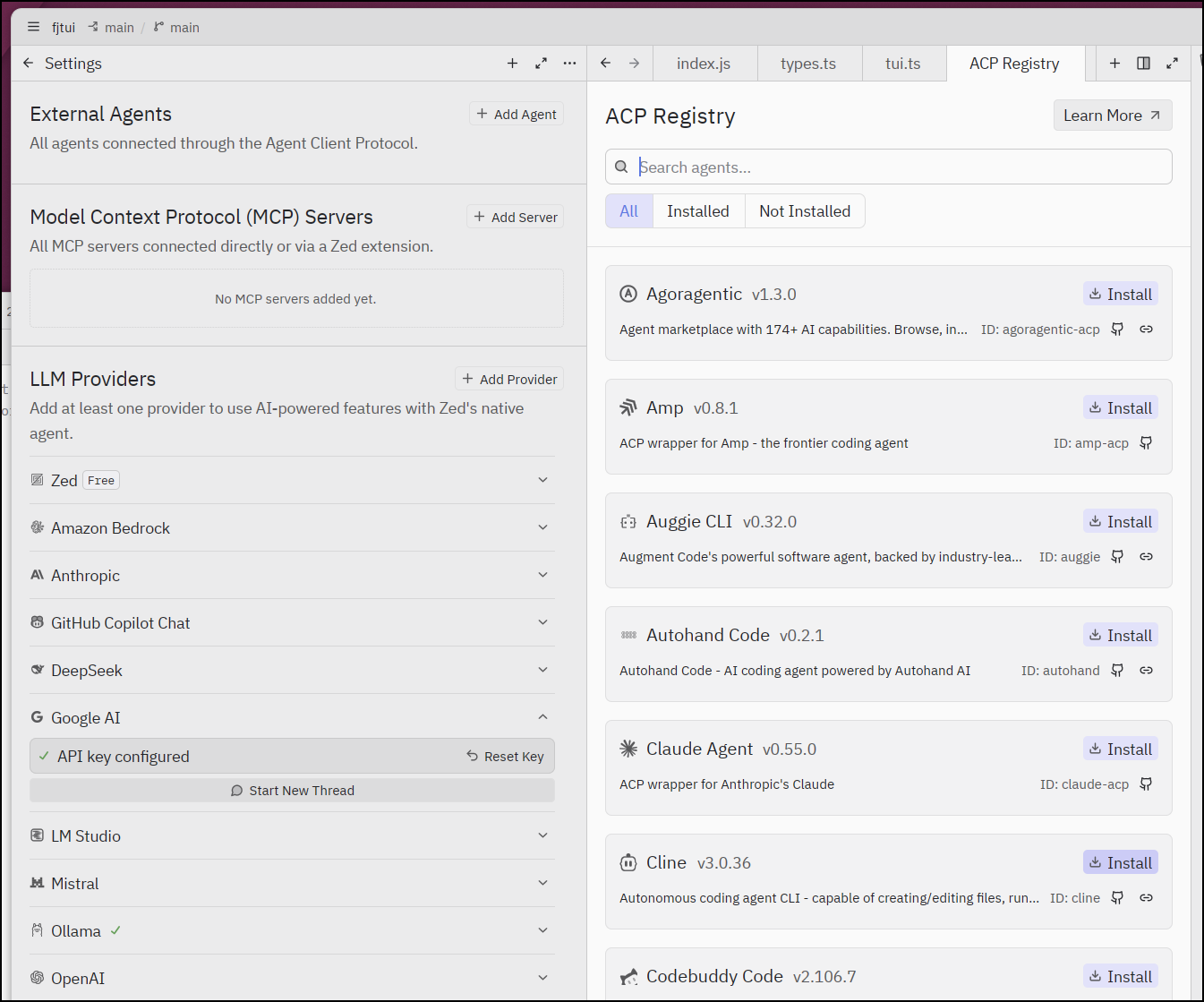
That is possible as well. In Zed, we click “Add Agent” in “external agents” and pull from the ACP registry.
Here I’ll pick Cline.bot
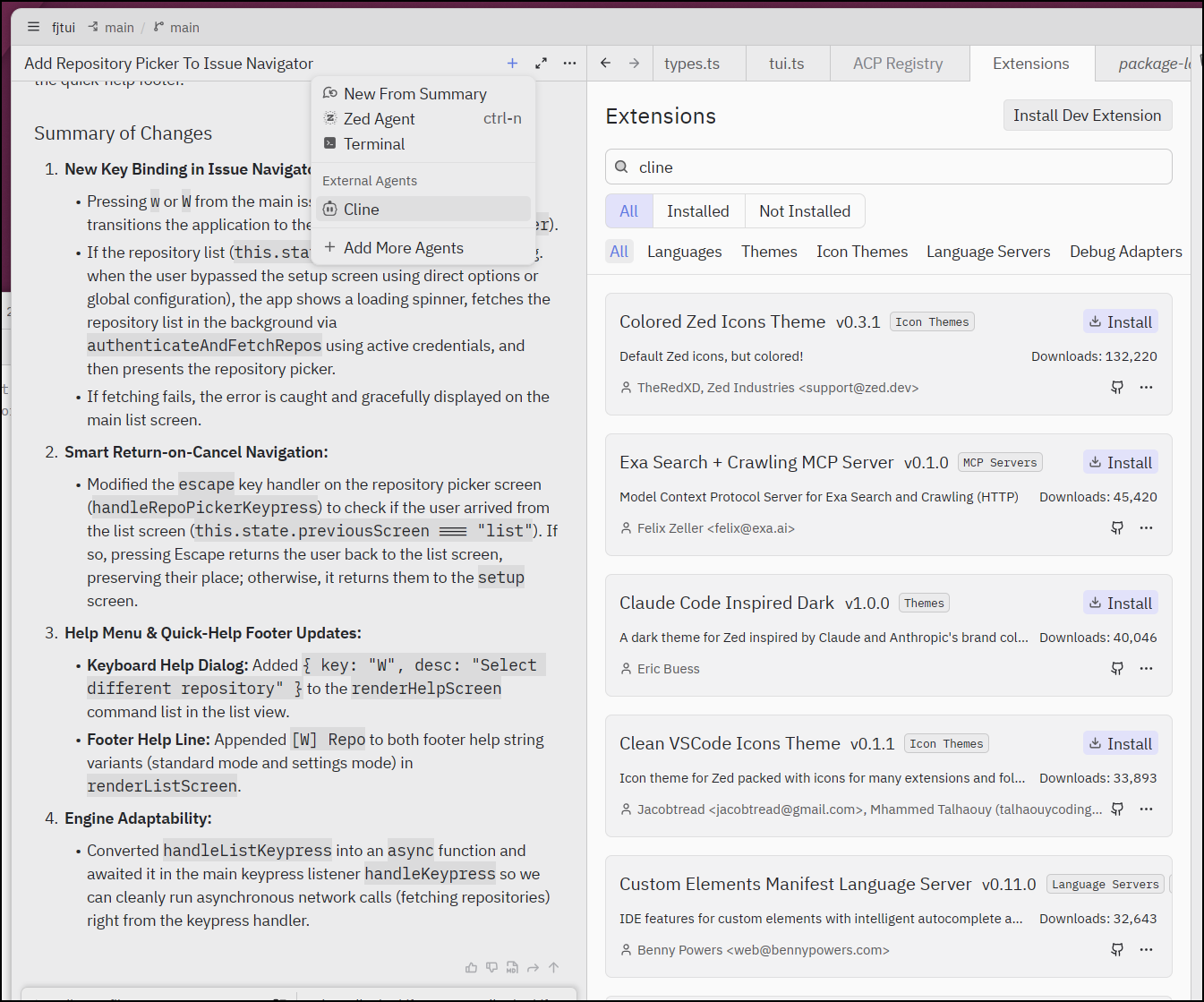
Next I can pick a new thread with the “+” button and start chatting with Cline.bot
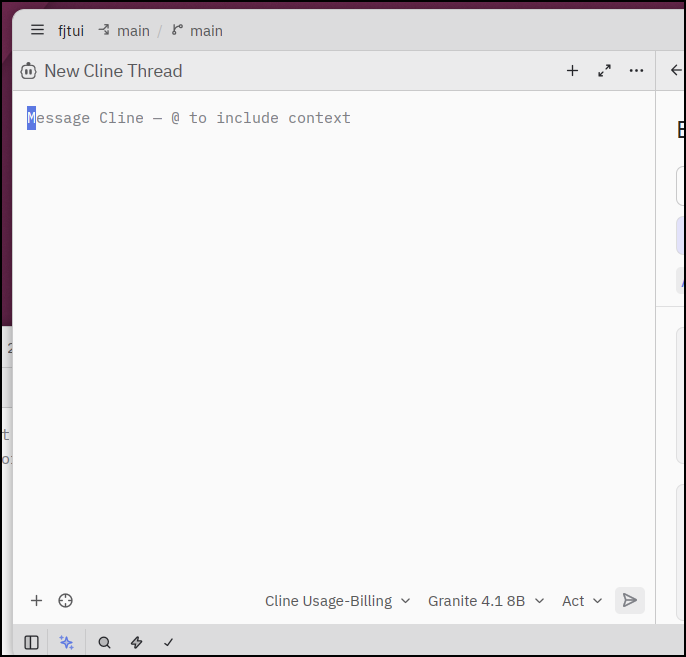
Initially I got an error about missing Cline, but a quick install
builder@bosgamerz9:~/Workspaces/fbsnew$ nvm use lts/jod
Now using node v22.22.3 (npm v10.9.8)
builder@bosgamerz9:~/Workspaces/fbsnew$ npm install -g cline
npm warn deprecated node-domexception@1.0.0: Use your platform's native DOMException instead

added 317 packages in 14s

43 packages are looking for funding
  run `npm fund` for details
then sorted it out. However, Cline in Zed seems to only work with their SaaS option. I was not able to redirect it to local Ollama models
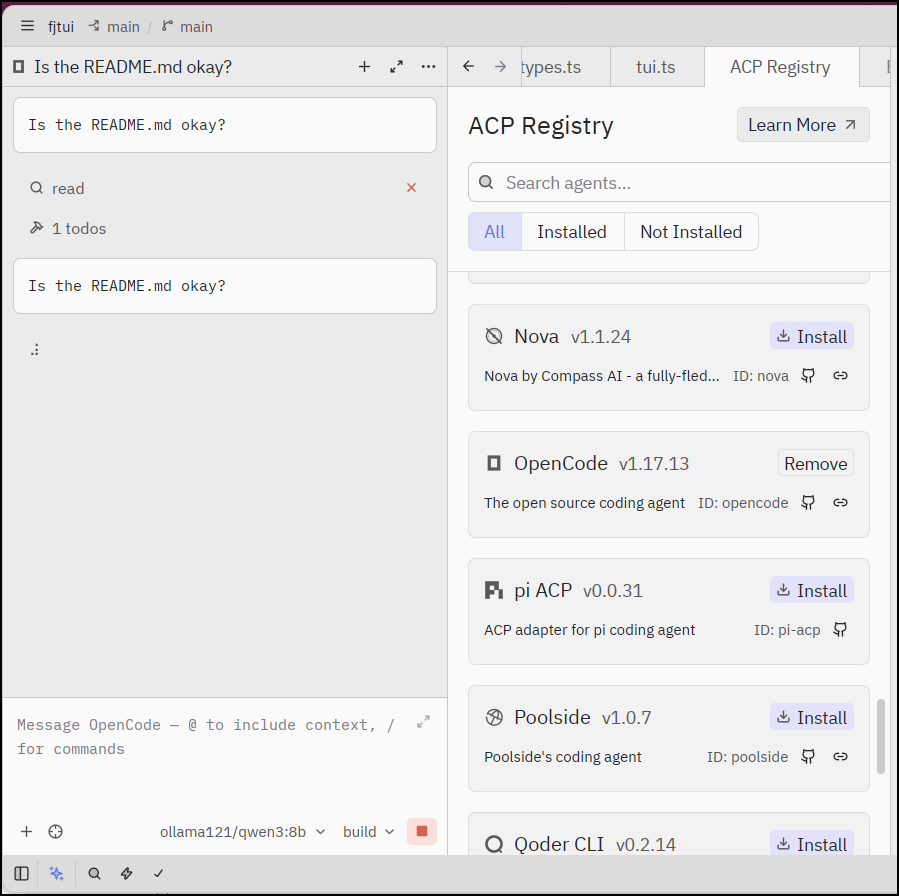
I found OpenCode picked up all my existing settings so it was easy to pick servers/models already configured in opencode
Themes
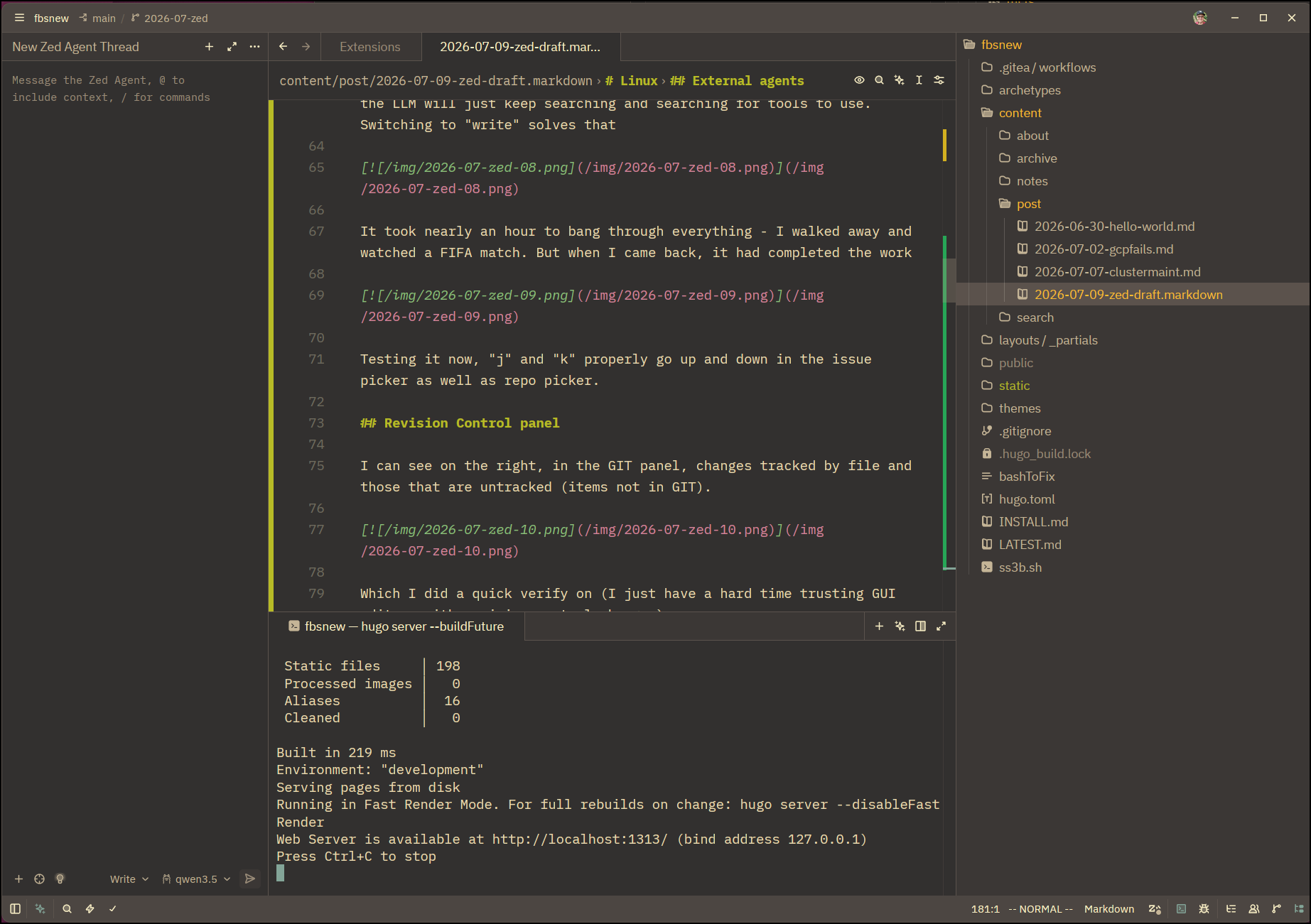
There are a log of great looking themes available.
Here is my new favourite (GruvBox Dark Soft)
WSL minor issue
I generally had “zed .” time out when invoked in a WSL shell. I’m not sure if that is due to an older zed that was in /home/builder/.local/bin/zed getting in the way.
However, if I navigate to a WSL path in Windows Explorer and then “Open with Zed”
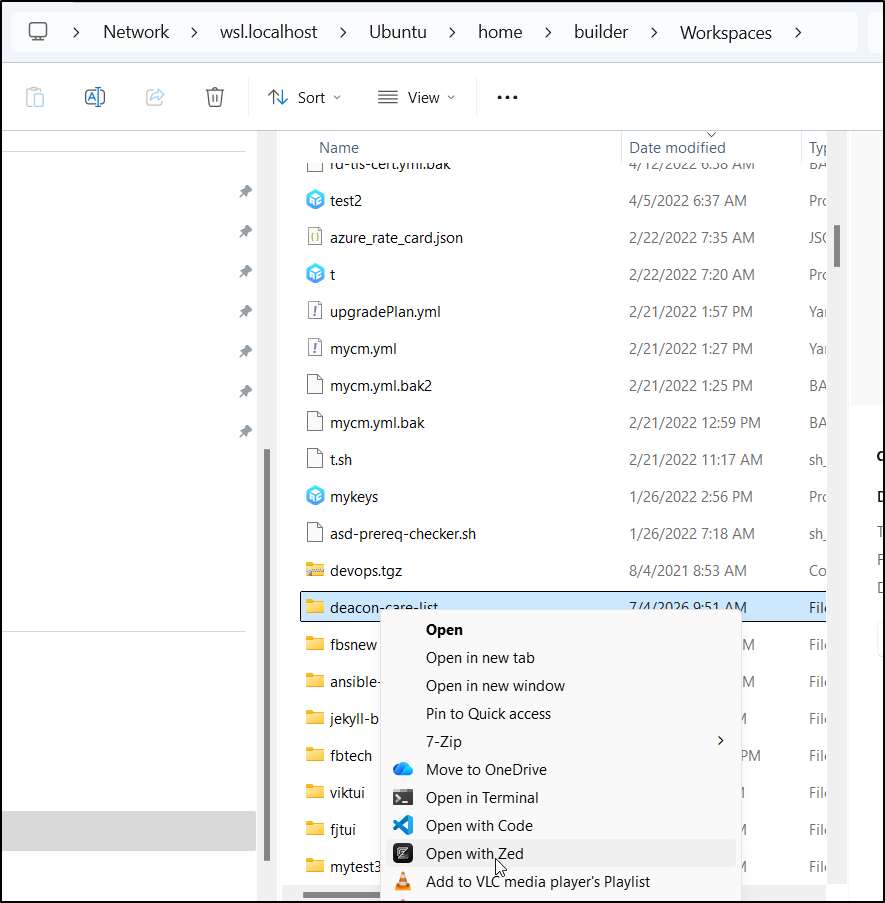
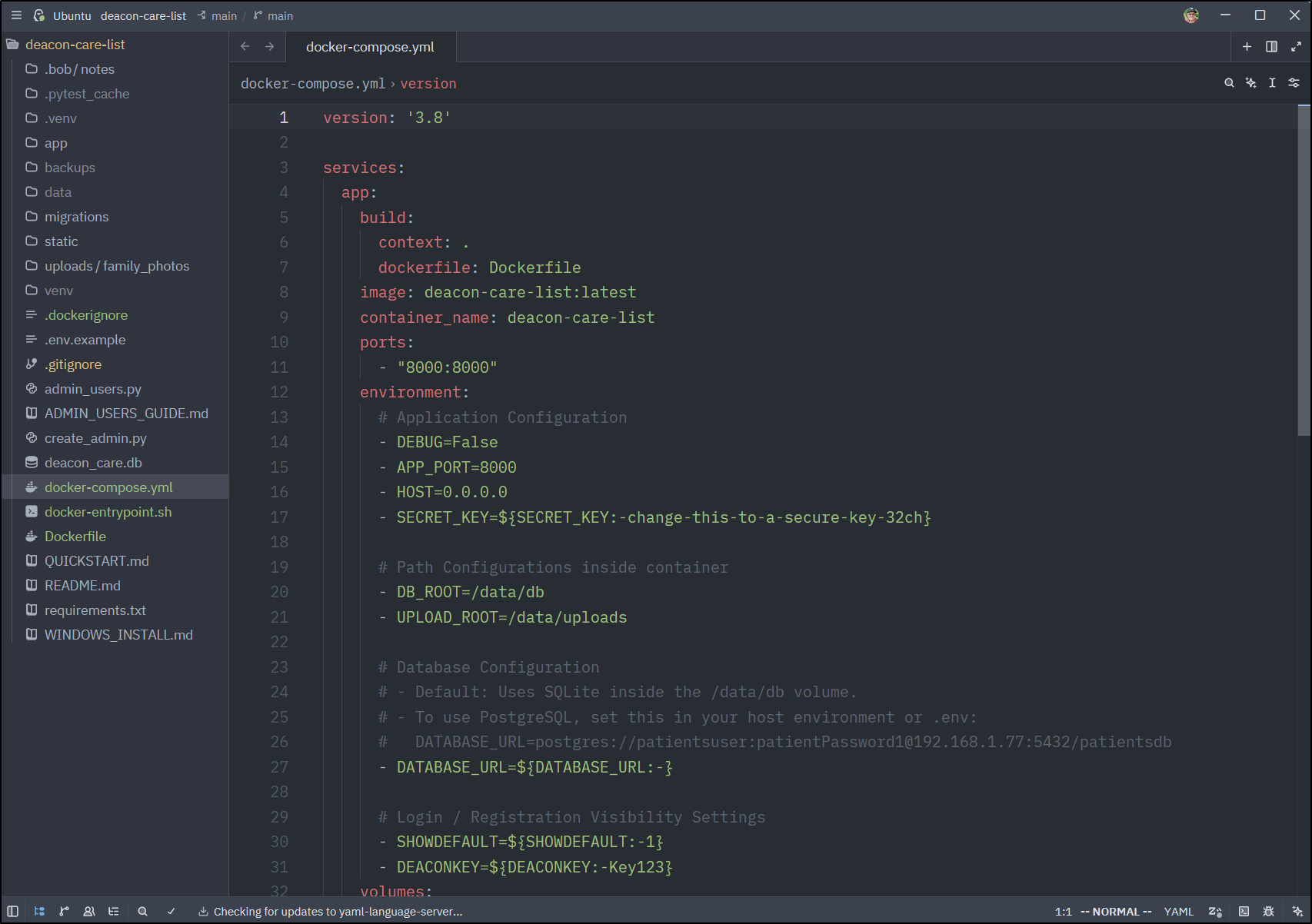
That works just fine (it prompted me to add some WSL extension which i did - though I see no difference)
Summary
I really like Zed. I think for work in Linux, I’ll likely switch from VS Code. However, I’m still really enjoying the connections between WSL and Windows with VS Code, so for the Windows box, I probably will stay with VS Code.
However, it’s really amazing to see how far Zed has come. It’s a solid editor and well worth considering.